Catalog Avatar Creator is the ultimate playground for building and experimenting with avatars. You get access to over 50 million community-created outfits and countless catalog items — all free to try on. Whether you're looking to copy a style you love or mix pieces to create something completely new, these tips will help you navigate the game like a pro.
Start with Community Outfits
The fastest way to find inspiration is to browse the ever-growing collection of over 50 million community-created outfits. You don't have to build from scratch — load a popular outfit, see what works together, then tweak it. This is perfect when you're unsure about color combinations or which accessories match your style.
Try On Everything Before Buying
The core feature of this game is the ability to test items on your avatar for free. Use this! Put on accessories, hats, limiteds, and bundles to see how they look on your exact avatar shape and skin tone. If you buy something and hate it, you've spent real Robux — but if you test it here first, you already know you'll love it.
Experiment with Animation Packs
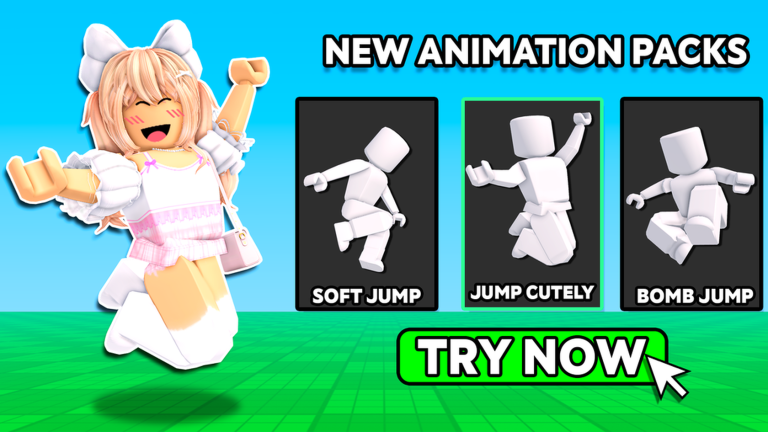
Animation packs change how your avatar moves and behaves in all Roblox games. Catalog Avatar Creator now includes UGC animation packs you can try on in-game before buying. Spend a few minutes testing different animations to find one that matches your personality or the vibe of your outfit.
Mix Hair Combos and Bundles
Hair and bundles can completely transform your look. Instead of sticking with individual pieces, test out hair combos (pre-made hair sets) and bundles that often coordinate better than picking items separately. You can always layer individual accessories on top to customize further.
Save Avatars You Love
Once you've created an avatar you're happy with, save it in-experience. This lets you come back to that exact look anytime. You can create multiple saved avatars for different moods, occasions, or just to keep your favorites organized.
Check Color Combos on Different Skins
Colors look different depending on your avatar's skin tone. Before settling on an outfit, try it on with a couple of different skin colors to make sure the overall vibe works. What looks amazing on one tone might clash on another.
Remember Purchases Work in All Games
Any items you buy in Catalog Avatar Creator are automatically added to your Roblox inventory. You can use them in every other game on Roblox, not just this one. This makes it a smart place to audition items before wearing them anywhere else.
Use Limiteds and Rare Items Strategically
Limiteds and rare items are part of your testing ground here. Try them on to see if they actually match your style or fit with your other pieces before making a real purchase. Sometimes a limited that looks amazing in isolation doesn't work with the rest of your avatar.
Customize Incrementally
Start with a base outfit, then add one piece at a time rather than loading everything at once. This helps you see exactly how each new item affects the overall look and makes it easier to spot when something doesn't match.
Take Screenshots of Your Best Looks
Once you've created an avatar you love, take a screenshot. Keep a folder on your computer of looks you've created. This is helpful if you forget what items made up a specific outfit or want to recreate it later after a game update.