Tag: roblox beginner scripting

  • How to Make Objects Spin in Roblox Studio (Copy & Paste Script)

    How to Make Objects Spin in Roblox Studio (Copy & Paste Script)


    How to Make Objects Spin in Roblox Studio (Copy & Paste Script)


    Roblox Studio Scripting

    How to Make Objects Spin in Roblox Studio (Copy & Paste Script)

    How to make objects spin in Roblox Studio – rotating part example
    Spin Parts or Models smoothly in place with custom speed and axis.

    This guide gives you a geometric spinner that rotates a Part or a full Model around its
    bounding-box center (not center-of-mass). It works even when anchored, uses CFrame/PivotTo,
    and runs smoothly each frame via RunService.Heartbeat.

    On this page

    Geometric Spinner Script (Parts & Models)

    Put this Script inside any Part or Model you want to spin. It rotates around the geometric center and works even when anchored.

    lua — Script inside the Part or Model
    -- Script inside the Part or Model you want to spin.
    -- Spins around the GEOMETRIC CENTER (bounding-box center), not COM.
    -- Uses CFrame/PivotTo, so works even if anchored.
    
    local rps  = 0.25                         -- rotations per second
    local axis = Vector3.new(0, 1, 0)         -- world axis to spin around (Y = up)
    
    local RunService = game:GetService("RunService")
    
    local function anchorDescendants(model, anchored)
        for _, inst in ipairs(model:GetDescendants()) do
            if inst:IsA("BasePart") then
                inst.Anchored = anchored
            end
        end
    end
    
    local owner = script.Parent
    
    -- CASE 1: Single Part
    if owner:IsA("BasePart") then
        owner.Anchored = true  -- anchor for visual spinning
        local omega = rps * 2 * math.pi
        local last = tick()
    
        while owner.Parent do
            local now = tick()
            local dt = now - last
            last = now
    
            -- rotate around world axis, keeping same position
            local rot = CFrame.fromAxisAngle(axis.Unit, omega * dt)
            owner.CFrame = CFrame.new(owner.Position) * rot * owner.CFrame.Rotation
    
            RunService.Heartbeat:Wait()
        end
        return
    end
    
    -- CASE 2: Model
    if owner:IsA("Model") then
        local anyPart = owner:FindFirstChildWhichIsA("BasePart", true)
        if not anyPart then
            warn("[Spinner] Model has no parts:", owner:GetFullName())
            return
        end
    
        -- Anchor all parts so physics won't fight the visual spin
        anchorDescendants(owner, true)
    
        local bboxCF, _ = owner:GetBoundingBox()
        local centerCF = CFrame.new(bboxCF.Position) -- translation only
    
        -- Remember model's current pivot relative to center
        local offset = centerCF:ToObjectSpace(owner:GetPivot())
    
        local omega = rps * 2 * math.pi
        local last = tick()
    
        while owner.Parent do
            local now = tick()
            local dt = now - last
            last = now
    
            local rot = CFrame.fromAxisAngle(axis.Unit, omega * dt)
            owner:PivotTo(centerCF * rot * offset)
    
            RunService.Heartbeat:Wait()
        end
        return
    end
    
    warn("[Spinner] Parent must be a BasePart or Model, got:", owner.ClassName)

    How It Works (Explained)

    1) Rotations Per Second (rps)

    rps = 0.25 means one quarter turn per second (full rotation every 4 seconds). We convert to radians/sec with omega = rps * 2π.

    2) Case 1: Single Part

    A Part’s CFrame.Position is already its geometric center. Each frame we compute dt, build a rotation with CFrame.fromAxisAngle, and reapply position + orientation so it spins in place.

    3) Case 2: Model

    Models don’t have a single CFrame, so we take the bounding-box center via GetBoundingBox(), store the current pivot offset, and on each frame call PivotTo(center * rotation * offset) so it spins exactly around that center.

    4) Anchoring

    We anchor Parts (or all descendants for Models) so physics doesn’t fight the manual rotation. This is ideal for pickups, coins, spinning props, etc.

    5) Heartbeat Loop

    The rotation runs on RunService.Heartbeat for smooth, frame-by-frame updates at the desired speed.

    How to Use It (Step-by-Step)

    For a Single Part

    1. Insert a Part (e.g., coin or cube) into Workspace.
    2. Set Anchored = true.
    3. Insert a Script inside the Part and paste the code.
    4. Press Play → it spins forever around its center.

    For a Model

    1. Group your pieces into a Model.
    2. Insert a Script in the Model and paste the code.
    3. Press Play → it spins around its bounding-box center.

    Customizing Speed & Axis

    • Speed: set rps to 1 (fast), 0.1 (slow), etc.
    • Axis: Vector3.new(0,1,0) spins around Y (up). Try Vector3.new(1,0,0) for X or Vector3.new(0,0,1) for Z.
    • Start/Stop: gate the loop with a BoolValue or custom event to toggle spinning at runtime.

    Suggested WordPress tags

    how to make objects spin in roblox studio, roblox spin script, roblox cframe rotation, roblox pivotto tutorial,
    roblox rotating part, roblox spinning model, roblox anchored spin script, roblox axis rotation, roblox runservice heartbeat,
    roblox studio scripting tutorial, roblox beginner scripting


  • How to Make a Deathscreen in Roblox Studios (Copy-Paste Code)

    How to Make a Deathscreen in Roblox Studios (Copy-Paste Code)


    How to Make a Deathscreen in Roblox Studios (Copy-Paste Code)


    Roblox Studio GUI

    How to Make a Deathscreen in Roblox Studios (Copy-Paste Code)

    TL;DR: In StarterPlayer > StarterPlayerScripts, add a LocalScript, paste the code below, and hit Play.
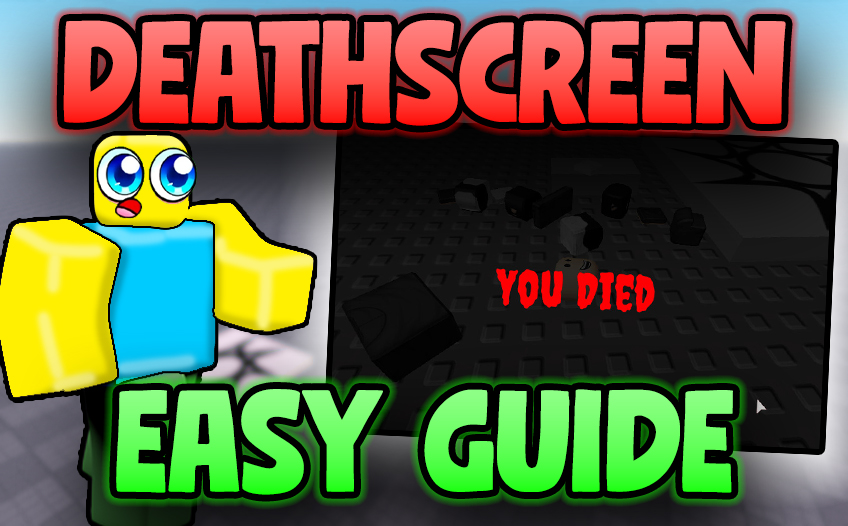
    The overlay dims the screen so you can read the text, shows YOU DIED with tiny subtext directly underneath, and auto-cleans itself 5 seconds after you respawn.

    On this page

    Copy-paste Deathscreen LocalScript

    This script listens for your Humanoid.Died event, creates a ScreenGui with a darker
    transparent tint, renders a centered YOU DIED headline, then a very small, lighter subtext directly under it
    (“man you suck”). After you respawn, it automatically removes itself after 5 seconds.

    lua — LocalScript (StarterPlayerScripts)
    -- Death Screen LocalScript (StarterPlayerScripts)
    local Players = game:GetService("Players")
    local player = Players.LocalPlayer
    
    local deathGui -- will hold the ScreenGui instance
    
    local function showDeathScreen()
    	-- Remove old one if it exists
    	if deathGui then
    		deathGui:Destroy()
    		deathGui = nil
    	end
    
    	deathGui = Instance.new("ScreenGui")
    	deathGui.Name = "DeathScreen"
    	deathGui.ResetOnSpawn = false
    	deathGui.IgnoreGuiInset = true
    	deathGui.Parent = player:WaitForChild("PlayerGui")
    
    	-- Background tint (darker, semi-transparent)
    	local background = Instance.new("Frame")
    	background.Size = UDim2.fromScale(1, 1)
    	background.BackgroundColor3 = Color3.new(0, 0, 0)
    	background.BackgroundTransparency = 0.3 -- darker tint, adjust between 0.3-0.5 to taste
    	background.Parent = deathGui
    
    	-- Main "YOU DIED" text
    	local label = Instance.new("TextLabel")
    	label.Size = UDim2.new(1, 0, 0.2, 0)
    	label.Position = UDim2.fromScale(0, 0.35)
    	label.BackgroundTransparency = 1
    	label.Text = "YOU DIED"
    	label.TextScaled = true
    	label.Font = Enum.Font.GothamBold
    	label.TextColor3 = Color3.new(1, 1, 1)
    	label.Parent = background
    
    	-- Small subtext directly under the main text
    	local subLabel = Instance.new("TextLabel")
    	subLabel.Size = UDim2.new(1, 0, 0.05, 0) -- much smaller height
    	subLabel.Position = UDim2.new(0, 0, 0.53, 0) -- right below main text
    	subLabel.BackgroundTransparency = 1
    	subLabel.Text = "man you suck"
    	subLabel.TextScaled = true
    	subLabel.Font = Enum.Font.Gotham
    	subLabel.TextColor3 = Color3.fromRGB(200, 200, 200)
    	subLabel.Parent = background
    end
    
    local function hookHumanoid(humanoid)
    	humanoid.Died:Connect(function()
    		showDeathScreen()
    	end)
    end
    
    local function onCharacterAdded(char)
    	-- after respawn, remove death screen after 5 seconds
    	if deathGui then
    		task.delay(5, function()
    			if deathGui then
    				deathGui:Destroy()
    				deathGui = nil
    			end
    		end)
    	end
    
    	local hum = char:FindFirstChildOfClass("Humanoid") or char:WaitForChild("Humanoid", 10)
    	if hum then
    		hookHumanoid(hum)
    	end
    end
    
    if player.Character then onCharacterAdded(player.Character) end
    player.CharacterAdded:Connect(onCharacterAdded)
    

    Optional: quick “kill brick” to test

    Drop a Part into the workspace and paste this tiny Script inside it. Touch it to trigger your deathscreen instantly.

    lua — Script inside a Part
    -- Simple Kill Brick (Script inside a Part)
    local part = script.Parent
    part.Touched:Connect(function(hit)
      local hum = hit.Parent:FindFirstChildOfClass("Humanoid")
      if hum and hum.Health > 0 then
        hum.Health = 0
      end
    end)

    For more polish later, swap “man you suck” for a friendlier subtitle, add a respawn button, or fade the background in/out.

    Steps: how to make a deathscreen in Roblox Studios

    1. Create a LocalScript: Explorer → StarterPlayer > StarterPlayerScripts → LocalScript.
    2. Paste the code: Use the blue Copy code button above and paste into the new LocalScript.
    3. Playtest: Press Play. When your character dies, the screen tints darker, shows YOU DIED with a very small subtext right under it, and cleans up 5s after respawn.
    4. Optional test part: Use the kill brick script to trigger death on touch.

    Best practices

    • Keep ResetOnSpawn = false so the GUI persists across the death/respawn boundary until your delayed cleanup runs.
    • Use IgnoreGuiInset = true to cover the whole screen evenly.
    • Balance readability with a BackgroundTransparency around 0.3–0.5.
    • Hook Humanoid.Died every time a new character spawns (that’s what CharacterAdded is for).

    FAQ & troubleshooting

    No GUI appears? Make sure the script is a LocalScript inside StarterPlayerScripts (client context). Also confirm you’re in Play mode, not just editing.

    Text is too small/large? This guide uses TextScaled = true so it auto-sizes. Adjust the Position and Size if you want the subtitle closer or farther.

    Want 10 seconds instead of 5? Change the value in task.delay(5, …).

    Need different fonts? Swap Enum.Font.GothamBold/Enum.Font.Gotham to your preferred fonts.

    Suggested WordPress tags (copy these into your post tags)

    how to make a deathscreen in roblox studios, roblox death screen tutorial, roblox studio gui, roblox “you died” text,
    roblox local script, starterplayerscripts, humanoid.died, roblox screen gui, roblox overlay dim screen, roblox respawn ui,
    roblox gotham font, roblox textlabel center, roblox kill brick script, roblox copy paste code, roblox beginner tutorial,
    roblox lua gui basics, roblox death ui, roblox studios guide, roblox overlay tutorial, roblox script examples

    Primary keyword repeats naturally throughout this page: how to make a deathscreen in roblox studios.
    (Roblox “Studio” is the correct product name; we include both to catch searches.)

    Further Reading

    See community tips and examples on Reddit:
    How to make a Roblox death screen (r/RobloxStudio_devs).