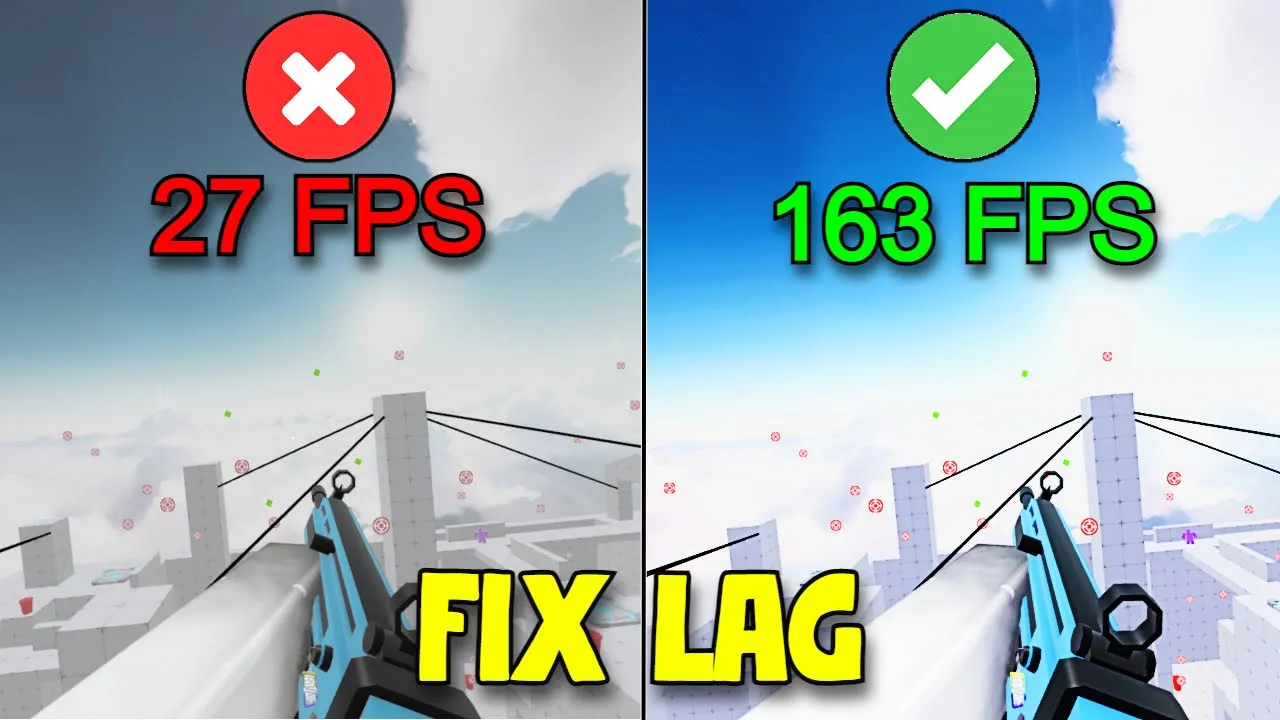
How to Fix Lag on Roblox Rivals
Fix lag on Roblox Rivals and unlock smooth frame rates even during peak crowds. Below you’ll find both in-game tweaks and Windows optimizations to boost your FPS and eliminate stutter.
In-Game Settings to Boost FPS
1. Disable Shadows
In the Rivals lobby or in-game menu click Settings → Graphics and turn off Shadows. Removing dynamic shadows reduces CPU/GPU load.
2. Disable Textures
Under the same Graphics panel, disable Textures. This replaces detailed assets with flat colors, cutting memory usage and draw calls.
3. Cap Your Frame Rate
Rivals includes an FPS unlocker. In Settings → Performance, set Max Frame Rate to 60 or 120. Higher caps add load—stick to 60 FPS for consistent smoothness.
4. Adjust Graphics Mode
Switch Graphics Mode to Manual and slide quality down for Microscopic or Low. Or select Automatic to let Roblox optimize for your hardware.
Windows Optimizations
5. Clear the Prefetch Folder
- Press Win + R, type
prefetch, and hit Enter. - Click Continue to grant access.
- Select all files (Ctrl + A) and delete them to clear old app data.
6. Empty the Recycling Bin
Open your Recycle Bin and choose Empty Recycle Bin. Confirm permanent deletion—this frees gigabytes of temporary data that can slow your PC.
Tips for Stable Gameplay
- Make sure your GPU drivers are up to date.
- Close background apps (Discord, browsers) before playing.
- Use an Ethernet connection instead of Wi-Fi for lower ping.
Conclusion
By combining in-game graphics tweaks with Windows clean-ups, you can fix lag on Roblox Rivals and enjoy competitive matches at high frame rates. Try each step until your gameplay feels butter-smooth.