Tag: bloxstrap

  • ABOUT


    About – SargantZafron


    About SargantZafron

    Hello! I’m SargantZafron, the creator of this website and the YouTube channel dedicated to helping Roblox players automate repetitive tasks, optimize performance, and master in-game strategies.

    My YouTube Journey

    I started my channel in 2023 with a simple goal: share easy-to-follow tutorials on Roblox macros. My first video covered an AutoHotkey script for the game Fisch. It quickly gained traction, and viewers began requesting guides for AFK farming in Blox Fruits, gem methods in Arise Crossover, and lag fixes in Roblox Rivals.

    “SargantZafron’s tutorials saved me countless hours of grinding—without risking my account!”

    The Website’s Purpose

    As my library of tutorials grew, I realized a dedicated website would help organize everything in one place. Here’s what you’ll find:

    • Macros & Automation: Ready-to-use scripts for Fisch, GFX enhancements, and more.
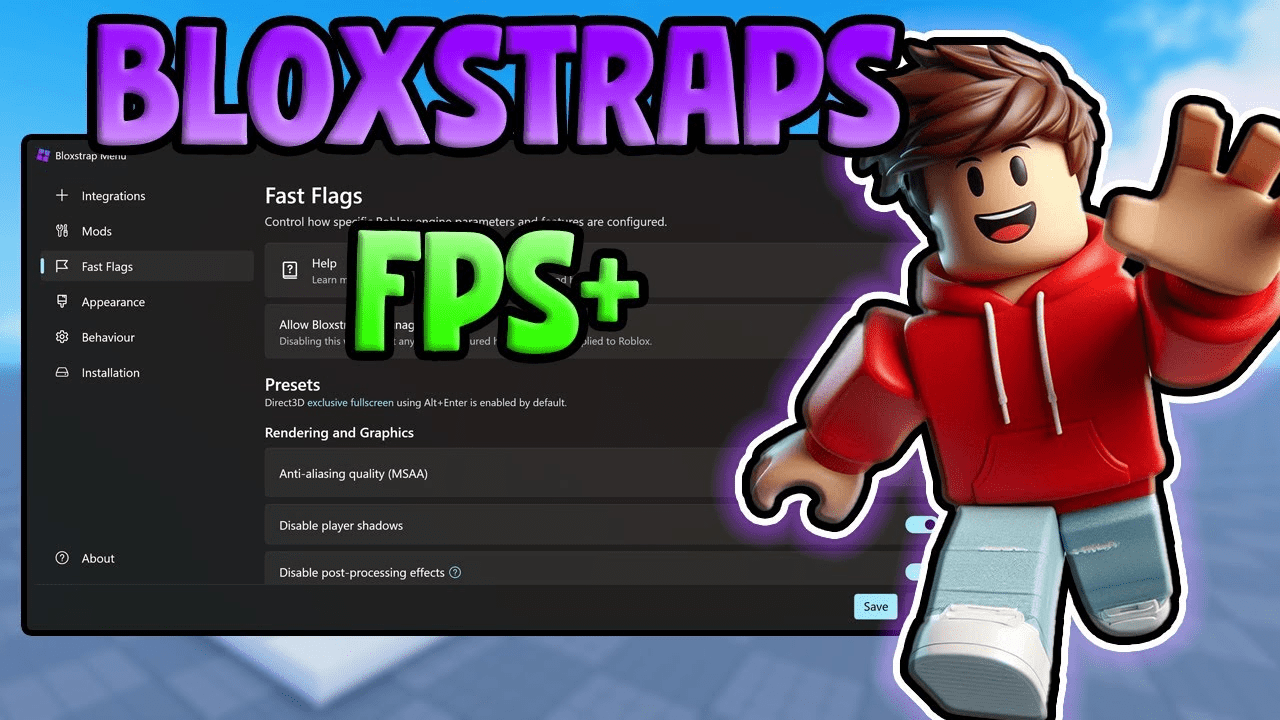
    • Performance Guides: Bloxstrap fast-flag settings, DNS flush tips, and FPS boosts.
    • Game-Specific Strategies: AFK grinders, seed shop tricks, and texture mods.
    • Cloud Gaming Walkthroughs: Setup guides for UGPhone cloud play.

    Why I Do This

    Roblox is a massive platform with incredible potential. Yet, many tools and scripts are scattered across forums, videos, and Discord servers. My mission is to centralize high-quality, safe tutorials—so you spend less time searching and more time playing.

    Connect with Me

    If you have questions or ideas, I’d love to hear from you:

    Thanks for visiting—now let’s level up your Roblox experience together!

  • Roblox Tutorials Blog – SargantZafron

    Roblox Tutorials Blog – SargantZafron


    Roblox Tutorials Blog – SargantZafron


    All Roblox Tutorials

    Roblox tutorial: UGPhone Cloud Gaming Guide

    UGPhone Cloud Gaming Guide

    Complete guide to cloud gaming with UGPhone – play mobile games without high-end hardware!

    Read More

    Roblox tutorial: How to Macro in Fisch

    How to Macro in Fisch

    Step-by-step guides on macro automation for the Roblox game Fisch using safe and efficient methods.

    Read More

    Roblox tutorial: How to AFK Grind Bones in Blox Fruits

    How to AFK Grind Bones in Blox Fruits

    Use macros and basic setups to AFK farm Bones efficiently in the Roblox game Blox Fruits.

    Read More

    Roblox tutorial: New Gem Method in Arise Crossover

    New Gem Method in Arise Crossover

    The most efficient gem farming method currently available in Arise Crossover.

    Read More

    Roblox tutorial: How to Join Old Servers in Grow a Garden

    How to Join Old Servers in Grow a Garden

    Discover restocked seed shops and less competition by hopping into older Grow a Garden servers.

    Read More

    Roblox tutorial: Best Bloxstrap Fast Flags Settings

    Best Bloxstrap Fast Flags Settings

    Optimize your Roblox performance with the top Bloxstrap fast flag configurations for smoother gameplay.

    Read More

    Roblox tutorial: How to Get Dark Textures in Rivals on Roblox

    How to Get Dark Textures in Rivals on Roblox

    Customize Rivals with dark textures using Bloxstrap for a sleek, low-eye-strain gaming experience.

    Read More

    Roblox tutorial: Error 500 on Roblox – How to Fix

    Error 500 on Roblox: How to Fix

    Troubleshoot the Internal Server Error 500 on Roblox with cache clears, DNS flushes, and browser tweaks.

    Read More

    Roblox tutorial: How to Make a Loading Screen in Roblox Studio

    How to Make a Loading Screen in Roblox Studio

    Learn how to create a custom loading screen GUI in Roblox Studio with just a Frame, TextLabel, and script.

    Read More

    Roblox tutorial: How to Appear Offline on Roblox

    How to Appear Offline on Roblox

    Hide your online status by adjusting your Roblox privacy settings so you always appear offline.

    Read More


  • How to Get Dark Textures in Rivals on Roblox


    How to Get Dark Textures in Rivals on Roblox – Bloxstrap Customization Guide


    How to Get Dark Textures in Rivals on Roblox

    Roblox’s Rivals lets you race and battle in bright, colorful arenas—but sometimes you want a darker, sleeker aesthetic. By using Bloxstrap, you can easily load custom dark textures into Rivals on Roblox. In this guide, you’ll learn how to get dark textures in Rivals on Roblox: from installing Bloxstrap and backing up originals to downloading a texture pack and applying it in seconds.

    What Is Bloxstrap?

    Bloxstrap is a third-party utility for Roblox that unlocks advanced customization options. Aside from performance tweaks, it allows you to load your own textures—perfect for swapping in dark textures for Rivals or any other game.

    Get the latest Bloxstrap release here: GitHub → Bloxstrap.

    Why Use Dark Textures in Rivals?

    • Sleek Aesthetic: Give Rivals a modern, moody look.
    • Improved Visibility: Dark backgrounds reduce glare and help you spot opponents faster.
    • Lower Eye Strain: Easier on your eyes during long gaming sessions—especially at night.

    Step 1: Download & Install Bloxstrap

    1. Visit the official Bloxstrap GitHub page.
    2. Download the installer for your OS.
    3. Run the installer and follow the prompts.

    Step 2: Locate Your Roblox Textures Folder

    After installing Bloxstrap, find Roblox’s default textures folder. On Windows it’s usually:

    C:\Users\[Your Username]\AppData\Local\Roblox\Versions\[Latest Version]\PlatformContent\PC\Textures

    Step 3: Download Dark Texture Pack

    We’ve prepared a basic Dark Texture Pack for Rivals. Download and unzip it to a folder you’ll remember.

    Step 4: Back Up Original Textures

    1. Copy the entire “Textures” folder.
    2. Paste it somewhere safe (e.g., “Roblox_Textures_Backup”).

    Step 5: Apply Dark Textures

    1. Open your unzipped dark texture folder.
    2. Copy all PNG files inside.
    3. Navigate back to Roblox’s Textures folder.
    4. Paste and Replace the original files.

    Next time you launch Rivals, the dark textures will be loaded automatically.

    Where to Store Custom Textures

    Keep your texture packs organized:

    • Cloud: Google Drive or Dropbox for easy access.
    • Local: Create folders like “Dark Textures – Rivals” on your drive.

    Additional Bloxstrap Tweaks

    • Launch Options: Set window size or resolution.
    • FPS Unlocker: Remove Roblox’s 60 FPS cap for ultra-smooth gameplay.
    • Disable Updates: Prevent automatic Roblox updates from overwriting textures.

    FAQs

    • How do I revert to default textures? Copy your backup folder’s files back into Roblox’s Textures directory.
    • Is Bloxstrap safe? Yes—download only from the official GitHub to avoid risks.
    • Can I use dark textures in other games? Absolutely. Once replaced, all Roblox games will load your custom textures.
    • Do dark textures affect performance? No—small PNG files won’t slow your game. Keep them optimized.

    Conclusion

    Now you know exactly how to get dark textures in Rivals on Roblox using Bloxstrap. With a sleek new look and reduced eye strain, your next Rivals match will feel fresher and more immersive. Experiment with different packs to find the perfect style!

    Join Our Discord for More Roblox Mods

    Want help or want to share your custom textures? Hop into our Discord community for support, tips, and texture swaps!

    Join Discord