Category: Roblox

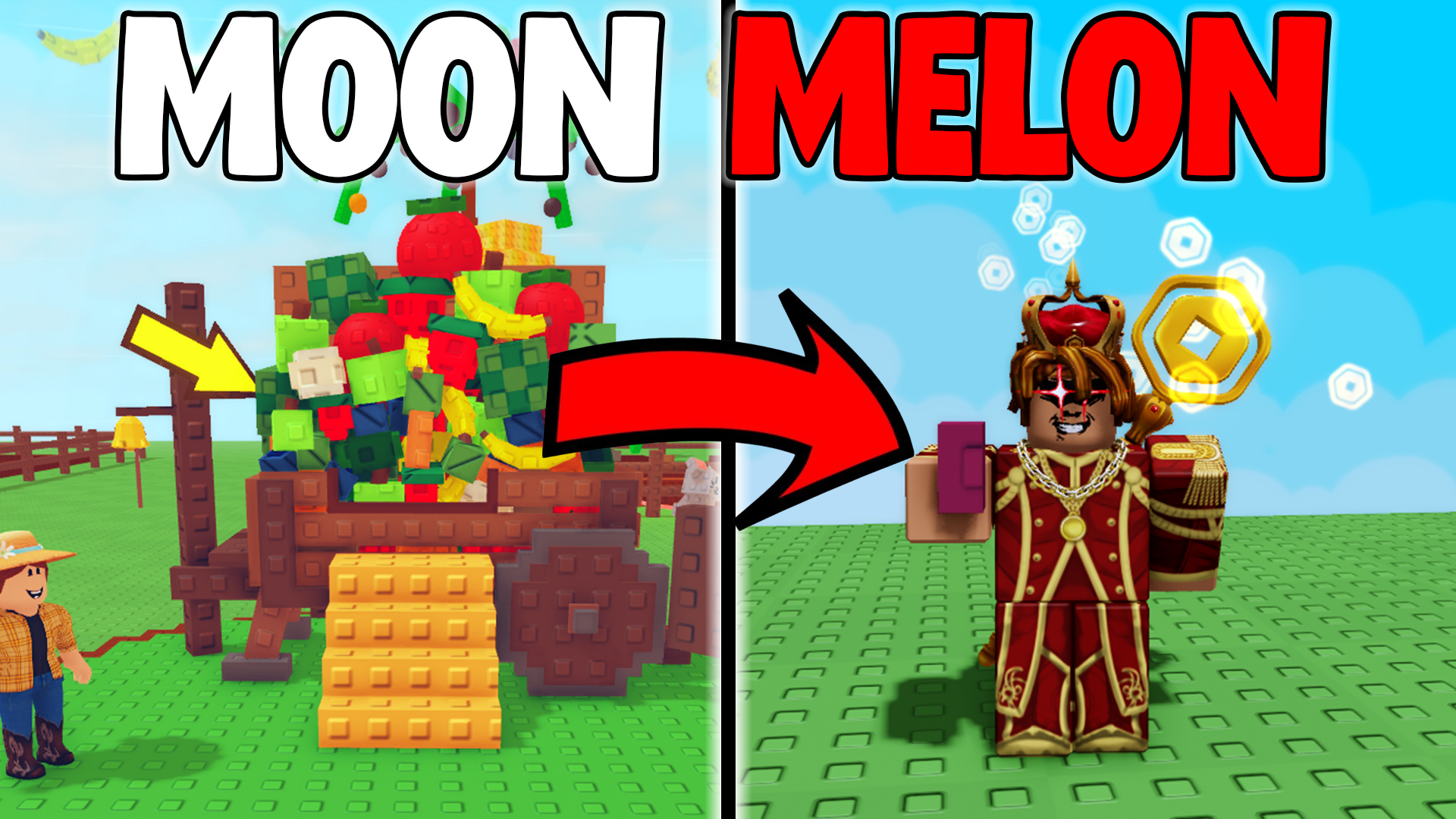
  • Grow a Garden Mooncat Glitch – Double Your Plant Sizes Instantly

    Grow a Garden Mooncat Glitch – Double Your Plant Sizes Instantly


    Grow a Garden Mooncat Glitch – Double Your Plant Sizes Instantly


    Grow a Garden Mooncat Glitch

    Exploit the Mooncat’s sleep passive to double your plant sizes—no alt accounts required!

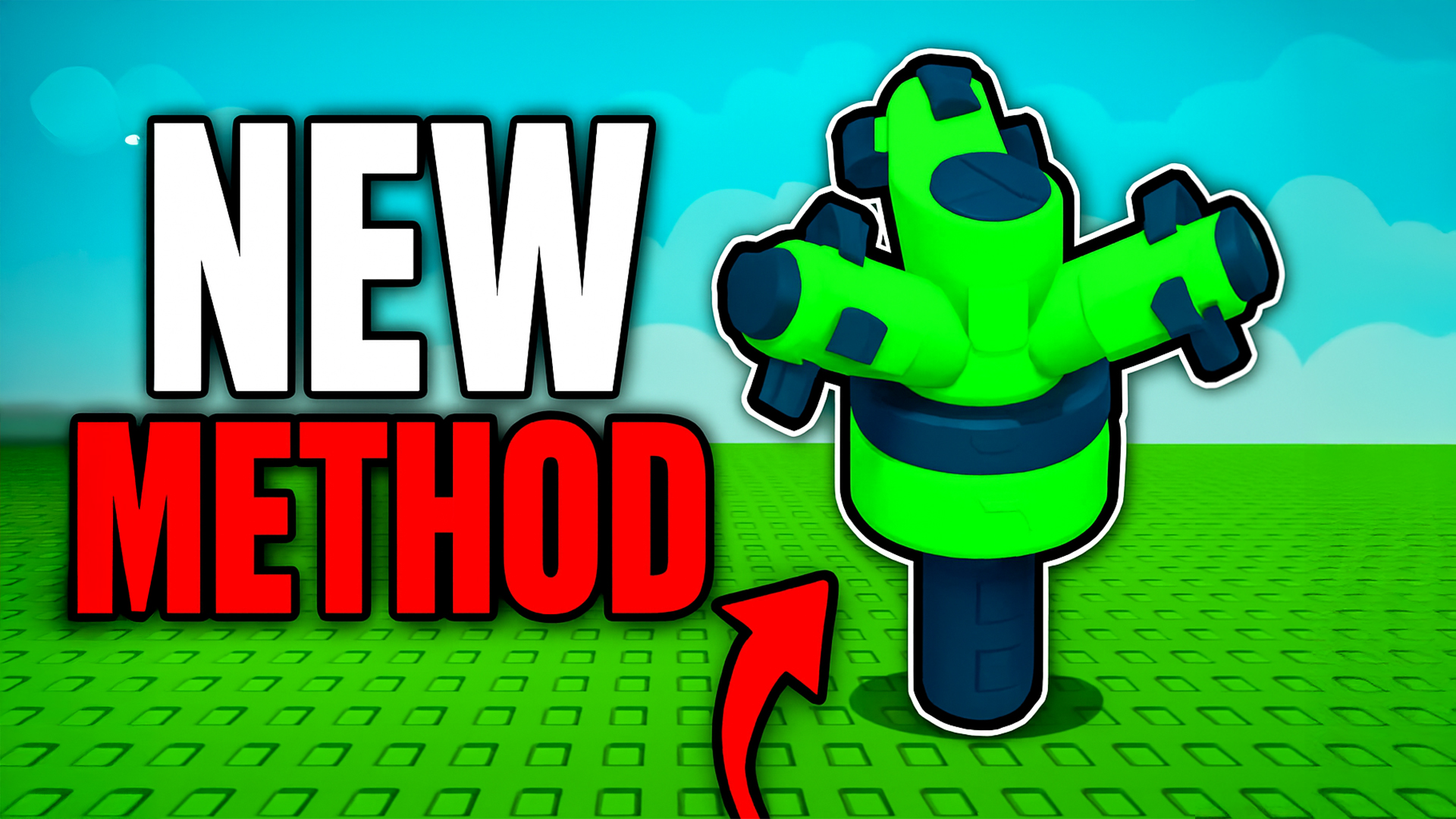
    If you remember the original Mooncat glitch, you’d use an alt account to trigger the Mooncat’s sleep passive by a plant, instantly boosting its size by up to 2×. Unfortunately that loophole was patched. Today, I’ll show you a new method that doesn’t require any alts and still lets you combine sprinklers, pet mutations, and pet gear for absurdly large plants.

    What You’ll Need

    • At least one Mooncat (mutated gold or rainbow, with pet gear equipped)
    • A full set of sprinklers (Basic, Advanced, Godly and Master)
    • Optional pets: Hedgehog (for spiked plants) or Toucan (for tropical)
    • Your secondary garden slot (to toggle between plots)

    Step-by‑Step Guide

    1. Set your sprinklers & pets
      Place one of each sprinkler around your target plant (e.g. a Spiked Mango).
      Then deploy your Mooncat, plus any other pets (Hedgehog, Toucan) with gold or rainbow mutations and pet gear for extra +30–50% passive boost.
    2. Harvest & switch garden
      Use your harvesting tool (E) to collect the fully grown plant.
      Immediately load your secondary garden slot.
      This tricks Roblox into continuing all background effects (sprinklers, pets) on your original plot.
    3. Wait—then rejoin
      Let your original slot run offline for 30–60 minutes (longer = bigger gains).
      When you rejoin, you’ll see the “Your garden grew while you were offline” message and reap the double‑sized harvest.


    Why This Works

    By toggling between garden save slots you force Roblox to keep all pet and sprinkler effects running on your original plot. The Mooncat’s sleep passive then stacks on top, giving you up to 3× size gains (2× base + pet mutations + gear multipliers).

    Pro Tips

    • Corner placement: Keep your setup in a single corner for faster loading between slots.
    • Minimal background: Clear other plots—fewer assets speeds up reconnection.
    • Longer AFK: The longer you stay offline, the more value you accumulate.
    • Use giveaways: Comment your username for a chance to win a Mooncat in our Discord giveaway!

    Back to Top


  • Grow a Garden Macro: Ultimate AFK Farming

    Grow a Garden Macro: Ultimate AFK Farming


    Grow a Garden Macro – AFK Billionaire Guide


    Grow a Garden Macro

    Step-by-step AFK macro guide to earn billions per hour in Grow a Garden using TinyTask, sprinklers, and powerful pets.

    Step 1: Pre-Macro Preparation

    First, clear out your entire garden of any plants and decorations. Next, place “Godly” or “Master” sprinklers to cover your main crop areas. Then, simply leave the game—your sprinklers will grow massive plants while you’re AFK. When you return, those giant harvests will net record sales.

    Step 2: Download & Install TinyTask

    Now, you need a simple automation tool. Download TinyTask from the official link below and install it on your PC.

    Download TinyTask

    Open TinyTask, set Ctrl+Shift+Alt+R to record and F8 to play, then enable “Continuous Playback.” This ensures your macro loops endlessly.

    Step 3: Recording Your AFK Macro

    1. Hit your record hotkey and open the seed shop.
    2. Scroll through and purchase your desired seeds.
    3. Exit the shop, use your recall wrench to teleport back to your garden.
    4. Stop recording and save the file as AFK_Grow_Garden.

    With this sequence, TinyTask will continuously refill and teleport, maintaining non-stop growth and sales.

    Step 4: Pet & Server Optimization

    For maximum earnings, combine your macro with a high-tier pet (like the Raccoon or Toucan) on a private server. Moreover, run your AFK session during a Blood Moon event to multiply your yields even further.

    Video Walkthrough

    Results & Next Steps

    In a test run, this exact setup earned over 1.19 trillion₵ in eight hours. Therefore, with the right pet lineup and a private server, you can regularly hit multi-trillion ₵ goals. Finally, join my Discord for early access to my official macro release and drop-leak alerts!

    Enjoyed this tutorial? Leave a like, post questions in the comments, and join my Discord: discord.com/invite/eyJukvpUh4.


  • Sprinkler Glitch in Grow a Garden

    Sprinkler Glitch in Grow a Garden


    Sprinkler Glitch in Grow a Garden – Infinite Watering & Pet Combos | SargantZafron


    Sprinkler Glitch in Grow a Garden

    A brand-new sprinkler glitch in Grow a Garden lets you infinitely water any plant—even after deleting your sprinklers. Combine it with pet boosts like the Toucan and Mooncat glitch for massive, record-breaking harvests!

    🛠️ What You Need

    • One each of Basic, Advanced, Godly & Master sprinklers
    • A test plant (we use an Elephant Ear)
    • A tool (TR) to reposition plants
    • Optional: Toucan pet (see pet guide)
    • Optional: Mooncat pet (moon cat glitch guide)

    ⚙️ Step-by-Step Setup

    1. Plant your test crop (e.g. Elephant Ear) in an open plot.
    2. Place Basic, then Advanced, then Master sprinklers as closely as possible around it.
    3. Use your tool to move the plant slightly out of the way.
    4. Immediately delete ALL three sprinklers.
    5. The watering effect remains active indefinitely—your plant never stops being watered!
    Pro Tip: Because this exploits a bug rather than a core feature, it may be patched—use it while it lasts!

    🦜 Best Pet Combos

    • Toucan Pet: Grants tropical plants within 25 studs a +1.59 size bonus and chance for extra growth.
    • Mooncat Glitch: Leave sprinklers on, reload, then let several Mooncats nap on the patch—when you rejoin, plants boost to giant sizes.

    💰 Maximize Your Profits

    • Combine the infinite watering glitch with high-value one-time harvests like Event Lilies.
    • Use a group of Toucan-boosted tropicals for continuous size gains.
    • Trigger Mooncat naps every session restart for exponential growth!

    🎁 Giveaway

    I’m also giving away premium seed packs AND a Raccoon pet! To enter:

    1. Like this page
    2. Comment your Roblox username below
    3. Join our Discord server

    ← Back to BlogHome


  • Grow a Garden Fourth of July update

    Grow a Garden Fourth of July update


    Fourth of July Grow a Garden Update – Crate, Bald Eagle Pet & Firework Plants | SargantZafron


    Fourth of July Grow a Garden Update

    Grow a Garden Fourth of July update banner with bald eagle pet and firework decorations

    The Fourth of July Grow a Garden update introduces a brand-new crate full of patriotic decorations, a game-changing Bald Eagle pet, plus two one-time harvest plants—Firework Lily and Liberty Lily—that you can farm for huge profits.

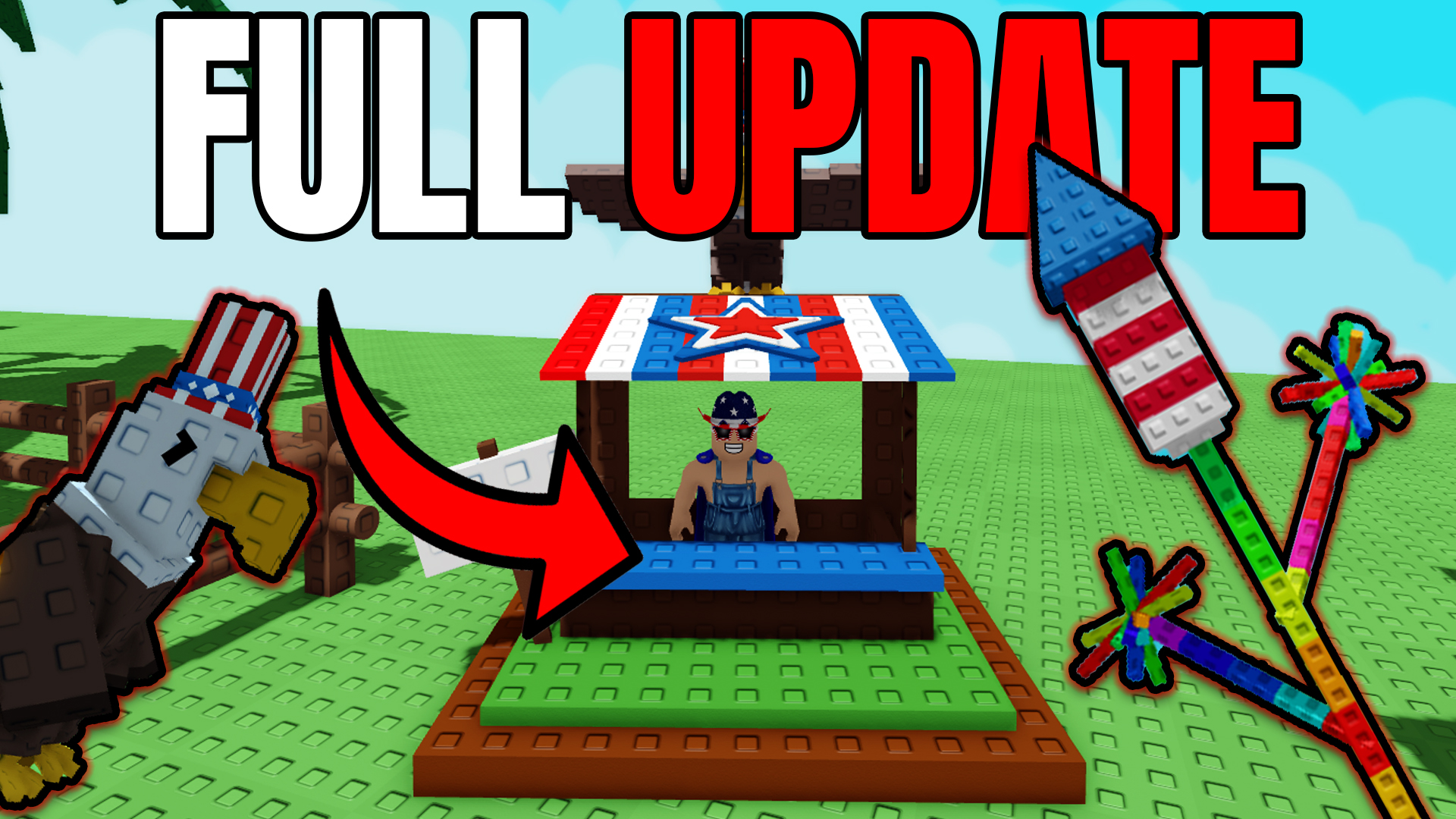
    Full overview of Fourth of July Grow a Garden stand, bald eagle, and fireworks decorations
    Showcase of the Fourth of July decorations: patriotic crate stand, Bald Eagle pet, and firework rods.

    In this update you’ll find the special crate stand decked out in red, white, and blue, the Bald Eagle pet perched above, and colorful firework-themed decorations—perfect for celebrating Independence Day in Grow a Garden.

    🎉 4th of July Crate

    Each crate contains 7 unique decorations—look out for rare drops like the Uncle Sam Gnome. Stock up now, because once these crates are gone, they may never return!

    • Uncle Sam Gnome (rarest)
    • Red, White & Blue Banners
    • Star Spangled Lanterns
    • Firework Rods & More

    🦅 Bald Eagle Pet

    Ability: Wings of Freedom
    Every 7 minutes the Bald Eagle soars—advancing ALL garden eggs’ hatch time by 70 seconds, with a 70% chance to double that bonus to 140 seconds. One of the best pets for rapid egg hatching and XP!

    🌺 Firework Lily & Liberty Lily Plants

    Both the Firework Lily and Liberty Lily are one-time harvest plants—each seed yields a single, massive payout:
    • Firework Lily (avg. 17 kg) → ~136,000 sell value
    • Liberty Lily (giant blooms) → often worth 200,000+

    Pro Tip: Use the moon cat glitch—leave sprinklers on, reload, and let the moon cat nap on your plant for a size boost. Bigger plants = billions in profit!

    💡 Farming & Profit Tips

    • Limited Seeds: Only 15 of each seed are ever sold—choose your harvests wisely.
    • Combine Mechanics: Leverage partial flower methods and server-hopping (learn more).
    • Market Timing: Sell during peak hours for maximum buyer demand and higher prices.

    Ready to celebrate and profit? Visit the official
    Grow a Garden
    game page now and grab your Fourth of July crates and seeds before they’re gone!

    🎁 Giveaway!

    Win a full set of Firework Lily & Liberty Lily seeds plus 5 Fourth of July crates by:
    • Liking this page
    • Commenting your Roblox username below
    • Joining our Discord server

    ← Back to BlogHome


  • ABOUT


    About – SargantZafron


    About SargantZafron

    Hello! I’m SargantZafron, the creator of this website and the YouTube channel dedicated to helping Roblox players automate repetitive tasks, optimize performance, and master in-game strategies.

    My YouTube Journey

    I started my channel in 2023 with a simple goal: share easy-to-follow tutorials on Roblox macros. My first video covered an AutoHotkey script for the game Fisch. It quickly gained traction, and viewers began requesting guides for AFK farming in Blox Fruits, gem methods in Arise Crossover, and lag fixes in Roblox Rivals.

    “SargantZafron’s tutorials saved me countless hours of grinding—without risking my account!”

    The Website’s Purpose

    As my library of tutorials grew, I realized a dedicated website would help organize everything in one place. Here’s what you’ll find:

    • Macros & Automation: Ready-to-use scripts for Fisch, GFX enhancements, and more.
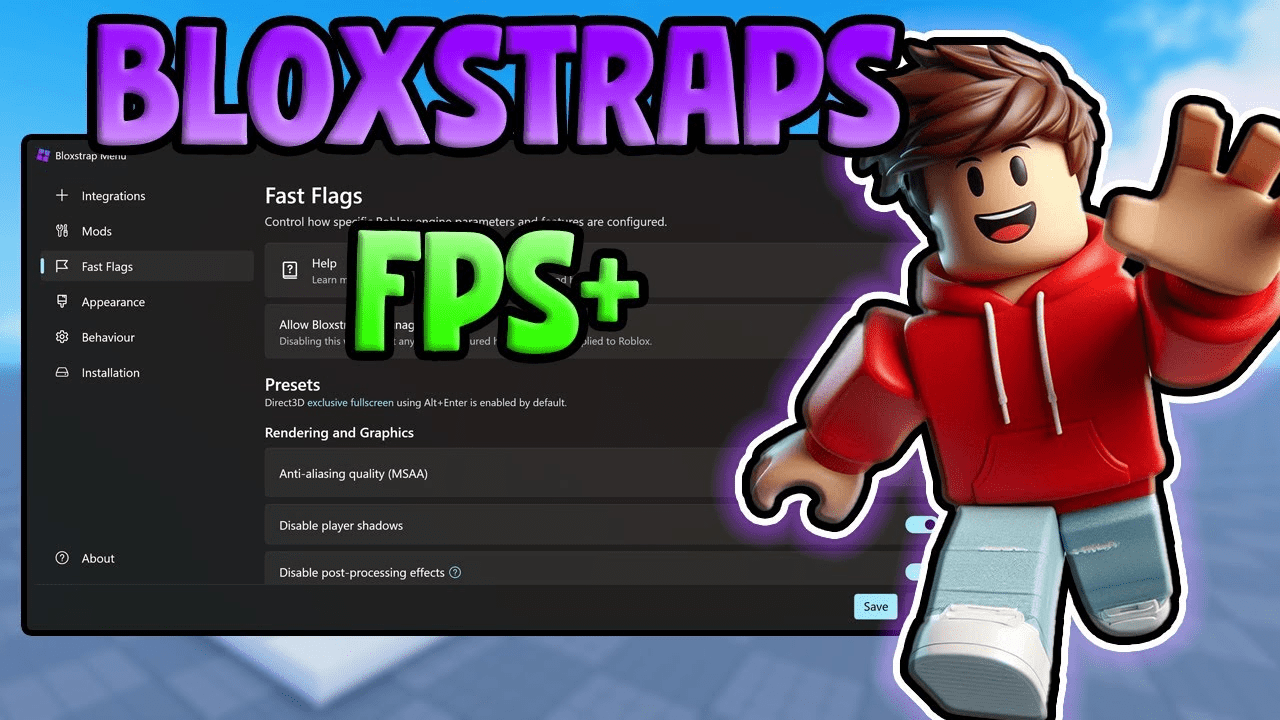
    • Performance Guides: Bloxstrap fast-flag settings, DNS flush tips, and FPS boosts.
    • Game-Specific Strategies: AFK grinders, seed shop tricks, and texture mods.
    • Cloud Gaming Walkthroughs: Setup guides for UGPhone cloud play.

    Why I Do This

    Roblox is a massive platform with incredible potential. Yet, many tools and scripts are scattered across forums, videos, and Discord servers. My mission is to centralize high-quality, safe tutorials—so you spend less time searching and more time playing.

    Connect with Me

    If you have questions or ideas, I’d love to hear from you:

    Thanks for visiting—now let’s level up your Roblox experience together!


  • Contact


    Contact – SargantZafron


    Contact Me

    If you have questions, feedback, or need help with any of my Roblox tutorials, feel free to reach out!

    Get in Touch


  • Roblox Tutorials Blog – SargantZafron

    Roblox Tutorials Blog – SargantZafron


    Roblox Tutorials Blog – SargantZafron


    All Roblox Tutorials

    Roblox tutorial: UGPhone Cloud Gaming Guide

    UGPhone Cloud Gaming Guide

    Complete guide to cloud gaming with UGPhone – play mobile games without high-end hardware!

    Read More

    Roblox tutorial: How to Macro in Fisch

    How to Macro in Fisch

    Step-by-step guides on macro automation for the Roblox game Fisch using safe and efficient methods.

    Read More

    Roblox tutorial: How to AFK Grind Bones in Blox Fruits

    How to AFK Grind Bones in Blox Fruits

    Use macros and basic setups to AFK farm Bones efficiently in the Roblox game Blox Fruits.

    Read More

    Roblox tutorial: New Gem Method in Arise Crossover

    New Gem Method in Arise Crossover

    The most efficient gem farming method currently available in Arise Crossover.

    Read More

    Roblox tutorial: How to Join Old Servers in Grow a Garden

    How to Join Old Servers in Grow a Garden

    Discover restocked seed shops and less competition by hopping into older Grow a Garden servers.

    Read More

    Roblox tutorial: Best Bloxstrap Fast Flags Settings

    Best Bloxstrap Fast Flags Settings

    Optimize your Roblox performance with the top Bloxstrap fast flag configurations for smoother gameplay.

    Read More

    Roblox tutorial: How to Get Dark Textures in Rivals on Roblox

    How to Get Dark Textures in Rivals on Roblox

    Customize Rivals with dark textures using Bloxstrap for a sleek, low-eye-strain gaming experience.

    Read More

    Roblox tutorial: Error 500 on Roblox – How to Fix

    Error 500 on Roblox: How to Fix

    Troubleshoot the Internal Server Error 500 on Roblox with cache clears, DNS flushes, and browser tweaks.

    Read More

    Roblox tutorial: How to Make a Loading Screen in Roblox Studio

    How to Make a Loading Screen in Roblox Studio

    Learn how to create a custom loading screen GUI in Roblox Studio with just a Frame, TextLabel, and script.

    Read More

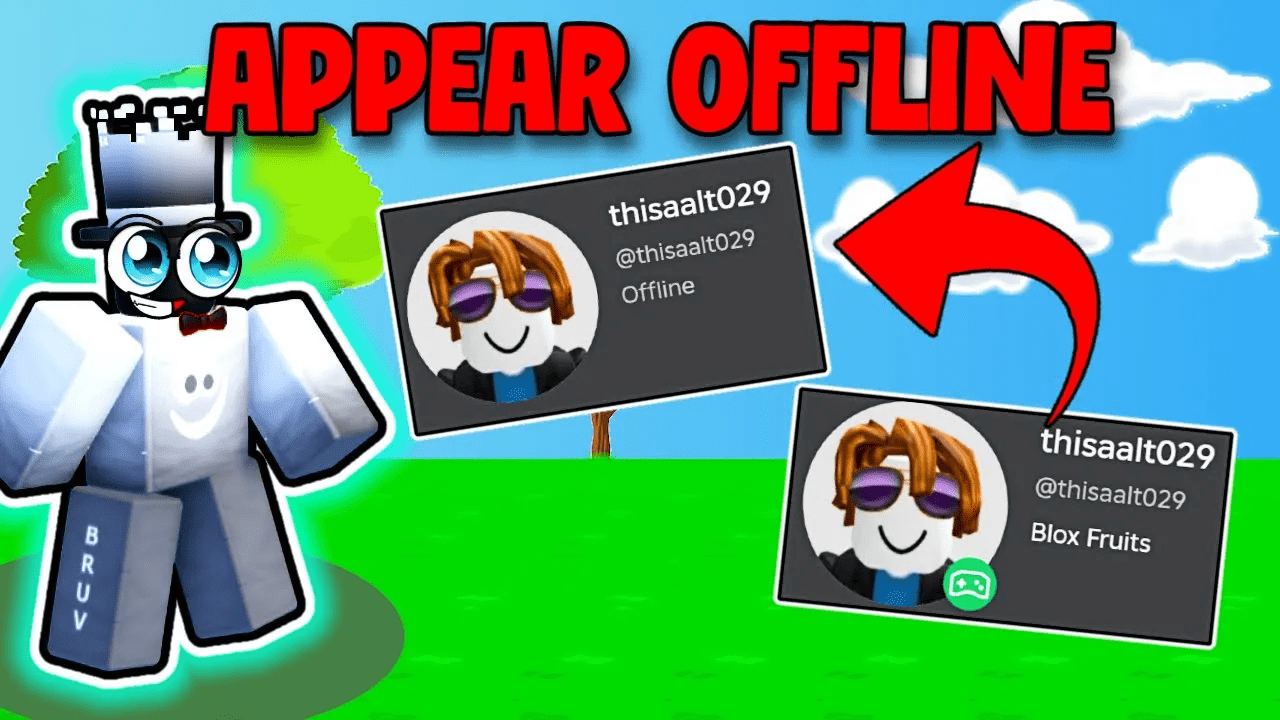
    Roblox tutorial: How to Appear Offline on Roblox

    How to Appear Offline on Roblox

    Hide your online status by adjusting your Roblox privacy settings so you always appear offline.

    Read More


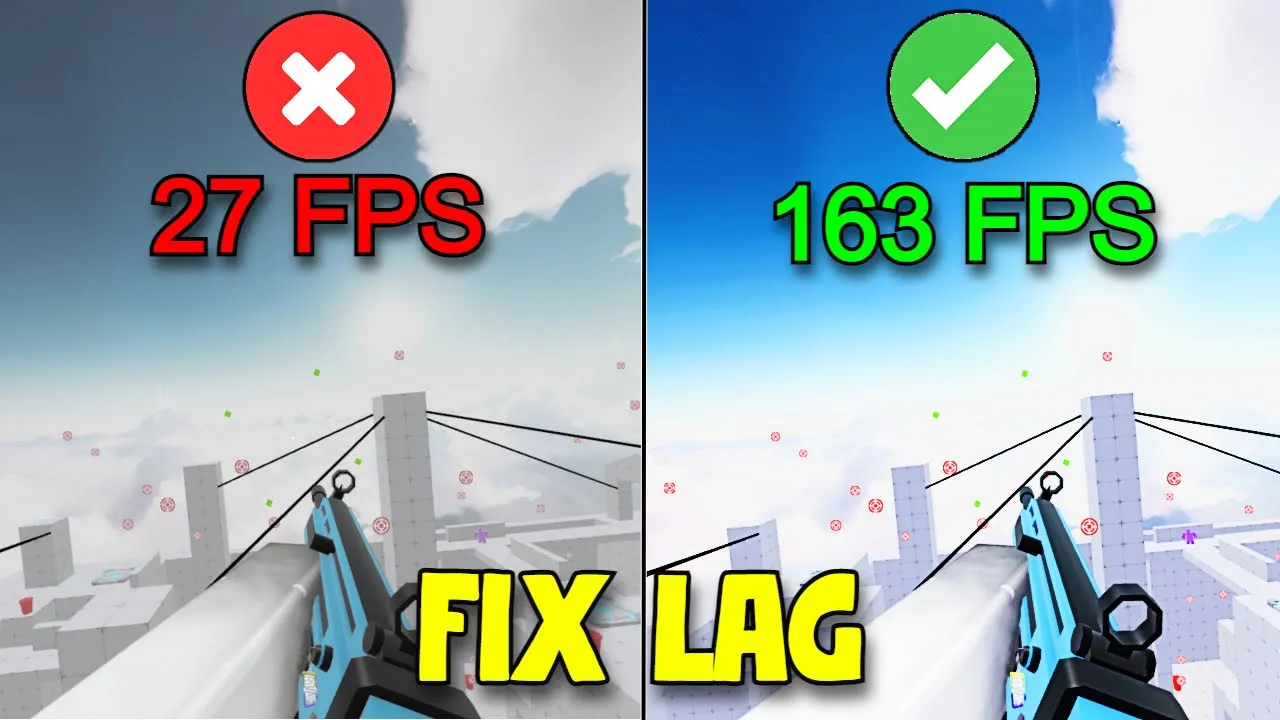
  • How to Fix lag in Roblox Rivals

    How to Fix lag in Roblox Rivals


    How to Fix Lag on Roblox Rivals – Boost FPS & Eliminate Stutter


    How to Fix Lag on Roblox Rivals

    Fix lag on Roblox Rivals and unlock smooth frame rates even during peak crowds. Below you’ll find both in-game tweaks and Windows optimizations to boost your FPS and eliminate stutter.


    In-Game Settings to Boost FPS

    1. Disable Shadows

    In the Rivals lobby or in-game menu click Settings → Graphics and turn off Shadows. Removing dynamic shadows reduces CPU/GPU load.

    2. Disable Textures

    Under the same Graphics panel, disable Textures. This replaces detailed assets with flat colors, cutting memory usage and draw calls.

    3. Cap Your Frame Rate

    Rivals includes an FPS unlocker. In Settings → Performance, set Max Frame Rate to 60 or 120. Higher caps add load—stick to 60 FPS for consistent smoothness.

    4. Adjust Graphics Mode

    Switch Graphics Mode to Manual and slide quality down for Microscopic or Low. Or select Automatic to let Roblox optimize for your hardware.

    Windows Optimizations

    5. Clear the Prefetch Folder

    1. Press Win + R, type prefetch, and hit Enter.
    2. Click Continue to grant access.
    3. Select all files (Ctrl + A) and delete them to clear old app data.

    6. Empty the Recycling Bin

    Open your Recycle Bin and choose Empty Recycle Bin. Confirm permanent deletion—this frees gigabytes of temporary data that can slow your PC.

    Tips for Stable Gameplay

    • Make sure your GPU drivers are up to date.
    • Close background apps (Discord, browsers) before playing.
    • Use an Ethernet connection instead of Wi-Fi for lower ping.

    Conclusion

    By combining in-game graphics tweaks with Windows clean-ups, you can fix lag on Roblox Rivals and enjoy competitive matches at high frame rates. Try each step until your gameplay feels butter-smooth.

    Need More Roblox Tips?

    Join our Discord for live help, guides, and community support!

    Join Discord


  • How to Appear Offline on Roblox

    How to Appear Offline on Roblox


    How to Appear Offline on Roblox – Privacy Settings Guide


    How to Appear Offline on Roblox

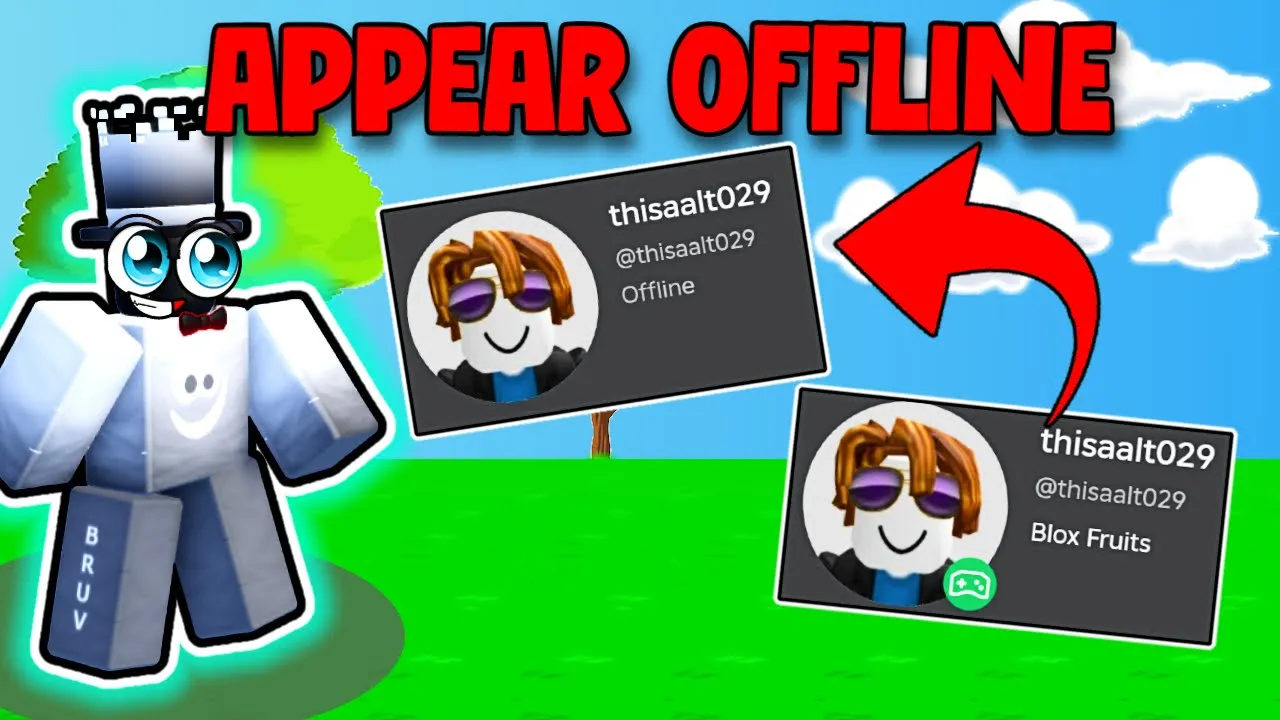
    Want to play Roblox without friends seeing you online? By tweaking a few Privacy settings, you can appear offline on Roblox and keep your activity hidden. Follow these simple steps to disable messaging, chat, and activity updates so your status always reads “Offline.”


    Roblox avatar with status panels showing online vs offline to demonstrate appearing offline
    Set your Roblox Privacy options so friends always see you as offline, even when you’re in a game.

    Step-by-Step: Privacy Settings to Appear Offline

    1. Open Settings: In Roblox, click the gear icon (⚙️) then select Settings.
    2. Go to Privacy: In the left menu, click Privacy.
    3. Who can message me? Set to No one.
    4. Who can chat with me? Set all chat options to No one.
    5. Who can see my status? Turn Update friends about my activity to Off.

    Why It Works

    By disabling communication and activity updates, Roblox won’t broadcast your presence to friends or followers. Your profile will always show Offline, giving you privacy while you play.

    FAQs

    • Will I still receive messages? No—messages are blocked when set to “No one.”
    • Can friends see my username? Yes, but they cannot see your online status or activity.
    • Does this affect group chat? All chat and messaging options are disabled.

    Need More Roblox Tips?

    Join our Discord for live help, scripts, and custom tutorials!

    Join Discord