Category: Roblox

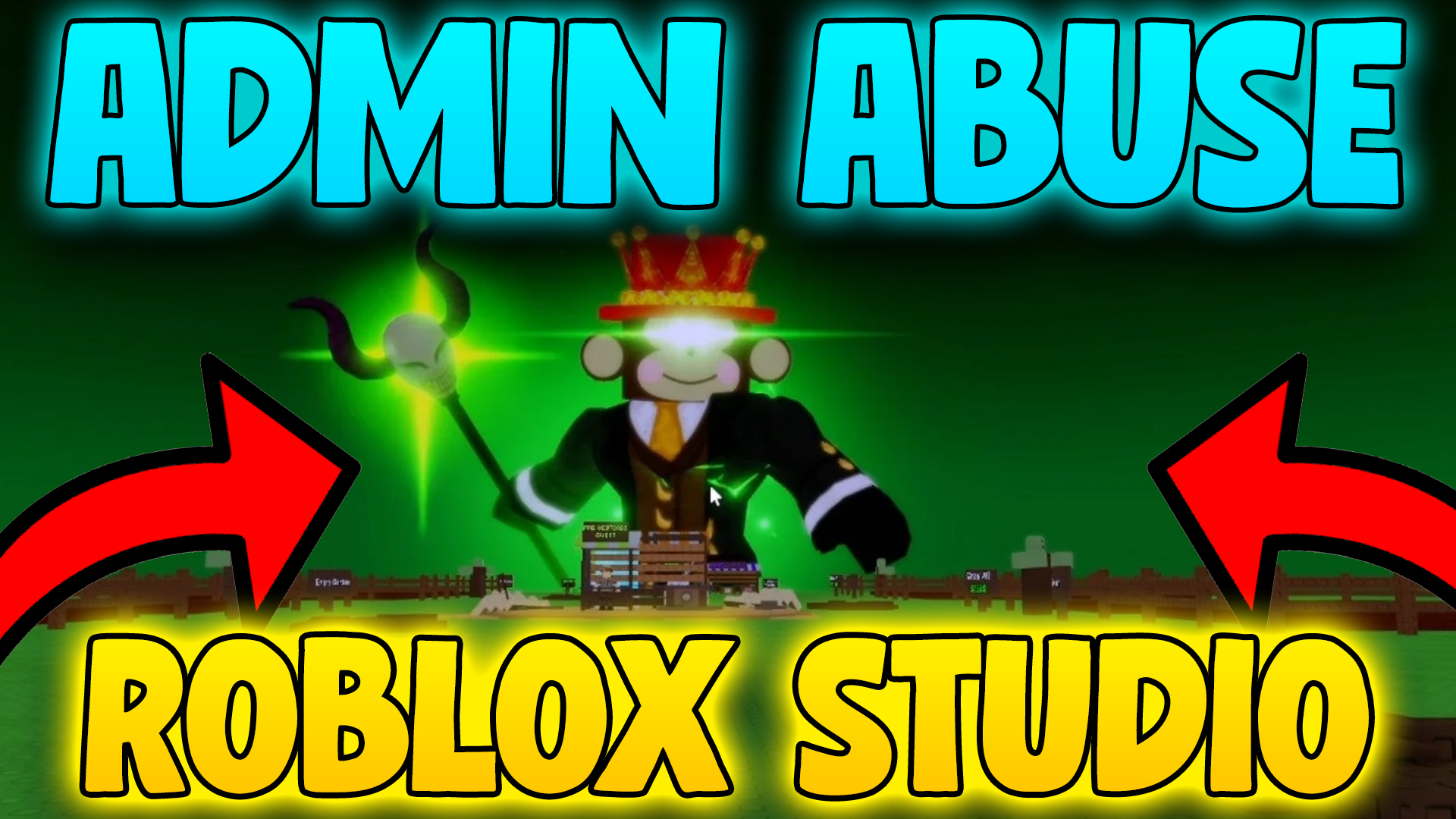
  • How to Make Admin Abuse Events in Roblox Studio

    How to Make Admin Abuse Events in Roblox Studio


    How to Make Admin Abuse Events in Roblox Studio (Copy & Paste)


    Roblox Studio • Admin Tools

    How to Make Admin Abuse Events in Roblox Studio (Copy & Paste)

    How to make admin abuse events in Roblox Studio — panel, toast popup, and luck HUD
    F2 control panel, toast announcements, and a server-wide Luck ×2 buff with a live timer.

    This guide shows how to make admin abuse events in Roblox Studio: a compact toast popup, an F2 control panel with two tabs
    (Announcement & Admin), and a stackable Server Luck ×2 that resets a 5:00 timer and syncs across servers. The included LuckManager
    uses MessagingService and
    DataStoreService in live games, and safely no-ops in Studio so you won’t see API errors while testing.

    On this page

    Create required objects (exact names)

    ReplicatedStorage: add four RemoteEvents

    • GlobalMessage
    • AdminGlobalMessage
    • AdminAction
    • LuckUpdate

    ServerScriptService

    • ModuleScript named LuckManager
    • Script named AdminPanelServer

    StarterPlayer ▸ StarterPlayerScripts

    • LocalScript named AdminPanelClient

    That’s it for hierarchy. Don’t add other remotes/scripts for this feature.

    Server ModuleScript: LuckManager (cross-server, Studio-safe)

    The LuckManager doubles the server multiplier and resets a 5-minute expiry. It persists in DataStore, broadcasts updates with MessagingService, and auto-expires back to . In Studio, it runs locally and skips API calls.

    lua — ServerScriptService/LuckManager (ModuleScript)
    -- ServerScriptService/LuckManager (ModuleScript)
    -- Global luck that doubles on demand and resets to 5:00. Cross-server in live games,
    -- safe no-op for Studio (no DataStore/Messaging errors).
    
    local RunService        = game:GetService("RunService")
    local MessagingService  = game:GetService("MessagingService")
    local DataStoreService  = game:GetService("DataStoreService")
    
    local LUCK_TOPIC    = "GLOBAL_LUCK_V1"
    local LUCK_DS       = DataStoreService:GetDataStore("LuckStateV1")
    local DEFAULT_MULT  = 1
    local DURATION_SECS = 5 * 60 -- 5 minutes
    local IS_STUDIO     = RunService:IsStudio()
    
    local State = { multiplier = DEFAULT_MULT, expiresAt = 0 } -- os.time()
    local Subscribers = {}
    
    local function now() return os.time() end
    local function secondsRemaining() return math.max(0, State.expiresAt - now()) end
    
    local function pushLocal()
    	for _, cb in ipairs(Subscribers) do
    		task.spawn(cb, State.multiplier, secondsRemaining())
    	end
    end
    
    local function applyState(mult, exp)
    	State.multiplier = mult
    	State.expiresAt  = exp
    	pushLocal()
    end
    
    local function persist()
    	if IS_STUDIO then return end
    	local ok, err = pcall(function()
    		LUCK_DS:SetAsync("state", { multiplier = State.multiplier, expiresAt = State.expiresAt })
    	end)
    	if not ok then warn("[Luck] Persist failed:", err) end
    end
    
    local function publish()
    	if IS_STUDIO then return end
    	local ok, err = pcall(function()
    		MessagingService:PublishAsync(LUCK_TOPIC, {
    			multiplier = State.multiplier,
    			expiresAt  = State.expiresAt,
    			t          = now(),
    		})
    	end)
    	if not ok then warn("[Luck] Publish failed:", err) end
    end
    
    local function load()
    	if IS_STUDIO then
    		applyState(DEFAULT_MULT, 0)
    		return
    	end
    	local ok, data = pcall(function() return LUCK_DS:GetAsync("state") end)
    	if ok and typeof(data) == "table" then
    		applyState(tonumber(data.multiplier) or DEFAULT_MULT, tonumber(data.expiresAt) or 0)
    	else
    		applyState(DEFAULT_MULT, 0)
    	end
    end
    
    local function subscribe()
    	if IS_STUDIO then return end
    	local ok, sub = pcall(function()
    		return MessagingService:SubscribeAsync(LUCK_TOPIC, function(msg)
    			local d = msg.Data
    			if typeof(d) ~= "table" then return end
    			if typeof(d.multiplier) ~= "number" or typeof(d.expiresAt) ~= "number" then return end
    			applyState(d.multiplier, d.expiresAt)
    		end)
    	end)
    	if not ok then warn("[Luck] Subscribe failed:", sub) end
    end
    
    local M = {}
    
    function M.Init()
    	load()
    	subscribe()
    end
    
    function M.OnChanged(cb)
    	table.insert(Subscribers, cb)
    	task.defer(cb, State.multiplier, secondsRemaining())
    end
    
    function M.Get()
    	return State.multiplier, secondsRemaining()
    end
    
    function M.DoubleAndReset()
    	local newMult = math.clamp(State.multiplier * 2, 1, 2^30)
    	local newExp  = now() + DURATION_SECS
    	applyState(newMult, newExp)
    	persist()
    	publish()
    end
    
    function M.Tick()
    	if secondsRemaining() <= 0 and State.multiplier ~= DEFAULT_MULT then
    		applyState(DEFAULT_MULT, 0)
    		persist()
    		publish()
    	end
    end
    
    return M

    Server Script: AdminPanelServer

    Handles announcements, the “Server Luck ×2” admin action, and pushes Luck HUD updates to all clients.

    lua — ServerScriptService/AdminPanelServer (Script)
    -- ServerScriptService/AdminPanelServer
    -- Handles announcements, server-luck actions, and pushes Luck HUD updates.
    
    local ReplicatedStorage = game:GetService("ReplicatedStorage")
    local Players = game:GetService("Players")
    
    local LuckManager   = require(script.Parent:WaitForChild("LuckManager"))
    local EVT_SEND_ANN  = ReplicatedStorage:WaitForChild("AdminGlobalMessage")
    local EVT_BROADCAST = ReplicatedStorage:WaitForChild("GlobalMessage")
    local EVT_ADMIN_ACT = ReplicatedStorage:WaitForChild("AdminAction")
    local EVT_LUCK_PUSH = ReplicatedStorage:WaitForChild("LuckUpdate")
    
    -- Init luck system
    LuckManager.Init()
    LuckManager.OnChanged(function(mult, secondsLeft)
    	EVT_LUCK_PUSH:FireAllClients(mult, secondsLeft)
    end)
    
    -- Expire loop
    task.spawn(function()
    	while true do
    		LuckManager.Tick()
    		task.wait(1)
    	end
    end)
    
    -- Helpers
    local function sanitize(s, maxLen)
    	s = tostring(s or ""):gsub("^%s+",""):gsub("%s+$",""):gsub("[%c]"," ")
    	if maxLen and #s > maxLen then s = s:sub(1, maxLen) end
    	return s
    end
    
    -- Announcements (no admin gate by request)
    local COOLDOWN_ANN, MAX_LEN_ANN = 2.0, 200
    local lastAnn = {}
    
    EVT_SEND_ANN.OnServerEvent:Connect(function(player, text, color)
    	local t = os.clock()
    	if (t - (lastAnn[player] or 0)) < COOLDOWN_ANN then return end
    	lastAnn[player] = t
    
    	text = sanitize(text, MAX_LEN_ANN)
    	if text == "" then return end
    	if typeof(color) ~= "Color3" then color = nil end
    
    	EVT_BROADCAST:FireAllClients(text, color)
    end)
    
    -- “Admin abuse” actions
    local lastAct, COOLDOWN_ACT = {}, 2.0
    
    EVT_ADMIN_ACT.OnServerEvent:Connect(function(player, action, payload)
    	local t = os.clock()
    	if (t - (lastAct[player] or 0)) < COOLDOWN_ACT then return end
    	lastAct[player] = t
    
    	if action == "DoubleLuck" then
    		LuckManager.DoubleAndReset()
    		local mult = select(1, LuckManager.Get())
    		EVT_BROADCAST:FireAllClients(
    			("global announcement: server luck doubled (x%d)"):format(mult),
    			Color3.fromRGB(120, 220, 120) -- green
    		)
    	end
    end)
    
    -- Push current luck to newly joined players
    Players.PlayerAdded:Connect(function(plr)
    	local mult, secs = LuckManager.Get()
    	EVT_LUCK_PUSH:FireClient(plr, mult, secs)
    end)

    Client LocalScript: AdminPanelClient

    Builds the higher-on-screen toast, an F2 control panel with two tabs (Announcement/Admin), and a bottom-right Luck HUD with a live countdown.

    lua — StarterPlayer/StarterPlayerScripts/AdminPanelClient (LocalScript)
    -- StarterPlayerScripts/AdminPanelClient (LocalScript)
    -- Control panel (F2), toast popup, bottom-right Luck HUD, draggable panel.
    
    local ReplicatedStorage = game:GetService("ReplicatedStorage")
    local TweenService      = game:GetService("TweenService")
    local UserInputService  = game:GetService("UserInputService")
    local Players           = game:GetService("Players")
    local RunService        = game:GetService("RunService")
    
    local player            = Players.LocalPlayer
    local EVT_SEND_ANN     = ReplicatedStorage:WaitForChild("AdminGlobalMessage")
    local EVT_BROADCAST    = ReplicatedStorage:WaitForChild("GlobalMessage")
    local EVT_ADMIN_ACT    = ReplicatedStorage:WaitForChild("AdminAction")
    local EVT_LUCK_PUSH    = ReplicatedStorage:WaitForChild("LuckUpdate")
    
    -- ========= Toast popup (higher on screen: ~3rd quarter) =========
    local toastGui = Instance.new("ScreenGui")
    toastGui.Name = "Toast"
    toastGui.IgnoreGuiInset = true
    toastGui.ResetOnSpawn = false
    toastGui.DisplayOrder = 1500
    toastGui.Parent = player:WaitForChild("PlayerGui")
    
    local TOAST_WIDTH  = 520
    local TOAST_HEIGHT = 64
    local TOAST_Y_REST = 0.32 -- 32% from top
    local TOAST_Y_START = TOAST_Y_REST + 0.03
    
    local toast = Instance.new("Frame")
    toast.Name = "Popup"
    toast.Size = UDim2.new(0, TOAST_WIDTH, 0, TOAST_HEIGHT)
    toast.Position = UDim2.new(0.5, -TOAST_WIDTH/2, TOAST_Y_REST, 0)
    toast.BackgroundColor3 = Color3.fromRGB(30, 30, 34)
    toast.BackgroundTransparency = 0.15
    toast.Visible = false
    toast.Parent = toastGui
    Instance.new("UICorner", toast).CornerRadius = UDim.new(0, 12)
    
    local toastLabel = Instance.new("TextLabel")
    toastLabel.BackgroundTransparency = 1
    toastLabel.Size = UDim2.new(1, -24, 1, 0)
    toastLabel.Position = UDim2.new(0, 12, 0, 0)
    toastLabel.TextScaled = true
    toastLabel.Font = Enum.Font.GothamBold
    toastLabel.TextColor3 = Color3.new(1,1,1)
    toastLabel.TextStrokeTransparency = 0.5
    toastLabel.Text = ""
    toastLabel.Parent = toast
    
    local function showToast(text, color)
        toastLabel.Text = text
        toastLabel.TextColor3 = color or Color3.new(1,1,1)
        toast.Visible = true
        toast.Position = UDim2.new(0.5, -TOAST_WIDTH/2, TOAST_Y_START, 0)
        toast.BackgroundTransparency = 0.35
        toastLabel.TextTransparency = 1
    
        TweenService:Create(toast, TweenInfo.new(0.18, Enum.EasingStyle.Quad, Enum.EasingDirection.Out),
            { Position = UDim2.new(0.5, -TOAST_WIDTH/2, TOAST_Y_REST, 0), BackgroundTransparency = 0.15 } ):Play()
        TweenService:Create(toastLabel, TweenInfo.new(0.18, Enum.EasingStyle.Quad), { TextTransparency = 0 }):Play()
    
        task.wait(2.0)
    
        TweenService:Create(toast, TweenInfo.new(0.18, Enum.EasingStyle.Quad, Enum.EasingDirection.In),
            { BackgroundTransparency = 0.5 } ):Play()
        TweenService:Create(toastLabel, TweenInfo.new(0.18, Enum.EasingStyle.Quad), { TextTransparency = 1 }):Play()
        task.wait(0.2)
        toast.Visible = false
    end
    EVT_BROADCAST.OnClientEvent:Connect(showToast)
    
    -- ========= Control Panel (F2) =========
    local gui = Instance.new("ScreenGui")
    gui.Name = "ControlPanel"
    gui.IgnoreGuiInset = true
    gui.ResetOnSpawn = false
    gui.DisplayOrder = 2000
    gui.Enabled = false
    gui.Parent = player.PlayerGui
    
    local panel = Instance.new("Frame")
    panel.Size = UDim2.new(0, 600, 0, 340)
    panel.Position = UDim2.new(0.5, -300, 0.5, -170)
    panel.BackgroundColor3 = Color3.fromRGB(18,18,22)
    panel.BackgroundTransparency = 0.05
    panel.Parent = gui
    Instance.new("UICorner", panel).CornerRadius = UDim.new(0, 12)
    
    -- Title + close X
    local title = Instance.new("TextLabel")
    title.BackgroundTransparency = 1
    title.Size = UDim2.new(1, -48, 0, 44)
    title.Position = UDim2.new(0, 12, 0, 4)
    title.Text = "Control Panel"
    title.TextScaled = true
    title.Font = Enum.Font.GothamBold
    title.TextXAlignment = Enum.TextXAlignment.Left
    title.TextColor3 = Color3.new(1,1,1)
    title.Parent = panel
    
    local closeBtn = Instance.new("TextButton")
    closeBtn.Size = UDim2.new(0, 36, 0, 36)
    closeBtn.Position = UDim2.new(1, -44, 0, 6)
    closeBtn.Text = "X"
    closeBtn.TextScaled = true
    closeBtn.BackgroundColor3 = Color3.fromRGB(140,50,50)
    closeBtn.TextColor3 = Color3.new(1,1,1)
    closeBtn.Font = Enum.Font.GothamBold
    closeBtn.Parent = panel
    Instance.new("UICorner", closeBtn).CornerRadius = UDim.new(0, 10)
    closeBtn.MouseButton1Click:Connect(function() gui.Enabled = false end)
    
    -- Tabs
    local tabs = Instance.new("Frame")
    tabs.Size = UDim2.new(1, -24, 0, 40)
    tabs.Position = UDim2.new(0, 12, 0, 52)
    tabs.BackgroundTransparency = 1
    tabs.Parent = panel
    
    local tabAnn = Instance.new("TextButton")
    tabAnn.Size = UDim2.new(0, 160, 1, 0)
    tabAnn.Position = UDim2.new(0, 0, 0, 0)
    tabAnn.Text = "Announcement"
    tabAnn.TextScaled = true
    tabAnn.Font = Enum.Font.GothamBold
    tabAnn.TextColor3 = Color3.new(1,1,1)
    tabAnn.BackgroundColor3 = Color3.fromRGB(38,38,46)
    tabAnn.Parent = tabs
    Instance.new("UICorner", tabAnn).CornerRadius = UDim.new(0, 8)
    
    local tabAdmin = Instance.new("TextButton")
    tabAdmin.Size = UDim2.new(0, 120, 1, 0)
    tabAdmin.Position = UDim2.new(0, 170, 0, 0)
    tabAdmin.Text = "Admin"
    tabAdmin.TextScaled = true
    tabAdmin.Font = Enum.Font.GothamBold
    tabAdmin.TextColor3 = Color3.new(1,1,1)
    tabAdmin.BackgroundColor3 = Color3.fromRGB(38,38,46)
    tabAdmin.Parent = tabs
    Instance.new("UICorner", tabAdmin).CornerRadius = UDim.new(0, 8)
    
    -- Content pages
    local content = Instance.new("Frame")
    content.Size = UDim2.new(1, -24, 1, -124)
    content.Position = UDim2.new(0, 12, 0, 96)
    content.BackgroundTransparency = 1
    content.Parent = panel
    
    local pageAnn = Instance.new("Frame")
    pageAnn.Size = UDim2.new(1, 0, 1, 0)
    pageAnn.BackgroundTransparency = 1
    pageAnn.Parent = content
    
    local pageAdmin = Instance.new("Frame")
    pageAdmin.Size = UDim2.new(1, 0, 1, 0)
    pageAdmin.BackgroundTransparency = 1
    pageAdmin.Visible = false
    pageAdmin.Parent = content
    
    local function showPage(which)
    	pageAnn.Visible   = (which == "ann")
    	pageAdmin.Visible = (which == "admin")
    	tabAnn.BackgroundColor3   = (which=="ann")   and Color3.fromRGB(70,120,220) or Color3.fromRGB(38,38,46)
    	tabAdmin.BackgroundColor3 = (which=="admin") and Color3.fromRGB(70,120,220) or Color3.fromRGB(38,38,46)
    end
    tabAnn.MouseButton1Click:Connect(function() showPage("ann") end)
    tabAdmin.MouseButton1Click:Connect(function() showPage("admin") end)
    showPage("ann")
    
    -- Announcement page
    local annCard = Instance.new("Frame")
    annCard.Size = UDim2.new(1, 0, 0, 140)
    annCard.BackgroundColor3 = Color3.fromRGB(28,28,36)
    annCard.Parent = pageAnn
    Instance.new("UICorner", annCard).CornerRadius = UDim.new(0, 10)
    
    local annLabel = Instance.new("TextLabel")
    annLabel.BackgroundTransparency = 1
    annLabel.Size = UDim2.new(1, -14, 0, 28)
    annLabel.Position = UDim2.new(0, 7, 0, 8)
    annLabel.Text = "Global Announcement"
    annLabel.TextScaled = true
    annLabel.Font = Enum.Font.GothamBold
    annLabel.TextColor3 = Color3.new(1,1,1)
    annLabel.TextXAlignment = Enum.TextXAlignment.Left
    annLabel.Parent = annCard
    
    local annInput = Instance.new("TextBox")
    annInput.Size = UDim2.new(1, -14, 0, 40)
    annInput.Position = UDim2.new(0, 7, 0, 44)
    annInput.BackgroundColor3 = Color3.fromRGB(38,38,46)
    annInput.TextColor3 = Color3.new(1,1,1)
    annInput.PlaceholderText = "type an announcement…"
    annInput.TextScaled = true
    annInput.ClearTextOnFocus = false
    annInput.Font = Enum.Font.Gotham
    annInput.Parent = annCard
    Instance.new("UICorner", annInput).CornerRadius = UDim.new(0, 8)
    
    local annSend = Instance.new("TextButton")
    annSend.Size = UDim2.new(0, 140, 0, 40)
    annSend.Position = UDim2.new(1, -147, 0, 92)
    annSend.BackgroundColor3 = Color3.fromRGB(45,90,200)
    annSend.TextColor3 = Color3.new(1,1,1)
    annSend.TextScaled = true
    annSend.Font = Enum.Font.GothamBold
    annSend.Text = "Send"
    annSend.Parent = annCard
    Instance.new("UICorner", annSend).CornerRadius = UDim.new(0, 8)
    annSend.MouseButton1Click:Connect(function()
    	local txt = annInput.Text
    	if txt and #txt > 0 then
    		EVT_SEND_ANN:FireServer(txt, nil)
    		annInput.Text = ""
    	end
    end)
    
    -- Admin page (Server Luck x2)
    local abuseCard = Instance.new("Frame")
    abuseCard.Size = UDim2.new(1, 0, 0, 140)
    abuseCard.BackgroundColor3 = Color3.fromRGB(28,28,36)
    abuseCard.Parent = pageAdmin
    Instance.new("UICorner", abuseCard).CornerRadius = UDim.new(0, 10)
    
    local abuseTitle = Instance.new("TextLabel")
    abuseTitle.BackgroundTransparency = 1
    abuseTitle.Size = UDim2.new(1, -14, 0, 28)
    abuseTitle.Position = UDim2.new(0, 7, 0, 8)
    abuseTitle.Text = "Admin Abuse"
    abuseTitle.TextScaled = true
    abuseTitle.Font = Enum.Font.GothamBold
    abuseTitle.TextColor3 = Color3.new(1,1,1)
    abuseTitle.TextXAlignment = Enum.TextXAlignment.Left
    abuseTitle.Parent = abuseCard
    
    local luckBtn = Instance.new("TextButton")
    luckBtn.Size = UDim2.new(1, -14, 0, 44)
    luckBtn.Position = UDim2.new(0, 7, 0, 48)
    luckBtn.BackgroundColor3 = Color3.fromRGB(70,160,80)
    luckBtn.TextColor3 = Color3.new(1,1,1)
    luckBtn.TextScaled = true
    luckBtn.Font = Enum.Font.GothamBold
    luckBtn.Text = "Server Luck  ×2  (stacks, resets 5:00)"
    luckBtn.Parent = abuseCard
    Instance.new("UICorner", luckBtn).CornerRadius = UDim.new(0, 8)
    luckBtn.MouseButton1Click:Connect(function()
    	EVT_ADMIN_ACT:FireServer("DoubleLuck")
    end)
    
    -- ========= Luck HUD (bottom-right) =========
    local hud = Instance.new("ScreenGui")
    hud.Name = "LuckHUD"
    hud.IgnoreGuiInset = true
    hud.ResetOnSpawn = false
    hud.DisplayOrder = 1100
    hud.Parent = player.PlayerGui
    
    local hudFrame = Instance.new("Frame")
    hudFrame.Size = UDim2.new(0, 210, 0, 60)
    hudFrame.Position = UDim2.new(1, -220, 1, -70)
    hudFrame.BackgroundColor3 = Color3.fromRGB(26,26,32)
    hudFrame.Visible = false
    hudFrame.Parent = hud
    Instance.new("UICorner", hudFrame).CornerRadius = UDim.new(0, 10)
    
    local hudLabel = Instance.new("TextLabel")
    hudLabel.BackgroundTransparency = 1
    hudLabel.Size = UDim2.new(1, -16, 0, 24)
    hudLabel.Position = UDim2.new(0, 8, 0, 6)
    hudLabel.Font = Enum.Font.GothamBold
    hudLabel.TextScaled = true
    hudLabel.TextColor3 = Color3.fromRGB(120, 220, 120) -- green
    hudLabel.Text = "luck"
    hudLabel.Parent = hudFrame
    
    local hudTimer = Instance.new("TextLabel")
    hudTimer.BackgroundTransparency = 1
    hudTimer.Size = UDim2.new(1, -16, 0, 22)
    hudTimer.Position = UDim2.new(0, 8, 0, 32)
    hudTimer.Font = Enum.Font.Gotham
    hudTimer.TextScaled = true
    hudTimer.TextColor3 = Color3.fromRGB(220,220,230)
    hudTimer.Text = "00:00"
    hudTimer.Parent = hudFrame
    
    local currentMult, secondsLeft = 1, 0
    local lastTick = 0
    local function fmtTime(s)
    	s = math.max(0, math.floor(s))
    	return string.format("%02d:%02d", math.floor(s/60), s%60)
    end
    local function refreshHUD()
    	if secondsLeft > 0 and currentMult > 1 then
    		hudFrame.Visible = true
    		hudLabel.Text = ("luck  x%d"):format(currentMult)
    		hudTimer.Text = fmtTime(secondsLeft)
    	else
    		hudFrame.Visible = false
    	end
    end
    EVT_LUCK_PUSH.OnClientEvent:Connect(function(mult, secs)
    	currentMult, secondsLeft = mult, secs
    	refreshHUD()
    end)
    RunService.RenderStepped:Connect(function(dt)
    	if secondsLeft > 0 then
    		secondsLeft = math.max(0, secondsLeft - dt)
    		if math.floor(secondsLeft) ~= lastTick then
    			lastTick = math.floor(secondsLeft)
    			refreshHUD()
    		end
    	end
    end)
    
    -- ========= Bottom drag bar (flat white) =========
    local dragBar = Instance.new("Frame")
    dragBar.Size = UDim2.new(1, 0, 0, 8)
    dragBar.Position = UDim2.new(0, 0, 1, -8)
    dragBar.BackgroundColor3 = Color3.fromRGB(255,255,255)
    dragBar.Parent = panel
    
    local function makeDraggable(handle, target)
    	local dragging, dragStart, startPos = false, nil, nil
    	local function update(input)
    		local delta = input.Position - dragStart
    		target.Position = UDim2.fromOffset(startPos.X.Offset + delta.X, startPos.Y.Offset + delta.Y)
    	end
    	handle.InputBegan:Connect(function(input)
    		if input.UserInputType == Enum.UserInputType.MouseButton1 or input.UserInputType == Enum.UserInputType.Touch then
    			dragging = true
    			dragStart = input.Position
    			startPos  = target.Position
    			input.Changed:Connect(function()
    				if input.UserInputState == Enum.UserInputState.End then dragging = false end
    			end)
    		end
    	end)
    	handle.InputChanged:Connect(function(input)
    		if dragging and (input.UserInputType == Enum.UserInputType.MouseMovement or input.UserInputType == Enum.UserInputType.Touch) then
    			update(input)
    		end
    	end)
    end
    makeDraggable(dragBar, panel)
    
    -- Toggle panel with F2
    UserInputService.InputBegan:Connect(function(input, gpe)
    	if gpe then return end
    	if input.KeyCode == Enum.KeyCode.F2 then
    		gui.Enabled = not gui.Enabled
    	end
    end)

    How it works & quick test

    • Toast popup: appears slightly above center for 2s; used for global announcements and luck notifications.
    • F2 control panel: two tabs — Announcement (sends toast) and Admin (triggers Server Luck ×2).
    • Luck ×2 (stacks): doubles multiplier and resets to 5:00 each click; HUD shows luck ×N and counts down.
    • Studio: no DataStore/Messaging calls; safe local behavior.
    • Live game: MessagingService + DataStore sync luck state across all servers and persist between restarts until expiry.

    Test flow

    1. Create the four RemoteEvents and three scripts as named above.
    2. Press Play → tap F2 to open the panel.
    3. Send an announcement → everyone sees the toast.
    4. Click Server Luck ×2 → toast turns green, HUD appears with 5:00 and decrements.

    Going live (API services)

    1. File → Publish to Roblox.
    2. Game Settings → Security → enable API Services for Studio testing if needed.
    3. Start multiple servers/players; clicking Luck ×2 on one server updates all.

    Docs: Publishing,
    DataStoreService,
    MessagingService.

    Suggested WordPress tags

    how to make admin abuse events in roblox studio, roblox admin panel, roblox global announcement, roblox messagingservice example,
    roblox datastore example, roblox remoteevents tutorial, f2 control panel, roblox luck buff, serverscriptservice, starterplayerscripts

    Primary keyword repeats naturally throughout this page: how to make admin abuse events in roblox studio.


  • How to Make a Global Message in Roblox Studios (Copy & Paste)

    How to Make a Global Message in Roblox Studios (Copy & Paste)


    How to Make a Global Message in Roblox Studios (Copy & Paste)


    Roblox Studio Networking

    How to Make a Global Message in Roblox Studios (Copy & Paste)

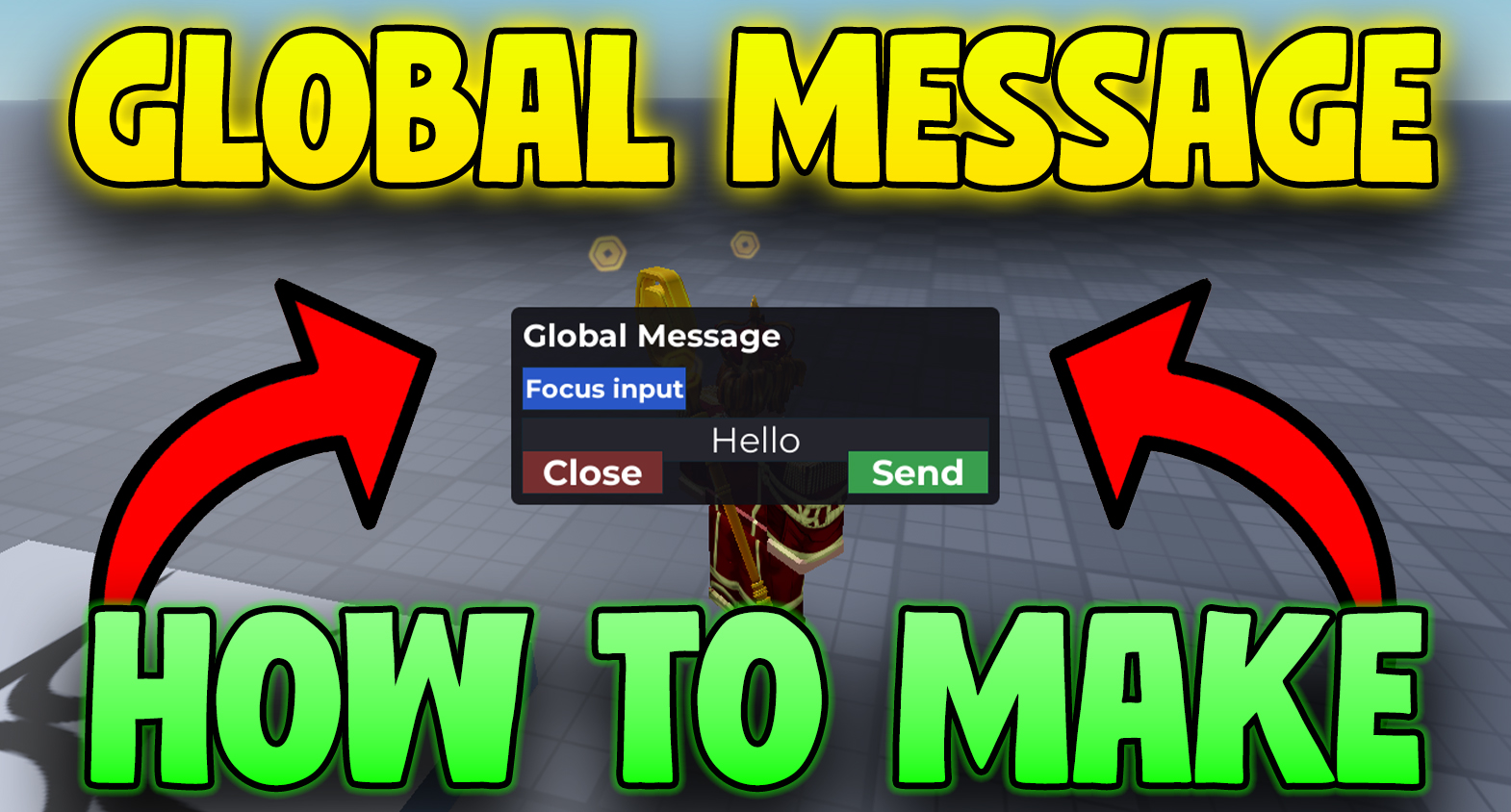
    How to make a global message in Roblox Studios – slide-down banner UI
    Slide-down banner that broadcasts messages to everyone in the server.

    You’ll set up two RemoteEvents in ReplicatedStorage and wire up a client banner UI + F2 toggle panel.
    Anyone can send (this version), and the server broadcasts to all players with a small cooldown and length clamp.

    On this page

    Create the two RemoteEvents (ReplicatedStorage)

    • ReplicatedStorage ▸ RemoteEventName: AdminGlobalMessage (client → server)
    • ReplicatedStorage ▸ RemoteEventName: GlobalMessage (server → all clients)

    Keep only these two remotes in ReplicatedStorage for this feature.

    Client (LocalScript) — StarterPlayer ▸ StarterPlayerScripts

    This script builds the slide-down banner for incoming messages and a simple panel you can toggle with F2 to send one.

    lua — StarterPlayerScripts > LocalScript
    -- StarterPlayerScripts > LocalScript
    -- F2 toggles the panel for EVERYONE (no admin check).
    -- "Send" will fire AdminGlobalMessage. Also shows the slide-down banner on GlobalMessage.
    
    local ReplicatedStorage = game:GetService("ReplicatedStorage")
    local TweenService = game:GetService("TweenService")
    local UserInputService = game:GetService("UserInputService")
    local Players = game:GetService("Players")
    
    local REMOTE_SEND   = ReplicatedStorage:WaitForChild("AdminGlobalMessage")
    local REMOTE_GLOBAL = ReplicatedStorage:WaitForChild("GlobalMessage")
    
    local player = Players.LocalPlayer
    
    -- =======================
    -- Banner UI (global messages)
    -- =======================
    local bannerGui = Instance.new("ScreenGui")
    bannerGui.Name = "GlobalMessages"
    bannerGui.IgnoreGuiInset = true
    bannerGui.ResetOnSpawn = false
    bannerGui.DisplayOrder = 1000
    bannerGui.Parent = player:WaitForChild("PlayerGui")
    
    local banner = Instance.new("Frame")
    banner.Name = "Banner"
    banner.Size = UDim2.new(1, 0, 0, 60)
    banner.Position = UDim2.new(0, 0, 0, -60) -- hidden above screen
    banner.BackgroundColor3 = Color3.fromRGB(30, 30, 30)
    banner.BackgroundTransparency = 0.25
    banner.Visible = false
    banner.Parent = bannerGui
    
    local bannerCorner = Instance.new("UICorner")
    bannerCorner.CornerRadius = UDim.new(0, 6)
    bannerCorner.Parent = banner
    
    local bannerLabel = Instance.new("TextLabel")
    bannerLabel.Size = UDim2.new(1, -20, 1, 0)
    bannerLabel.Position = UDim2.new(0, 10, 0, 0)
    bannerLabel.BackgroundTransparency = 1
    bannerLabel.TextScaled = true
    bannerLabel.Font = Enum.Font.GothamBold
    bannerLabel.TextColor3 = Color3.new(1, 1, 1)
    bannerLabel.TextStrokeTransparency = 0.5
    bannerLabel.Text = ""
    bannerLabel.Parent = banner
    
    local function showBanner(text, color)
        bannerLabel.Text = text
        bannerLabel.TextColor3 = color or Color3.new(1,1,1)
        banner.Visible = true
    
        -- slide in
        TweenService:Create(
            banner,
            TweenInfo.new(0.3, Enum.EasingStyle.Quad, Enum.EasingDirection.Out),
            { Position = UDim2.new(0, 0, 0, 0) }
        ):Play()
    
        task.wait(3) -- hold
    
        -- slide out
        TweenService:Create(
            banner,
            TweenInfo.new(0.3, Enum.EasingStyle.Quad, Enum.EasingDirection.In),
            { Position = UDim2.new(0, 0, 0, -60) }
        ):Play()
    
        task.wait(0.3)
        banner.Visible = false
    end
    
    REMOTE_GLOBAL.OnClientEvent:Connect(showBanner)
    
    -- =======================
    -- Panel UI (F2 for everyone)
    -- =======================
    local adminGui = Instance.new("ScreenGui")
    adminGui.Name = "AdminPanel"
    adminGui.IgnoreGuiInset = true
    adminGui.ResetOnSpawn = false
    adminGui.DisplayOrder = 2000
    adminGui.Enabled = false -- hidden by default
    adminGui.Parent = player:WaitForChild("PlayerGui")
    
    local panel = Instance.new("Frame")
    panel.Name = "Panel"
    panel.Size = UDim2.new(0, 420, 0, 170)
    panel.Position = UDim2.new(0.5, -210, 0.5, -85)
    panel.BackgroundColor3 = Color3.fromRGB(20, 20, 25)
    panel.BackgroundTransparency = 0.1
    panel.Parent = adminGui
    
    local panelCorner = Instance.new("UICorner")
    panelCorner.CornerRadius = UDim.new(0, 8)
    panelCorner.Parent = panel
    
    local title = Instance.new("TextLabel")
    title.BackgroundTransparency = 1
    title.Size = UDim2.new(1, -20, 0, 32)
    title.Position = UDim2.new(0, 10, 0, 8)
    title.Text = "Global Message"
    title.TextScaled = true
    title.Font = Enum.Font.GothamBold
    title.TextColor3 = Color3.fromRGB(255, 255, 255)
    title.TextXAlignment = Enum.TextXAlignment.Left
    title.Parent = panel
    
    local gmButton = Instance.new("TextButton")
    gmButton.Name = "GlobalMessageButton"
    gmButton.Size = UDim2.new(0, 140, 0, 36)
    gmButton.Position = UDim2.new(0, 10, 0, 52)
    gmButton.Text = "Focus input"
    gmButton.TextScaled = true
    gmButton.BackgroundColor3 = Color3.fromRGB(45, 90, 200)
    gmButton.TextColor3 = Color3.new(1,1,1)
    gmButton.Font = Enum.Font.GothamBold
    gmButton.AutoButtonColor = true
    gmButton.Parent = panel
    
    local msgInput = Instance.new("TextBox")
    msgInput.Name = "MessageInput"
    msgInput.Size = UDim2.new(1, -20, 0, 36)
    msgInput.Position = UDim2.new(0, 10, 0, 96)
    msgInput.BackgroundColor3 = Color3.fromRGB(40, 40, 48)
    msgInput.TextColor3 = Color3.new(1,1,1)
    msgInput.PlaceholderText = "type your message here..."
    msgInput.Text = ""
    msgInput.TextScaled = true
    msgInput.ClearTextOnFocus = false
    msgInput.Font = Enum.Font.Gotham
    msgInput.Parent = panel
    
    local send = Instance.new("TextButton")
    send.Name = "SendButton"
    send.Size = UDim2.new(0, 120, 0, 36)
    send.Position = UDim2.new(1, -130, 1, -46)
    send.Text = "Send"
    send.TextScaled = true
    send.BackgroundColor3 = Color3.fromRGB(60, 160, 80)
    send.TextColor3 = Color3.new(1,1,1)
    send.Font = Enum.Font.GothamBold
    send.AutoButtonColor = true
    send.Parent = panel
    
    local close = Instance.new("TextButton")
    close.Name = "CloseButton"
    close.Size = UDim2.new(0, 120, 0, 36)
    close.Position = UDim2.new(0, 10, 1, -46)
    close.Text = "Close"
    close.TextScaled = true
    close.BackgroundColor3 = Color3.fromRGB(120, 50, 50)
    close.TextColor3 = Color3.new(1,1,1)
    close.Font = Enum.Font.GothamBold
    close.AutoButtonColor = true
    close.Parent = panel
    
    -- Toggle with F2 (no admin gate)
    UserInputService.InputBegan:Connect(function(inputObj, gpe)
        if gpe then return end
        if inputObj.KeyCode == Enum.KeyCode.F2 then
            adminGui.Enabled = not adminGui.Enabled
            if adminGui.Enabled then
                msgInput:CaptureFocus()
            end
        end
    end)
    
    close.MouseButton1Click:Connect(function()
        adminGui.Enabled = false
    end)
    
    gmButton.MouseButton1Click:Connect(function()
        msgInput:CaptureFocus()
    end)
    
    send.MouseButton1Click:Connect(function()
        local text = msgInput.Text or ""
        local color = nil -- you can pass Color3.new(...) if you want per-message colors
        REMOTE_SEND:FireServer(text, color)
    
        -- tiny visual feedback on the Send button
        TweenService:Create(send, TweenInfo.new(0.1), {BackgroundColor3 = Color3.fromRGB(80, 200, 110)}):Play()
        task.delay(0.12, function()
            if send then send.BackgroundColor3 = Color3.fromRGB(60, 160, 80) end
        end)
    end)

    Server (Script) — ServerScriptService

    This accepts any player sending a message (no admin check) and broadcasts to all clients with a small cooldown and length limit.

    lua — ServerScriptService > Script
    -- ServerScriptService > Script
    -- Accepts ANY player's request and broadcasts to all clients (no admin check).
    
    local ReplicatedStorage = game:GetService("ReplicatedStorage")
    local Players = game:GetService("Players")
    
    local REQ = ReplicatedStorage:WaitForChild("AdminGlobalMessage")
    local BROADCAST = ReplicatedStorage:WaitForChild("GlobalMessage")
    
    -- Basic anti-spam & safety
    local COOLDOWN = 3.0          -- seconds between sends per player (adjust as you like)
    local MAX_LEN  = 140          -- clamp message length
    local lastSent = {}           -- per-player timestamp
    
    local function sanitize(s)
        s = tostring(s or "")
        s = s:gsub("^%s+", ""):gsub("%s+$", "") -- trim
        s = s:gsub("[%c]", " ")                 -- strip control chars
        if #s > MAX_LEN then s = s:sub(1, MAX_LEN) end
        return s
    end
    
    REQ.OnServerEvent:Connect(function(player, rawText, optionalColor)
        if not player or not player:IsDescendantOf(Players) then return end
    
        -- cooldown per player
        local now = os.clock()
        if (now - (lastSent[player] or 0)) < COOLDOWN then
            return
        end
        lastSent[player] = now
    
        local text = sanitize(rawText)
        if text == "" then return end
    
        local color = typeof(optionalColor) == "Color3" and optionalColor or nil
        BROADCAST:FireAllClients(text, color)
        print(("[GlobalMessage] %s: %s"):format(player.Name, text))
    end)

    Quick test & tweaks

    Checklist

    • ReplicatedStorage has AdminGlobalMessage and GlobalMessage (RemoteEvents).
    • ServerScript is in ServerScriptService.
    • LocalScript is in StarterPlayer ▸ StarterPlayerScripts.
    • Press Play → hit F2 → type text → Send. A banner slides down for everyone.

    Optional knobs

    • Owner-only: add if player.UserId ~= game.CreatorId then return end before broadcasting.
    • Duration: change the task.wait(3) in showBanner.
    • Queue: want a message queue so rapid sends line up? I can add it—just say the word.

    Suggested WordPress tags

    how to make a global message in roblox studios, roblox global message, roblox remoteevent tutorial, roblox broadcast message,
    roblox gui banner, roblox studio networking, adminglobalmessage, globalmessage remote, roblox starterplayerscripts, serverscriptservice

    Primary keyword repeats naturally throughout this page: how to make a global message in roblox studios.


  • How to Make Objects Spin in Roblox Studio (Copy & Paste Script)

    How to Make Objects Spin in Roblox Studio (Copy & Paste Script)


    How to Make Objects Spin in Roblox Studio (Copy & Paste Script)


    Roblox Studio Scripting

    How to Make Objects Spin in Roblox Studio (Copy & Paste Script)

    How to make objects spin in Roblox Studio – rotating part example
    Spin Parts or Models smoothly in place with custom speed and axis.

    This guide gives you a geometric spinner that rotates a Part or a full Model around its
    bounding-box center (not center-of-mass). It works even when anchored, uses CFrame/PivotTo,
    and runs smoothly each frame via RunService.Heartbeat.

    On this page

    Geometric Spinner Script (Parts & Models)

    Put this Script inside any Part or Model you want to spin. It rotates around the geometric center and works even when anchored.

    lua — Script inside the Part or Model
    -- Script inside the Part or Model you want to spin.
    -- Spins around the GEOMETRIC CENTER (bounding-box center), not COM.
    -- Uses CFrame/PivotTo, so works even if anchored.
    
    local rps  = 0.25                         -- rotations per second
    local axis = Vector3.new(0, 1, 0)         -- world axis to spin around (Y = up)
    
    local RunService = game:GetService("RunService")
    
    local function anchorDescendants(model, anchored)
        for _, inst in ipairs(model:GetDescendants()) do
            if inst:IsA("BasePart") then
                inst.Anchored = anchored
            end
        end
    end
    
    local owner = script.Parent
    
    -- CASE 1: Single Part
    if owner:IsA("BasePart") then
        owner.Anchored = true  -- anchor for visual spinning
        local omega = rps * 2 * math.pi
        local last = tick()
    
        while owner.Parent do
            local now = tick()
            local dt = now - last
            last = now
    
            -- rotate around world axis, keeping same position
            local rot = CFrame.fromAxisAngle(axis.Unit, omega * dt)
            owner.CFrame = CFrame.new(owner.Position) * rot * owner.CFrame.Rotation
    
            RunService.Heartbeat:Wait()
        end
        return
    end
    
    -- CASE 2: Model
    if owner:IsA("Model") then
        local anyPart = owner:FindFirstChildWhichIsA("BasePart", true)
        if not anyPart then
            warn("[Spinner] Model has no parts:", owner:GetFullName())
            return
        end
    
        -- Anchor all parts so physics won't fight the visual spin
        anchorDescendants(owner, true)
    
        local bboxCF, _ = owner:GetBoundingBox()
        local centerCF = CFrame.new(bboxCF.Position) -- translation only
    
        -- Remember model's current pivot relative to center
        local offset = centerCF:ToObjectSpace(owner:GetPivot())
    
        local omega = rps * 2 * math.pi
        local last = tick()
    
        while owner.Parent do
            local now = tick()
            local dt = now - last
            last = now
    
            local rot = CFrame.fromAxisAngle(axis.Unit, omega * dt)
            owner:PivotTo(centerCF * rot * offset)
    
            RunService.Heartbeat:Wait()
        end
        return
    end
    
    warn("[Spinner] Parent must be a BasePart or Model, got:", owner.ClassName)

    How It Works (Explained)

    1) Rotations Per Second (rps)

    rps = 0.25 means one quarter turn per second (full rotation every 4 seconds). We convert to radians/sec with omega = rps * 2π.

    2) Case 1: Single Part

    A Part’s CFrame.Position is already its geometric center. Each frame we compute dt, build a rotation with CFrame.fromAxisAngle, and reapply position + orientation so it spins in place.

    3) Case 2: Model

    Models don’t have a single CFrame, so we take the bounding-box center via GetBoundingBox(), store the current pivot offset, and on each frame call PivotTo(center * rotation * offset) so it spins exactly around that center.

    4) Anchoring

    We anchor Parts (or all descendants for Models) so physics doesn’t fight the manual rotation. This is ideal for pickups, coins, spinning props, etc.

    5) Heartbeat Loop

    The rotation runs on RunService.Heartbeat for smooth, frame-by-frame updates at the desired speed.

    How to Use It (Step-by-Step)

    For a Single Part

    1. Insert a Part (e.g., coin or cube) into Workspace.
    2. Set Anchored = true.
    3. Insert a Script inside the Part and paste the code.
    4. Press Play → it spins forever around its center.

    For a Model

    1. Group your pieces into a Model.
    2. Insert a Script in the Model and paste the code.
    3. Press Play → it spins around its bounding-box center.

    Customizing Speed & Axis

    • Speed: set rps to 1 (fast), 0.1 (slow), etc.
    • Axis: Vector3.new(0,1,0) spins around Y (up). Try Vector3.new(1,0,0) for X or Vector3.new(0,0,1) for Z.
    • Start/Stop: gate the loop with a BoolValue or custom event to toggle spinning at runtime.

    Suggested WordPress tags

    how to make objects spin in roblox studio, roblox spin script, roblox cframe rotation, roblox pivotto tutorial,
    roblox rotating part, roblox spinning model, roblox anchored spin script, roblox axis rotation, roblox runservice heartbeat,
    roblox studio scripting tutorial, roblox beginner scripting


  • How to Make a Health Bar in Roblox Studio – Working Health Bar GUI

    How to Make a Health Bar in Roblox Studio – Working Health Bar GUI


    How to Make a Health Bar in Roblox Studio (Floating HP + Upgrades)


    Roblox Studio GUI

    How to Make a Health Bar in Roblox Studio (Floating HP + Upgrades)

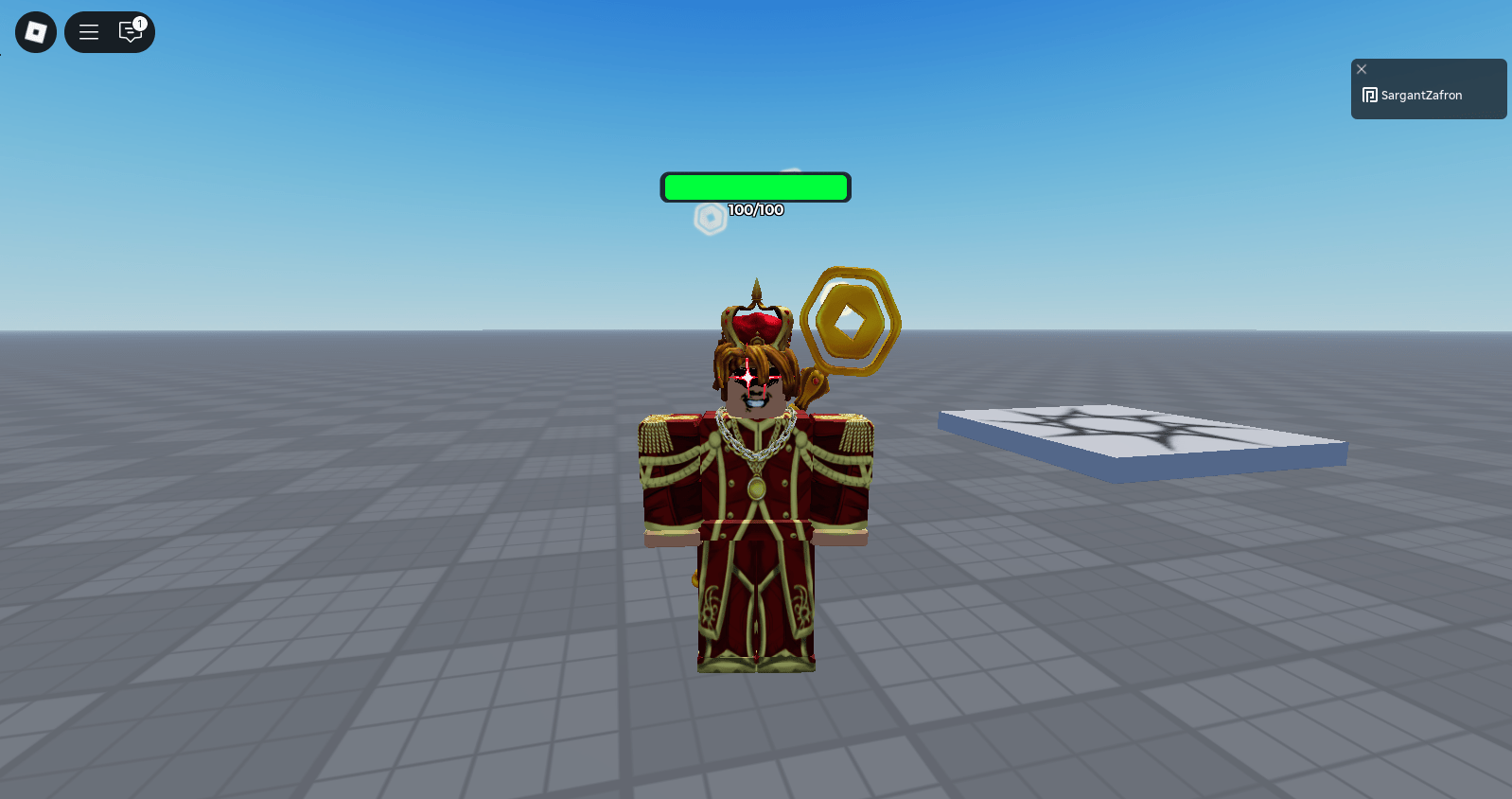
    How to make a health bar in Roblox Studio – floating overhead HP bar
    Floating health bar that shows current/max and updates automatically.

    Goal: a server-wide floating health bar above each player that shows current/max, plus two test parts:
    damage clicker (–10 HP per click) and health-upgrade clicker (+1 MaxHealth and a tiny heal).
    Copy the scripts below and follow the folder paths.

    On this page

    1) Floating health bar (server-side)

    Where to add it: Explorer → ServerScriptService → Script

    lua — ServerScriptService > Script
    -- ServerScriptService > Script
    -- Overhead health bar visible to everyone. Tracks Health and MaxHealth.
    
    local Players = game:GetService("Players")
    
    local BAR_WIDTH  = 200
    local BAR_HEIGHT = 26
    
    local function attachHealthBar(character)
        local head = character:WaitForChild("Head", 10)
        local hum  = character:WaitForChild("Humanoid", 10)
        if not head or not hum then return end
    
        -- Clean previous bar (if any)
        local old = head:FindFirstChild("OverheadHealth")
        if old then old:Destroy() end
    
        -- Billboard container (faces camera, follows Head)
        local billboard = Instance.new("BillboardGui")
        billboard.Name = "OverheadHealth"
        billboard.Adornee = head
        billboard.AlwaysOnTop = true
        billboard.Size = UDim2.new(0, BAR_WIDTH, 0, BAR_HEIGHT + 18)
        billboard.StudsOffset = Vector3.new(0, 3.25, 0)
        billboard.MaxDistance = 175
        billboard.Parent = head
    
        -- Card background
        local card = Instance.new("Frame")
        card.Size = UDim2.new(1, 0, 0, BAR_HEIGHT + 4)
        card.BackgroundColor3 = Color3.fromRGB(15, 15, 18)
        card.BackgroundTransparency = 0.15
        card.Parent = billboard
    
        local uiCorner = Instance.new("UICorner")
        uiCorner.CornerRadius = UDim.new(0, 8)
        uiCorner.Parent = card
    
        local stroke = Instance.new("UIStroke")
        stroke.Transparency = 0.25
        stroke.Thickness = 1.5
        stroke.Color = Color3.fromRGB(0, 0, 0)
        stroke.Parent = card
    
        -- Bar background
        local barBG = Instance.new("Frame")
        barBG.Name = "BarBG"
        barBG.Size = UDim2.new(1, -8, 0, BAR_HEIGHT)
        barBG.Position = UDim2.new(0, 4, 0, 2)
        barBG.BackgroundColor3 = Color3.fromRGB(28, 28, 34)
        barBG.Parent = card
    
        local bgCorner = Instance.new("UICorner")
        bgCorner.CornerRadius = UDim.new(0, 6)
        bgCorner.Parent = barBG
    
        -- Bar fill (we will resize this)
        local fill = Instance.new("Frame")
        fill.Name = "BarFill"
        fill.Size = UDim2.new(1, 0, 1, 0)
        fill.BackgroundColor3 = Color3.fromRGB(90, 200, 90) -- green-ish
        fill.Parent = barBG
    
        local fillCorner = Instance.new("UICorner")
        fillCorner.CornerRadius = UDim.new(0, 6)
        fillCorner.Parent = fill
    
        -- Text: current/max
        local txt = Instance.new("TextLabel")
        txt.Name = "HPText"
        txt.BackgroundTransparency = 1
        txt.Size = UDim2.new(1, 0, 0, 18)
        txt.Position = UDim2.new(0, 0, 0, BAR_HEIGHT + 4)
        txt.Font = Enum.Font.GothamBold
        txt.TextScaled = true
        txt.TextColor3 = Color3.new(1, 1, 1)
        txt.TextStrokeTransparency = 0
        txt.TextStrokeColor3 = Color3.new(0, 0, 0)
        txt.Parent = billboard
    
        -- Update visuals from Humanoid values
        local function refresh()
            local maxHP = math.max(1, hum.MaxHealth)
            local hp    = math.clamp(hum.Health, 0, maxHP)
            local ratio = hp / maxHP
    
            fill.Size = UDim2.new(ratio, 0, 1, 0)
    
            -- color shift green -> yellow -> red as HP drops
            local r = math.clamp((1 - ratio) * 2, 0, 1)
            local g = math.clamp(ratio * 2, 0, 1)
            fill.BackgroundColor3 = Color3.fromRGB(255 * r, 255 * g, 60)
    
            txt.Text = string.format("%d/%d", math.floor(hp + 0.5), math.floor(maxHP + 0.5))
        end
    
        refresh()
        hum.HealthChanged:Connect(refresh)
        hum:GetPropertyChangedSignal("MaxHealth"):Connect(refresh)
    
        -- Clean up a bit after death
        hum.Died:Connect(function()
            task.delay(2, function()
                if billboard and billboard.Parent then billboard:Destroy() end
            end)
        end)
    end
    
    local function onPlayerAdded(player)
        player.CharacterAdded:Connect(attachHealthBar)
        if player.Character then attachHealthBar(player.Character) end
    end
    
    Players.PlayerAdded:Connect(onPlayerAdded)
    for _, p in ipairs(Players:GetPlayers()) do onPlayerAdded(p) end
    

    What this does (in plain English)

    When a character spawns, the script builds a BillboardGui above the Head. It resizes a fill bar to Health / MaxHealth, shifts color from green → yellow → red as HP drops, and shows current/max in text. It listens to HealthChanged and MaxHealth, so it updates automatically when you take damage or increase MaxHealth.

    2) Damage clicker (click → take 10 damage)

    Where to add it: In Workspace, insert a Part (name it DamageClicker), set Anchored = true. Add a ClickDetector and a Script inside the Part, then paste:

    lua — Workspace > DamageClicker (Part) > Script
    -- Workspace > DamageClicker (Part) > Script
    -- Requires a ClickDetector on the same Part.
    
    local part = script.Parent
    local click = part:FindFirstChildOfClass("ClickDetector")
    
    if not click then
        warn("DamageClicker needs a ClickDetector")
        return
    end
    
    click.MaxActivationDistance = 32 -- optional: easier to click
    
    click.MouseClick:Connect(function(player)
        local char = player.Character
        if not char then return end
    
        local hum = char:FindFirstChildOfClass("Humanoid")
        if not hum then return end
    
        hum:TakeDamage(10) -- subtract 10 from current Health
    end)
    

    How it works

    ClickDetector.MouseClick gives you the Player who clicked. We grab their Humanoid and call TakeDamage(10). Your overhead health bar updates immediately because it listens to HealthChanged.

    3) Health-upgrade clicker (click → +1 MaxHealth, tiny heal)

    Where to add it: In Workspace, insert another Part (name it UpgradeHealth), set Anchored = true. Add a ClickDetector and a Script inside the Part, then paste:

    lua — Workspace > UpgradeHealth (Part) > Script
    -- Workspace > UpgradeHealth (Part) > Script
    -- Requires a ClickDetector on the same Part.
    
    local part = script.Parent
    local click = part:FindFirstChildOfClass("ClickDetector")
    
    if not click then
        warn("UpgradeHealth needs a ClickDetector")
        return
    end
    
    click.MaxActivationDistance = 32
    
    click.MouseClick:Connect(function(player)
        local char = player.Character
        if not char then return end
    
        local hum = char:FindFirstChildOfClass("Humanoid")
        if not hum then return end
    
        -- Raise MaxHealth by 1
        hum.MaxHealth = (hum.MaxHealth or 100) + 1
    
        -- Give a tiny bump so it feels responsive.
        -- Default Roblox regen will keep filling toward the new max automatically.
        hum.Health = math.min((hum.Health or hum.MaxHealth) + 1, hum.MaxHealth)
    
        -- If you prefer to instantly fill to the new max, use:
        -- hum.Health = hum.MaxHealth
    end)
    

    How it works

    On click, we add +1 to MaxHealth and nudge Health up by 1 so the bar moves immediately. Default Roblox regeneration continues to fill toward the new max. The overhead bar updates because it listens to both MaxHealth and Health.

    Setup checklist & quick test

    • Use Play (F5), not Run, so your character actually spawns.
    • Each clicker Part must have a ClickDetector.
    • The health bar script must live in ServerScriptService (not StarterPlayerScripts).
    • If you’ve disabled default regeneration, either add your own heal-over-time or set hum.Health = hum.MaxHealth on upgrade.

    Quick test flow

    1. Press Play → notice the overhead bar (e.g., 100/100).
    2. Click DamageClicker → bar drops by 10 each click.
    3. Click UpgradeHealth → max rises (101, 102, …) and the bar/number adjusts; regen creeps Health upward.

    FAQ & troubleshooting

    No bar appears? Make sure the script is in ServerScriptService and you’re pressing Play, not just running physics.

    Bar doesn’t update on click? Confirm the parts have ClickDetector, and your script references the player’s Humanoid correctly.

    Colors feel too strong? Tweak the green/yellow/red mixing in the refresh() function to match your style.

    Want a kill brick? Add a Part with a Touched event setting hum.Health = 0. I can add a copy-paste snippet if you want it here.

    Related Roblox Studio guides

    Suggested WordPress tags (copy into your post)

    how to make a health bar in roblox studio, roblox health bar, billboardgui health, humanoid healthchanged, maxhealth roblox, roblox clickdetector, roblox damage clicker, roblox health upgrade, roblox gui tutorial, roblox scripting examples, roblox you died overlay, roblox text above name, roblox studio beginner

    Primary keyword repeats naturally throughout this page: how to make a health bar in roblox studio.


  • How to Make Roblox Thumbnails – Best Free Guide

    How to Make Roblox Thumbnails – Best Free Guide


    How to Make Roblox Thumbnails (Complete Guide: Blender + Photopea)


    Roblox Thumbnail Tutorial

    Downloads (all free)

    Tip: keep a dedicated folder so every render, texture, and rig is easy to find later.

    Introduction — How to Make Roblox Thumbnails the Easy Way

    If you’re wondering how to make Roblox thumbnails that actually pop, this guide walks you through the exact workflow I use: export your avatar from Studio, pose and light it in Blender, and finish the design inside Photopea. Everything here is free, repeatable, and fast once you set it up once.

    How to make Roblox Thumbnails — export, pose in Blender, finish in Photopea
    Workflow high-level: Studio → Blender → Photopea. Replace the image URL with your own screenshot.

    Required Software + Folder Setup (for “How to Make Roblox Thumbnails”)

    Download the tools above, then create a clean folder structure so renders never get lost.

    txt — Folder structure (copy)
    Roblox Blender/
    ├─ Roblox Avatar/        # textures + exported hats/mesh
    ├─ Renders/              # final PNG outputs
    ├─ Extras/               # friends' avatars (optional)
    └─ Starter Rigs/         # unzip the Starter Rigs here

    Exporting Your Avatar From Studio (Step 1 of How to Make Roblox Thumbnails)

    1. Open Roblox Studio → Baseplate.
    2. Plugins → Load Character → type your username → check Spawn at Origin → choose R6.
    3. Select all accessories (hair/hats), right-click → Export Selection → save as Roblox Avatar/hats.obj.
    4. Select the body/texture → Export Selection → save your texture PNGs in Roblox Avatar/.
    txt — Studio export checklist
    Load Character → username → Spawn at Origin → R6
    Select accessories → Export Selection → hats.obj
    Select body/texture → Export Selection → textures (PNG)
    Save inside /Roblox Blender/Roblox Avatar/

    How to make Roblox Thumbnails — exporting avatar from Roblox Studio with Load Character plugin
    Exporting your avatar with the Load Character plugin speeds up the Blender step.

    Blender Setup — Rig, Textures, Hats (Core of How to Make Roblox Thumbnails)

    Import rig and apply textures

    1. Open a rig from Starter Rigs/Rigs (Blocky, 2.0, etc.).
    2. Go to Shading, clear the default texture, then Open your avatar PNGs.

    Import and align accessories

    1. File → Import → Wavefront (.obj) → choose hats.obj with “Split by Group/Object”.
    2. Use the Move tool to align hair/hat; delete the rig head for a headless look.
    3. Pose Mode → select accessories → select neck bone → Ctrl+P → Bone (parent to head).

    Camera, lighting, and render settings

    ini — Copy these Blender settings
    # Camera
    Add → Camera → View → Cameras → Set Active
    View → Navigation → Walk Navigation (WASD) to frame subject
    Output: 2000 x 2000 (or 1000 x 1000 if slow)
    
    # Lighting (two softboxes)
    Add → Light → Area (x2)
    Shape: Ellipse | Power: 500–800 W each | Size: fairly large
    Place left/right of the avatar, angled in toward the head
    
    # Render
    Engine: Cycles | Device: GPU Compute
    Render → Film: Transparent (for PNG composites)
    Render → Render Image → Image → Save As → /Renders/render_01.png

    How to make Roblox Thumbnails — Blender lighting and camera for clean renders
    Two soft Area lights with ellipse shape give smooth highlights and fewer harsh shadows.

    Design in Photopea — Finishing Touches for Roblox Thumbnails

    Create a 1920×1080 transparent canvas, paste your render, and add a blurred in-game screenshot as background. The background blur directs focus to your avatar.

    txt — Photopea new canvas
    New Project → 1920×1080, DPI 300, Transparent
    Paste render (Ctrl+V) → Ctrl+T to size/rotate
    Background: paste screenshot → Filter → Blur → Gaussian (≈7 px)
    Character outline: Layer → Blending Options → Stroke 8–10 px (black)
    Rim-light look: Inner Shadow set to White, Angle ~115°, Distance 0

    10 Quick Tips to Make Better Roblox Thumbnails

    • Keep backgrounds simple; blur slightly so the character reads instantly.
    • Use a subtle white rim-light (inner shadow) to separate the render from the scene.
    • Try asymmetric poses (one foot forward, tilted head) to avoid stiffness.
    • Push Vibrance in moderation; sharpen the character layer once at the end.
    • Use big, simple icons (cursor/arrow) to focus attention.
    • Frame the face/torso on intersections (rule of thirds) for stronger composition.
    • Export PNG at full quality; keep the PSD layered for quick variants.
    • Save a clean rig.blend so every new render starts posed-ready.
    • Use Transparent Film in Blender to composite over anything later.
    • Name files consistently: render_01.png, render_02.png

    Exporting Your Roblox Thumbnail (PNG)

    txt — PNG export preset
    Photopea → File → Export As → PNG
    Quality: 100
    Name: roblox-thumbnail-v1.png
    Keep the layered .PSD for future edits

    Related Guides (Internal Links)

    Level up your project with these Roblox Studio tutorials:

    FAQ — How to Make Roblox Thumbnails

    What canvas size should I start with? 1920×1080 (YouTube) or 2000×2000 (square renders). Keep the character large and readable on mobile.

    Should I render in Eevee or Cycles? Eevee is great for posing previews. Use Cycles for final PNGs; enable Transparent under Film.

    Do I need Photoshop? No—Photopea is free and works in the browser with most Photoshop features.

    SEO note: this page targets the keyphrase “How to make Roblox Thumbnails” and uses synonyms like “Roblox thumbnail tutorial” throughout headings and alt text.


  • How to Make Text Above Your Name in Roblox Studios

    How to Make Text Above Your Name in Roblox Studios


    How to Make Text Above Your Name in Roblox Studios (Copy-Paste Scripts)


    Roblox Studio GUI

    How to Make Text Above Your Name in Roblox Studios (Copy-Paste Scripts)

    We’ll use a BillboardGui attached to the character’s Head. Choose between a LocalScript (only you see it) or a Server Script (everyone sees it). Copy the code with one click.

    On this page

    🧠 First Version: LocalScript (Client-Sided)

    Where: StarterPlayer > StarterPlayerScripts · Runs only on the player’s computer.

    What it does: Adds a BillboardGui above your head that only you can see—great for personal UI such as a quest marker.

    lua — LocalScript (client-only)
    local Players = game:GetService("Players")
    local player = Players.LocalPlayer -- just YOU
    
    local function addNameText(character)
        local head = character:WaitForChild("Head", 5)
        if not head then return end
    
        local billboard = Instance.new("BillboardGui")
        billboard.Adornee = head  -- attaches to head
        billboard.Size = UDim2.new(0, 200, 0, 50)
        billboard.StudsOffset = Vector3.new(0, 3, 0) -- 3 studs above head
        billboard.AlwaysOnTop = true -- never behind objects
        billboard.Parent = head
    
        local label = Instance.new("TextLabel")
        label.Size = UDim2.fromScale(1, 1)
        label.BackgroundTransparency = 1
        label.Text = string.lower(player.Name) -- only YOUR name
        label.TextScaled = true
        label.Font = Enum.Font.GothamBold
        label.TextColor3 = Color3.new(1, 1, 1)
        label.TextStrokeTransparency = 0
        label.TextStrokeColor3 = Color3.new(0, 0, 0)
        label.Parent = billboard
    end
    
    if player.Character then addNameText(player.Character) end
    player.CharacterAdded:Connect(addNameText)

    Pros: very lightweight; perfect for personal UI. Cons: only you see it—no global visibility.

    🧠 Second Version: Server Script (Server-Sided)

    Where: ServerScriptService > Script · Runs for everyone.

    What it does: Adds a BillboardGui over every player’s head, visible to all—perfect for public name tags, ranks, or health bars.

    lua — ServerScriptService Script (global)
    local Players = game:GetService("Players")
    
    local function addOverheadBillboard(character, player)
        local head = character:WaitForChild("Head", 10)
        if not head then return end
    
        -- Remove old BillboardGui if it exists
        local old = head:FindFirstChild("OverheadName")
        if old then old:Destroy() end
    
        local billboard = Instance.new("BillboardGui")
        billboard.Name = "OverheadName"
        billboard.Adornee = head
        billboard.Size = UDim2.new(0, 200, 0, 50)
        billboard.StudsOffset = Vector3.new(0, 3, 0)
        billboard.AlwaysOnTop = true
        billboard.MaxDistance = 150 -- hides when far away
        billboard.Parent = head
    
        local label = Instance.new("TextLabel")
        label.Size = UDim2.fromScale(1, 1)
        label.BackgroundTransparency = 1
        label.Text = string.lower(player.Name) -- lowercase name
        label.TextScaled = true
        label.Font = Enum.Font.GothamBold
        label.TextColor3 = Color3.new(1, 1, 1)
        label.TextStrokeTransparency = 0
        label.TextStrokeColor3 = Color3.new(0, 0, 0)
        label.Parent = billboard
    end
    
    local function onCharacterAdded(character, player)
        addOverheadBillboard(character, player)
    end
    
    local function onPlayerAdded(player)
        player.CharacterAdded:Connect(function(char)
            onCharacterAdded(char, player)
        end)
        if player.Character then
            onCharacterAdded(player.Character, player)
        end
    end
    
    Players.PlayerAdded:Connect(onPlayerAdded)
    for _, p in ipairs(Players:GetPlayers()) do
        onPlayerAdded(p)
    end

    Pros: everyone sees everyone’s text; auto-works for new players. Cons: a bit more complex; add conditions if only some players should see labels.

    🏆 Optional: Combined Approach (Global name + personal extra)

    Keep the server script for global name tags, and add this LocalScript in StarterPlayerScripts to append a small personal note under your own name.

    lua — LocalScript add-on (personal subtitle)
    local Players = game:GetService("Players")
    local player = Players.LocalPlayer
    
    local function addPersonalSubtitle(character)
        local head = character:WaitForChild("Head", 5)
        if not head then return end
        local board = head:FindFirstChild("OverheadName")
        if not board then return end
    
        -- Add a small label UNDER your own name that only you can see
        local sub = Instance.new("TextLabel")
        sub.AnchorPoint = Vector2.new(0.5, 0.5)
        sub.Position = UDim2.fromScale(0.5, 1.25) -- below main label
        sub.Size = UDim2.fromOffset(200, 22)
        sub.BackgroundTransparency = 1
        sub.Text = "this is me!"
        sub.TextScaled = true
        sub.Font = Enum.Font.Gotham
        sub.TextColor3 = Color3.fromRGB(230, 230, 230)
        sub.TextStrokeTransparency = 0
        sub.TextStrokeColor3 = Color3.new(0, 0, 0)
        sub.Parent = board
    end
    
    if player.Character then addPersonalSubtitle(player.Character) end
    player.CharacterAdded:Connect(addPersonalSubtitle)

    Best practices & FAQ

    • Use StudsOffset = Vector3.new(0, 3, 0) to keep text off the head.
    • AlwaysOnTop = true prevents the tag from hiding behind parts.
    • For performance in busy servers, set MaxDistance (e.g., 100–150).
    • Prefer TextStroke for readability over bright colors.

    Why “Roblox Studio” vs “Roblox Studios”? The official product is “Roblox Studio” (singular), but this page targets the search phrase how to make a text above your name roblox studios for SEO reach.


  • Best Bloxstraps Fast Flags: Higher FPS & Lower Ping

    Best Bloxstraps Fast Flags: Higher FPS & Lower Ping


    Best Bloxstraps Fast Flags: Higher FPS & Lower Ping


    Roblox Optimization

    Best Bloxstraps Fast Flags (Copy-Paste JSON)

    This guide shows the best Bloxstraps fast flags (and the common variant “best Bloxstrap fast flags”) for higher FPS, cleaner visuals, and lower ping. Everything is a simple copy-paste with one-click copy buttons.

    On this page

    Introduction

    Roblox is huge—and some PCs struggle. Bloxstrap lets you fine-tune Roblox via fast flags for better FPS, responsiveness, and visuals. Below are the best, battle-tested profiles you can paste directly.

    Understanding Bloxstrap Fast Flags

    What is Bloxstrap?

    Bloxstrap is a utility that exposes advanced configuration for Roblox—performance tweaks, graphics controls, and customizations.

    Download Bloxstrap

    Key features

    • Performance tweaks – turn on useful optimizations.
    • Graphics controls – dial visuals up/down to taste.
    • Friendly UI – easy to add/edit fast flags.

    Setting Up Bloxstrap

    1. Download & install: grab the latest build, run the installer.
    2. Launch Bloxstrap: open the app and complete the first-time prompts.

    Optimizing Roblox with Fast Flag Settings

    Fast flags are Roblox’s internal switches. Adjusting them can change rendering, networking, and other systems for more FPS and lower input latency.

    1. Open Bloxstrap → Settings.
    2. Find the Fast Flags section.
    3. Paste one of the JSON profiles below and save.

    Best Bloxstrap Fast Flags (FPS/Quality)

    Copy and paste this profile into your Bloxstrap Fast Flags. It focuses on performance and stability.

    json — Bloxstrap Fast Flags (FPS/Quality)
    {
    "FLogNetwork": "7",
    "FFlagUseNewAnimationSystem": "False",
    "FFlagDebugDisableTelemetryEventIngest": "True",
    "FFlagTweenOptimizations": "True",
    "DFIntCSGLevelOfDetailSwitchingDistance": "0",
    "FFlagDebugSkyGray": "True",
    "DFFlagDebugPerfMode": "False",
    "DFFlagBrowserTrackerIdTelemetryEnabled": "False",
    "DFStringTelemetryV2Url": "null",
    "FFlagFixGraphicsQuality": "True",
    "FFlagEnableNewHeapSnapshots": "False",
    "FFlagNewNetworking": "False",
    "FFlagPreloadAllFonts": "False",
    "FStringGamesUrlPath": "/games/",
    "DFFlagDisableFastLogTelemetry": "True",
    "FFlagNewLightAttenuation": "True",
    "FFlagDebugGraphicsPreferD3D11": "True",
    "FFlagEnableTerrainFoliageOptimizations": "True",
    "FFlagDebugDisableTelemetryPoint": "True",
    "DFStringAltTelegrafHTTPTransportUrl": "null",
    "FFlagEnableHumanoidLuaSideCaching": "False",
    "DFFlagTextureQualityOverrideEnabled": "True",
    "DFIntCSGLevelOfDetailSwitchingDistanceL34": "0",
    "FFlagFastGPULightCulling3": "True",
    "FFlagEnableNewInput": "True",
    "FFlagCommitToGraphicsQualityFix": "True",
    "FFlagAnimatePhysics": "False",
    "FFlagSimIslandizerManager": "false",
    "FFlagDebugDisableTelemetryEphemeralCounter": "True",
    "FFlagDebugDisableTelemetryV2Stat": "True",
    "FFlagUseUnifiedRenderStepped": "False",
    "FFlagUseParticlesV2": "False",
    "DFIntCSGLevelOfDetailSwitchingDistanceL12": "0",
    "FFlagTaskSchedulerLimitTargetFpsTo2402": "False",
    "FFlagUseDeferredContext": "False",
    "FFlagOptimizeEmotes": "False",
    "DFStringLightstepToken": "null",
    "FFlagFixScalingModelRendering": "False",
    "DFIntNewRunningBaseAltitudeD": "45",
    "FFlagDebugDisableTelemetryV2Counter": "True",
    "DFIntClientLightingTechnologyChangedTelemetryHundredthsPercent": "0",
    "FFlagUseDynamicSun": "False",
    "DFFlagDebugPauseVoxelizer": "True",
    "DFStringTelegrafHTTPTransportUrl": "null",
    "DFStringRobloxAnalyticsURL": "null",
    "DFIntLightstepHTTPTransportHundredthsPercent2": "0",
    "DFStringLightstepHTTPTransportUrlHost": "null",
    "DFStringCrashUploadToBacktraceWindowsPlayerToken": "null",
    "FFlagEnableTerrainOptimizations": "True",
    "DFFlagDisableDPIScale": "True",
    "FFlagLuaAppSystemBar": "False",
    "FFlagFixMeshPartScaling": "False",
    "DFStringCrashUploadToBacktraceBaseUrl": "null",
    "DFStringCrashUploadToBacktraceMacPlayerToken": "null",
    "DFIntS2PhysicsSenderRate": "250",
    "DFIntTaskSchedulerTargetFps": "999999",
    "FFlagEnableLightAttachToPart": "False",
    "FFlagDebugDisableTelemetryEphemeralStat": "True",
    "FFlagDebugDisableTelemetryV2Event": "True",
    "FFlagAdServiceEnabled": "False",
    "DFIntCSGLevelOfDetailSwitchingDistanceL23": "0",
    "DFStringHttpPointsReporterUrl": "null",
    "FIntRenderShadowIntensity": "0",
    "FFlagDebugCrashReports": "False",
    "FStringCoreScriptBacktraceErrorUploadToken": "null",
    "FFlagDebugDisplayFPS": "False",
    "DFFlagEnableLightstepReporting2": "False",
    "DFStringAltHttpPointsReporterUrl": "null",
    "DFStringLightstepHTTPTransportUrlPath": "null",
    "DFIntRenderingThrottleDelayInMS": "1",
    "DFIntRunningBaseOrientationP": "115",
    "FFlagHandleAltEnterFullscreenManually": "False",
    "DFFlagDebugRenderForceTechnologyVoxel": "True",
    "DFFlagBaseNetworkMetrics": "False",
    "FFlagDisablePostFx": "True",
    "FIntTerrainArraySliceSize": "0",
    "FIntDebugForceMSAASamples": "1"
    }

    Best Bloxstrap Fast Flags for PING

    Focuses on networking and update rates. Paste this in a separate Bloxstrap profile if you want to A/B test.

    json — Bloxstrap Fast Flags (Ping)
    {
    "FIntRakNetResendBufferArrayLength": "128",
    "FFlagOptimizeNetwork": "True",
    "FFlagOptimizeNetworkRouting": "True",
    "FFlagOptimizeNetworkTransport": "True",
    "FFlagOptimizeServerTickRate": "True",
    "DFIntServerPhysicsUpdateRate": "60",
    "DFIntServerTickRate": "60",
    "DFIntConnectionMTUSize": 900,
    "DFIntRakNetResendRttMultiple": "1",
    "DFIntRaknetBandwidthPingSendEveryXSeconds": "1",
    "DFIntOptimizePingThreshold": "50",
    "DFIntPlayerNetworkUpdateQueueSize": "20",
    "DFIntPlayerNetworkUpdateRate": "60",
    "DFIntNetworkPrediction": "120",
    "DFIntNetworkLatencyTolerance": "1",
    "DFIntMinimalNetworkPrediction": "0.1"
    }

    Ping Commands (Windows)

    Run these in Command Prompt as admin for a quick network reset:

    cmd — network reset
    ipconfig/flushdns
    
    ipconfig/renew
    
    netsh winsock reset

    Implementing the Settings

    1. Modify values: paste a JSON profile in Bloxstrap’s Fast Flags.
    2. Save changes and close Bloxstrap.
    3. Restart Roblox, then play a game to test improvements.

    Troubleshooting & Tips

    Common issues

    • Game crashes: revert the last few flags or try the default profile; add changes gradually.
    • Visual glitches: reset graphics to default, then reapply flags one by one.

    Keep performance strong

    • Update Bloxstrap regularly.
    • Monitor changes after major Roblox updates; some flags can change behavior over time.

    FAQs

    What is Bloxstrap? A utility that lets you optimize Roblox by tweaking fast flags and other settings.

    How do I install Bloxstrap? Download from the project page, run the installer, follow prompts.

    What are fast flags? Internal configuration switches Roblox uses to control systems like rendering and networking.

    Where are fast flags in Bloxstrap? Settings → Fast Flags.

    What are the best settings? Use the “FPS/Quality” and “Ping” JSON profiles above as a starting point.

    How do I apply? Paste the JSON, save, restart Roblox, test.

    Heads-up: Roblox updates can change how certain flags behave. Keep backups of known-good profiles and re-test after updates.


  • How to Make a Deathscreen in Roblox Studios (Copy-Paste Code)

    How to Make a Deathscreen in Roblox Studios (Copy-Paste Code)


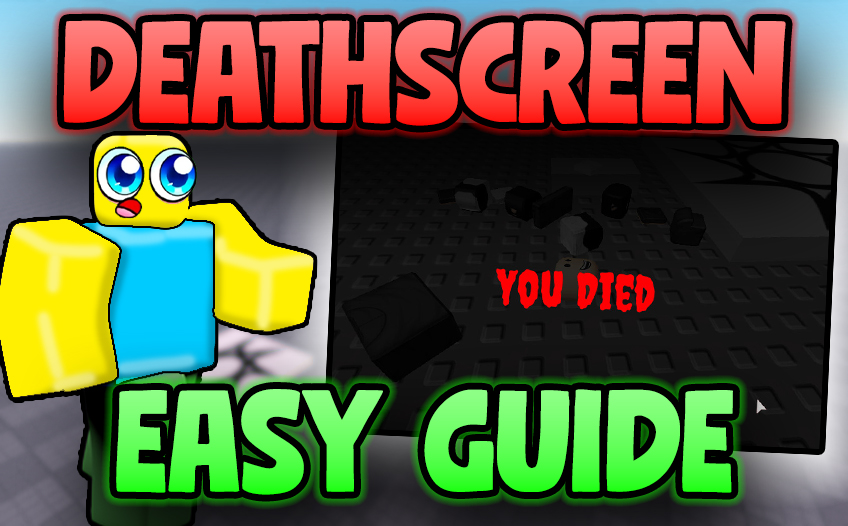
    How to Make a Deathscreen in Roblox Studios (Copy-Paste Code)


    Roblox Studio GUI

    How to Make a Deathscreen in Roblox Studios (Copy-Paste Code)

    TL;DR: In StarterPlayer > StarterPlayerScripts, add a LocalScript, paste the code below, and hit Play.
    The overlay dims the screen so you can read the text, shows YOU DIED with tiny subtext directly underneath, and auto-cleans itself 5 seconds after you respawn.

    On this page

    Copy-paste Deathscreen LocalScript

    This script listens for your Humanoid.Died event, creates a ScreenGui with a darker
    transparent tint, renders a centered YOU DIED headline, then a very small, lighter subtext directly under it
    (“man you suck”). After you respawn, it automatically removes itself after 5 seconds.

    lua — LocalScript (StarterPlayerScripts)
    -- Death Screen LocalScript (StarterPlayerScripts)
    local Players = game:GetService("Players")
    local player = Players.LocalPlayer
    
    local deathGui -- will hold the ScreenGui instance
    
    local function showDeathScreen()
    	-- Remove old one if it exists
    	if deathGui then
    		deathGui:Destroy()
    		deathGui = nil
    	end
    
    	deathGui = Instance.new("ScreenGui")
    	deathGui.Name = "DeathScreen"
    	deathGui.ResetOnSpawn = false
    	deathGui.IgnoreGuiInset = true
    	deathGui.Parent = player:WaitForChild("PlayerGui")
    
    	-- Background tint (darker, semi-transparent)
    	local background = Instance.new("Frame")
    	background.Size = UDim2.fromScale(1, 1)
    	background.BackgroundColor3 = Color3.new(0, 0, 0)
    	background.BackgroundTransparency = 0.3 -- darker tint, adjust between 0.3-0.5 to taste
    	background.Parent = deathGui
    
    	-- Main "YOU DIED" text
    	local label = Instance.new("TextLabel")
    	label.Size = UDim2.new(1, 0, 0.2, 0)
    	label.Position = UDim2.fromScale(0, 0.35)
    	label.BackgroundTransparency = 1
    	label.Text = "YOU DIED"
    	label.TextScaled = true
    	label.Font = Enum.Font.GothamBold
    	label.TextColor3 = Color3.new(1, 1, 1)
    	label.Parent = background
    
    	-- Small subtext directly under the main text
    	local subLabel = Instance.new("TextLabel")
    	subLabel.Size = UDim2.new(1, 0, 0.05, 0) -- much smaller height
    	subLabel.Position = UDim2.new(0, 0, 0.53, 0) -- right below main text
    	subLabel.BackgroundTransparency = 1
    	subLabel.Text = "man you suck"
    	subLabel.TextScaled = true
    	subLabel.Font = Enum.Font.Gotham
    	subLabel.TextColor3 = Color3.fromRGB(200, 200, 200)
    	subLabel.Parent = background
    end
    
    local function hookHumanoid(humanoid)
    	humanoid.Died:Connect(function()
    		showDeathScreen()
    	end)
    end
    
    local function onCharacterAdded(char)
    	-- after respawn, remove death screen after 5 seconds
    	if deathGui then
    		task.delay(5, function()
    			if deathGui then
    				deathGui:Destroy()
    				deathGui = nil
    			end
    		end)
    	end
    
    	local hum = char:FindFirstChildOfClass("Humanoid") or char:WaitForChild("Humanoid", 10)
    	if hum then
    		hookHumanoid(hum)
    	end
    end
    
    if player.Character then onCharacterAdded(player.Character) end
    player.CharacterAdded:Connect(onCharacterAdded)
    

    Optional: quick “kill brick” to test

    Drop a Part into the workspace and paste this tiny Script inside it. Touch it to trigger your deathscreen instantly.

    lua — Script inside a Part
    -- Simple Kill Brick (Script inside a Part)
    local part = script.Parent
    part.Touched:Connect(function(hit)
      local hum = hit.Parent:FindFirstChildOfClass("Humanoid")
      if hum and hum.Health > 0 then
        hum.Health = 0
      end
    end)

    For more polish later, swap “man you suck” for a friendlier subtitle, add a respawn button, or fade the background in/out.

    Steps: how to make a deathscreen in Roblox Studios

    1. Create a LocalScript: Explorer → StarterPlayer > StarterPlayerScripts → LocalScript.
    2. Paste the code: Use the blue Copy code button above and paste into the new LocalScript.
    3. Playtest: Press Play. When your character dies, the screen tints darker, shows YOU DIED with a very small subtext right under it, and cleans up 5s after respawn.
    4. Optional test part: Use the kill brick script to trigger death on touch.

    Best practices

    • Keep ResetOnSpawn = false so the GUI persists across the death/respawn boundary until your delayed cleanup runs.
    • Use IgnoreGuiInset = true to cover the whole screen evenly.
    • Balance readability with a BackgroundTransparency around 0.3–0.5.
    • Hook Humanoid.Died every time a new character spawns (that’s what CharacterAdded is for).

    FAQ & troubleshooting

    No GUI appears? Make sure the script is a LocalScript inside StarterPlayerScripts (client context). Also confirm you’re in Play mode, not just editing.

    Text is too small/large? This guide uses TextScaled = true so it auto-sizes. Adjust the Position and Size if you want the subtitle closer or farther.

    Want 10 seconds instead of 5? Change the value in task.delay(5, …).

    Need different fonts? Swap Enum.Font.GothamBold/Enum.Font.Gotham to your preferred fonts.

    Suggested WordPress tags (copy these into your post tags)

    how to make a deathscreen in roblox studios, roblox death screen tutorial, roblox studio gui, roblox “you died” text,
    roblox local script, starterplayerscripts, humanoid.died, roblox screen gui, roblox overlay dim screen, roblox respawn ui,
    roblox gotham font, roblox textlabel center, roblox kill brick script, roblox copy paste code, roblox beginner tutorial,
    roblox lua gui basics, roblox death ui, roblox studios guide, roblox overlay tutorial, roblox script examples

    Primary keyword repeats naturally throughout this page: how to make a deathscreen in roblox studios.
    (Roblox “Studio” is the correct product name; we include both to catch searches.)

    Further Reading

    See community tips and examples on Reddit:
    How to make a Roblox death screen (r/RobloxStudio_devs).


  • Beanstalk Event – Grow a Garden (Update 1.19.0) Guide, Rewards & Shop

    Beanstalk Event – Grow a Garden (Update 1.19.0) Guide, Rewards & Shop


    Beanstalk Event – Grow a Garden (Update 1.19.0) Guide, Rewards & Shop


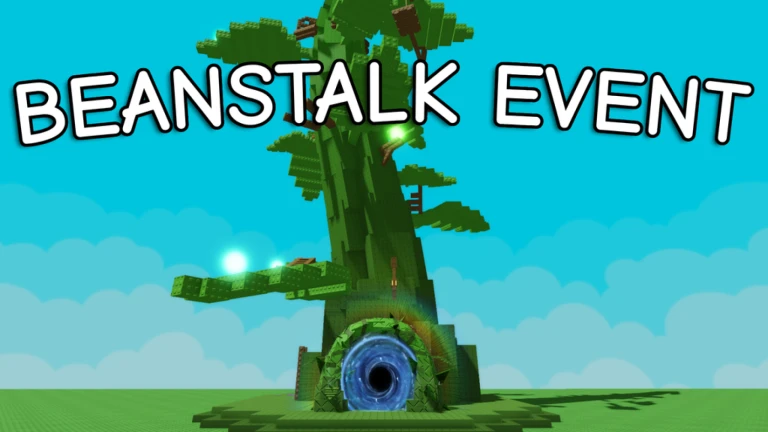
    Grow a Garden Beanstalk Event hero image – Update 1.19.0
    Important Post
    All about the Beanstalk Event (Update 1.19.0)

    Beanstalk Event – Grow a Garden (Update 1.19.0)

    Every hour, servers feed a magical Beanstalk to reach the Giants in the sky—then shop at Goliath’s Goods for exclusive seeds, eggs, and cosmetics. Below is the full guide to growth rules, categories Jack requests, restock math, shop stock, items, pets, and FAQs.

    Overview

    Dates: August 16–23, 2025 • Event Currency: Sheckles

    The Beanstalk Event is part of Update 1.19.0 for Grow a Garden. Every hour the server converts submitted fruit into fertilizer to grow a massive Beanstalk toward the Giants. Reach the top to access the Goliath’s Goods shop for unique rewards.

    Mechanics

    Beanstalk Growth

    • Submit plants matching Jack’s requested category to contribute fertilizer and grow the Beanstalk.
    • Requests rotate hourly; categories include Berry, Candy, Flower, Fruit, Fungus, Leafy, Night, Prehistoric, Prickly, Sour, Spicy, Stalky, Summer, Sweet, Toxic, Tropical, Vegetable, Woody, and Zen.
    • More total weight = faster progress; coordinate with your server for peak growth.

    Goliath’s Goods

    • Unlocks at the top of the fully grown Beanstalk.
    • Restock: auto every 60 minutes.
    • Manual restock: starts at 500,000 Sheckles and doubles each purchase (500,000 × 2^n), resets daily at 12:00 AM UTC.

    Jack’s Requested Categories

    Tip: dump extras from farms you don’t need—heavy stacks push the Beanstalk fastest. Below lists everything Jack can ask for.

    Berry

    BlueberryCelestiberryCranberryElder StrawberryGrapeLingonberryRaspberryStrawberryWhite Mulberry

    Candy

    Blue LollipopCandy BlossomCandy SunflowerEaster EggRed LollipopSugarglaze

    Flower

    Bee BalmBurning BudCandy BlossomCandy SunflowerCherry BlossomCrocusDaffodilDelphiniumEmber LilyEnkakuFirework FlowerFoxgloveGrand VolcaniaHinomaiHoneysuckleLavenderLiberty LilyLilacLily Of The ValleyLotusManuka FlowerMonobloomaMoon BlossomMoonflowerNightshadeNoble FlowerOrange TulipParasol FlowerPink LilyPink TulipPurple DahliaRafflesiaRoseRosy DelightSerenitySoft SunshineStonebiteSucculentSunflowerTaro FlowerVeinpetalZenflare

    Fruit

    AppleAvocadoBananaBlood BananaBlueberryCelestiberryCoconutCranberryCrown MelonDragon FruitDurianGrand TomatoGrapeGreen AppleHive FruitKiwiLemonLimeLingonberryLoquatMangoMaple AppleMoon MangoMoon MelonNectarinePapayaPassionfruitPeachPearPineappleRaspberryStarfruitStrawberrySugar AppleTraveler’s FruitWatermelonWhite Mulberry

    Fungus

    GlowshroomHorned DinoshroomMega MushroomMushroomNectarshadeSinisterdrip

    Leafy

    Aloe VeraAppleBeanstalkBee BalmBlood BananaBlueberryCacaoCantaloupeCauliflowerCelestiberryCocovineCranberryEggplantElephant EarsFirefly FernFoxgloveGiant PineconeGrand TomatoGrapeGreen AppleHive FruitHoneysuckleLilacLily Of The ValleyLumiraMangoMaple AppleMintMoon BlossomMoon MangoMoonflowerNectarineNoble FlowerParasol FlowerPeachPineapplePink LilyPitcher PlantPumpkinPurple DahliaRafflesiaRaspberryRoseRosy DelightSpiked MangoStarfruitStrawberrySugar AppleSunflowerTomatoTraveler’s FruitTwisted TangleWatermelon

    Night

    Blood BananaCelestiberryGlowshroomMintMoon BlossomMoon MangoMoon MelonMoonflowerNightshadeStarfruit

    Prehistoric

    Amber SpineBone BlossomBonebooFirefly FernFossilightGrand VolcaniaHorned DinoshroomHorsetailLingonberryParadise PetalStonebite

    Prickly

    Aloe VeraCactusCelestiberryDragon FruitDurianHorned DinoshroomNectar ThornPineapplePricklefruitPrickly PearSpiked MangoTwisted TangleVenus Fly Trap

    Sour

    CranberryLemonLimePassionfruitStarfruit

    Spicy

    Bell PepperCacaoCursed FruitDragon PepperEmber LilyGrand VolcaniaHorned DinoshroomJalapenoPapayaPepper

    Stalky

    BambooBeanstalkBendbooBonebooBurning BudCocovineDandelionElephant EarsFirefly FernGrand VolcaniaHorned DinoshroomLily Of The ValleyLotusLucky BambooMushroomPitcher PlantSpring OnionStonebiteSugarglazeTall AsparagusVeinpetal

    Summer

    Aloe VeraAvocadoBananaBell PepperBlueberryButternut SquashCantaloupeCarrotCauliflowerDelphiniumElephant EarsFeijoaGreen AppleGuanabanaKiwiLily Of The ValleyLoquatParasol FlowerPeace LilyPearPineapplePitcher PlantPrickly PearRafflesiaRosy DelightStrawberrySugar AppleTomatoTraveler’s FruitWatermelonWild Carrot

    Sweet

    BananaBlue LollipopBlueberryCandy BlossomCandy SunflowerChocolate CarrotCrown MelonEaster EggGrapeMangoMoon MelonNectar ThornPeachPearPineappleRaspberryRed LollipopSpiked MangoStarfruitStrawberrySugar AppleSugarglazeWatermelon

    Toxic

    FoxgloveNightshade

    Tropical

    BananaCoconutCocovineDragon FruitDurianMangoPapayaParasol FlowerPassionfruitPineappleStarfruitWatermelon

    Vegetable

    AvocadoBeanstalkBell PepperCarrotCauliflowerChocolate CarrotCornDragon PepperEggplantGrand TomatoJalapenoKing CabbageMintOnionPepperPumpkinPurple CabbageRhubarbTall AsparagusTaro FlowerTomatoViolet CornWild Carrot

    Woody

    AppleAvocadoCacaoCoconutCocovineDurianFeijoaGiant PineconeHive FruitKiwiMangoMaple AppleMoon BlossomMoon MangoNectarinePapayaPeachPearRhubarbTraveler’s Fruit

    Zen

    DezenEnkakuHinomaiLucky BambooMaple AppleMonobloomaSakura BushSerenitySoft SunshineSpiked MangoTaro FlowerTranquil BloomZen RocksZenflare

    Goliath’s Goods — Stock & Requirements

    Item Image Sheckles Robux Requirement
    Sprout Seed Pack Sprout Seed Pack - Beanstalk Event Unknown 199 None
    Sprout Egg Sprout Egg - Beanstalk Event Unknown 149 Help grow the Beanstalk 2×
    Mandrake Seed Mandrake Seed - Beanstalk Event Unknown Unknown Help grow the Beanstalk 2×
    Sprout Crate Sprout Crate - Beanstalk Event Unknown Unknown Help grow the Beanstalk 3×
    Silver Fertilizer Silver Fertilizer - Beanstalk Event Unknown 129 Help grow the Beanstalk 4×
    Canary Melon Seed Canary Melon Seed - Beanstalk Event Unknown Unknown Help grow the Beanstalk 5×
    Spriggan (Pet) Spriggan Pet - Beanstalk Event Unknown Unknown Help grow the Beanstalk 6×

    Manual restock doubles each time you buy it, then resets daily at 00:00 UTC.

    Event Items & Rewards

    Event Seeds & Plants

    Canary Melon SeedMandrake SeedAmberheart SeedFlare Daisy SeedDuskpuff SeedMangosteen SeedPoseidon Plant SeedGleamroot SeedPrincess Thorn Seed

    Event Items & Cosmetics

    Sprout Seed PackExotic Sprout Seed PackSprout EggSprout CratePet PouchSilver Fertilizer

    Event Pets

    Dairy CowJackalopeSaplingGolemGolden GooseSpriggan

    Trivia

    • First event centered around a specific crop: Beanstalk.
    • Originally planned before the Cooking Event but arrived after due to a community poll.

    FAQ

    How often does Goliath’s Goods restock?

    Automatically every 60 minutes. Manual restock starts at 500,000 Sheckles and doubles after each purchase; it resets daily at 12:00 AM UTC.

    How do I help the Beanstalk grow?

    Submit plants matching Jack’s current category. He rotates requests hourly. Heavier contributions push progress faster.

    Where can I get instant stock alerts?

    Join the Grow a Garden stock notifier Discord for pings and predictive restock timing.

    Related: Check the previous Cooking Event – All Recipes & Rewards.


  • Grow a Garden Stock Notifier (Discord) – Predictive Restock Pings

    Grow a Garden Stock Notifier (Discord) – Predictive Restock Pings


    Grow a Garden Stock Notifier (Discord) – Predictive Restock Pings


    Grow a Garden

    Predictive Stock Notifier (Discord)

    Plants refresh every 5 minutes. Eggs refresh every 30 minutes. Stop guessing—get pinged right when it flips back in stock.


    Join the notifier – be first in line

    This server predicts the next restock window and fires role-based alerts the moment items come back.


    Join the Discord


    https://discord.gg/growagardens

    Next plant refresh (every 5 min)

    Next egg refresh (every 30 min)

    Why this notifier is OP

    • Prediction + Ping: be there early instead of reacting late.
    • Role-based alerts: opt into exactly what you care about (eggs, specific plants, seeds, etc.).
    • Noise-free: clean channel alerts; DMs optional.
    • Free to join: hop in, grab your roles, camp the refresh.

    FAQ

    How often are refreshes? Plants: every 5 minutes. Eggs: every 30 minutes.

    Is this official? No—community tool. Not affiliated with Roblox or Grow a Garden.

    Do I need Discord open? Notifications work on desktop/mobile; channel history shows recent flips.

    Not affiliated with Roblox or Grow a Garden. Timers are estimates; actual server timing may vary slightly.

    © 2025 RobloxTutorial • Built by SargantZafron