Author: tallent.jude

  • Roblox Tutorials Blog – SargantZafron

    Roblox Tutorials Blog – SargantZafron


    Roblox Tutorials Blog – SargantZafron


    All Roblox Tutorials

    Roblox tutorial: UGPhone Cloud Gaming Guide

    UGPhone Cloud Gaming Guide

    Complete guide to cloud gaming with UGPhone – play mobile games without high-end hardware!

    Read More

    Roblox tutorial: How to Macro in Fisch

    How to Macro in Fisch

    Step-by-step guides on macro automation for the Roblox game Fisch using safe and efficient methods.

    Read More

    Roblox tutorial: How to AFK Grind Bones in Blox Fruits

    How to AFK Grind Bones in Blox Fruits

    Use macros and basic setups to AFK farm Bones efficiently in the Roblox game Blox Fruits.

    Read More

    Roblox tutorial: New Gem Method in Arise Crossover

    New Gem Method in Arise Crossover

    The most efficient gem farming method currently available in Arise Crossover.

    Read More

    Roblox tutorial: How to Join Old Servers in Grow a Garden

    How to Join Old Servers in Grow a Garden

    Discover restocked seed shops and less competition by hopping into older Grow a Garden servers.

    Read More

    Roblox tutorial: Best Bloxstrap Fast Flags Settings

    Best Bloxstrap Fast Flags Settings

    Optimize your Roblox performance with the top Bloxstrap fast flag configurations for smoother gameplay.

    Read More

    Roblox tutorial: How to Get Dark Textures in Rivals on Roblox

    How to Get Dark Textures in Rivals on Roblox

    Customize Rivals with dark textures using Bloxstrap for a sleek, low-eye-strain gaming experience.

    Read More

    Roblox tutorial: Error 500 on Roblox – How to Fix

    Error 500 on Roblox: How to Fix

    Troubleshoot the Internal Server Error 500 on Roblox with cache clears, DNS flushes, and browser tweaks.

    Read More

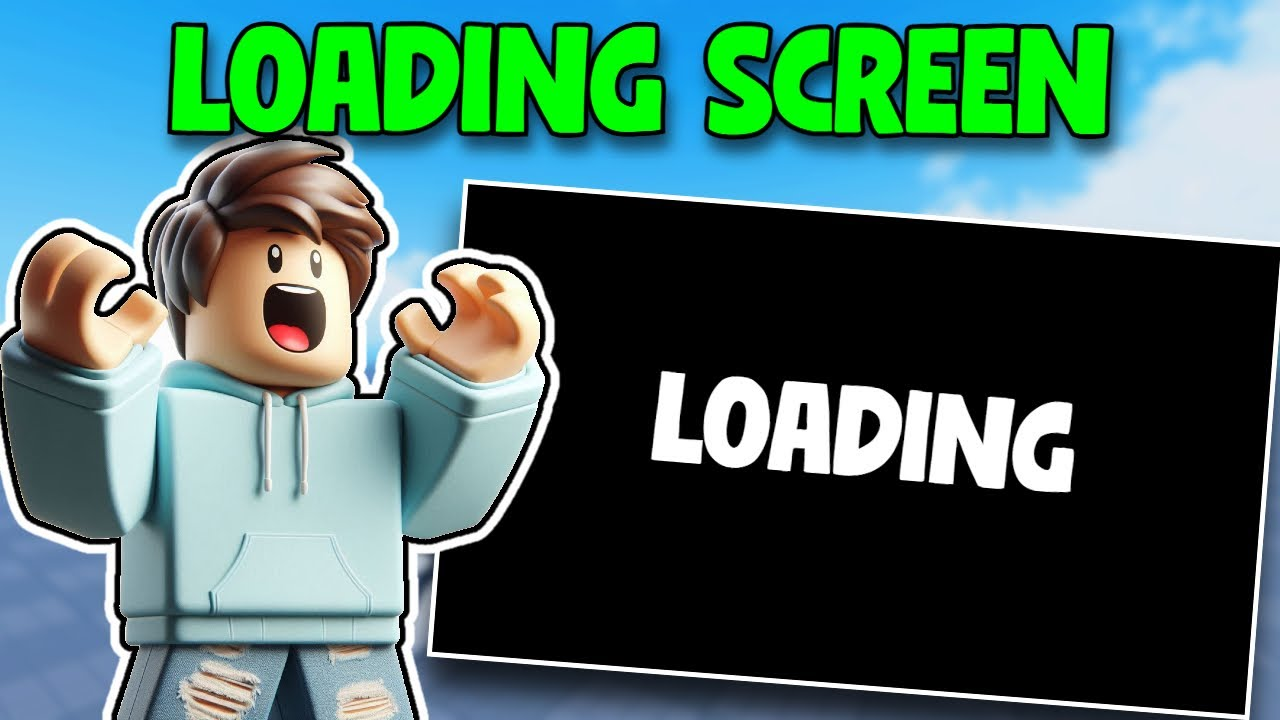
    Roblox tutorial: How to Make a Loading Screen in Roblox Studio

    How to Make a Loading Screen in Roblox Studio

    Learn how to create a custom loading screen GUI in Roblox Studio with just a Frame, TextLabel, and script.

    Read More

    Roblox tutorial: How to Appear Offline on Roblox

    How to Appear Offline on Roblox

    Hide your online status by adjusting your Roblox privacy settings so you always appear offline.

    Read More


  • How to Fix lag in Roblox Rivals

    How to Fix lag in Roblox Rivals


    How to Fix Lag on Roblox Rivals – Boost FPS & Eliminate Stutter


    How to Fix Lag on Roblox Rivals

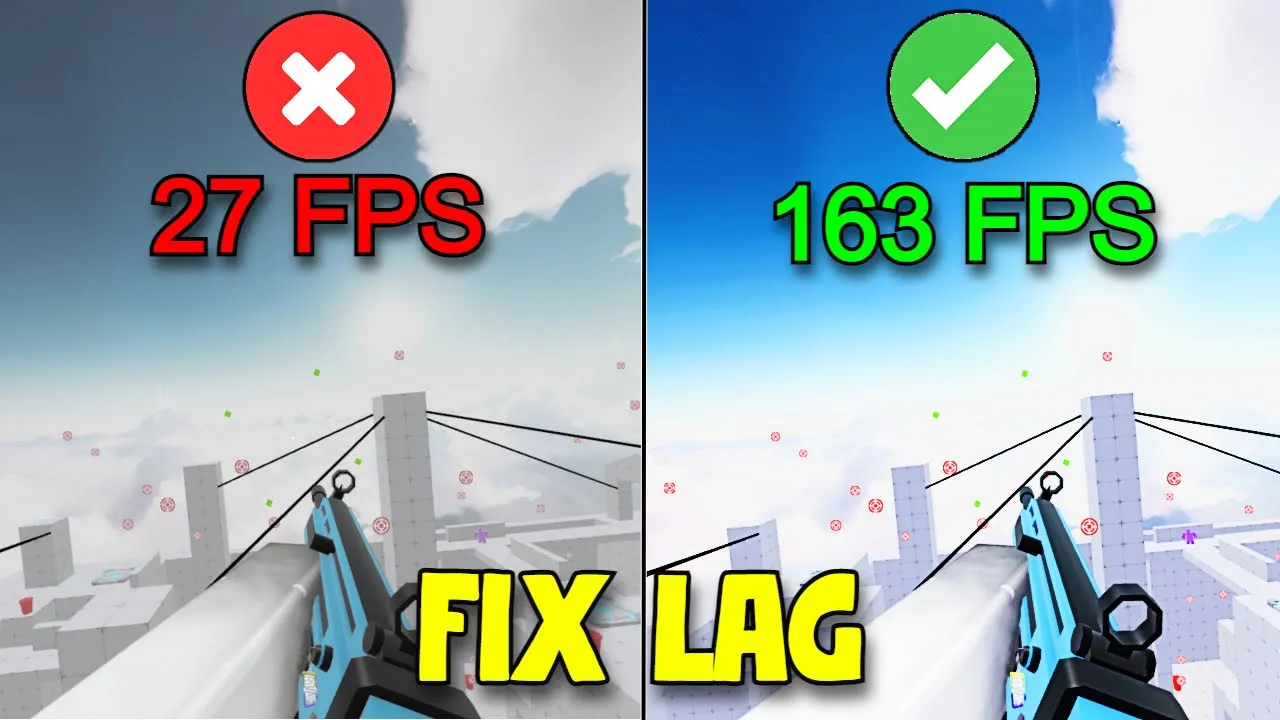
    Fix lag on Roblox Rivals and unlock smooth frame rates even during peak crowds. Below you’ll find both in-game tweaks and Windows optimizations to boost your FPS and eliminate stutter.


    In-Game Settings to Boost FPS

    1. Disable Shadows

    In the Rivals lobby or in-game menu click Settings → Graphics and turn off Shadows. Removing dynamic shadows reduces CPU/GPU load.

    2. Disable Textures

    Under the same Graphics panel, disable Textures. This replaces detailed assets with flat colors, cutting memory usage and draw calls.

    3. Cap Your Frame Rate

    Rivals includes an FPS unlocker. In Settings → Performance, set Max Frame Rate to 60 or 120. Higher caps add load—stick to 60 FPS for consistent smoothness.

    4. Adjust Graphics Mode

    Switch Graphics Mode to Manual and slide quality down for Microscopic or Low. Or select Automatic to let Roblox optimize for your hardware.

    Windows Optimizations

    5. Clear the Prefetch Folder

    1. Press Win + R, type prefetch, and hit Enter.
    2. Click Continue to grant access.
    3. Select all files (Ctrl + A) and delete them to clear old app data.

    6. Empty the Recycling Bin

    Open your Recycle Bin and choose Empty Recycle Bin. Confirm permanent deletion—this frees gigabytes of temporary data that can slow your PC.

    Tips for Stable Gameplay

    • Make sure your GPU drivers are up to date.
    • Close background apps (Discord, browsers) before playing.
    • Use an Ethernet connection instead of Wi-Fi for lower ping.

    Conclusion

    By combining in-game graphics tweaks with Windows clean-ups, you can fix lag on Roblox Rivals and enjoy competitive matches at high frame rates. Try each step until your gameplay feels butter-smooth.

    Need More Roblox Tips?

    Join our Discord for live help, guides, and community support!

    Join Discord


  • How to Appear Offline on Roblox

    How to Appear Offline on Roblox


    How to Appear Offline on Roblox – Privacy Settings Guide


    How to Appear Offline on Roblox

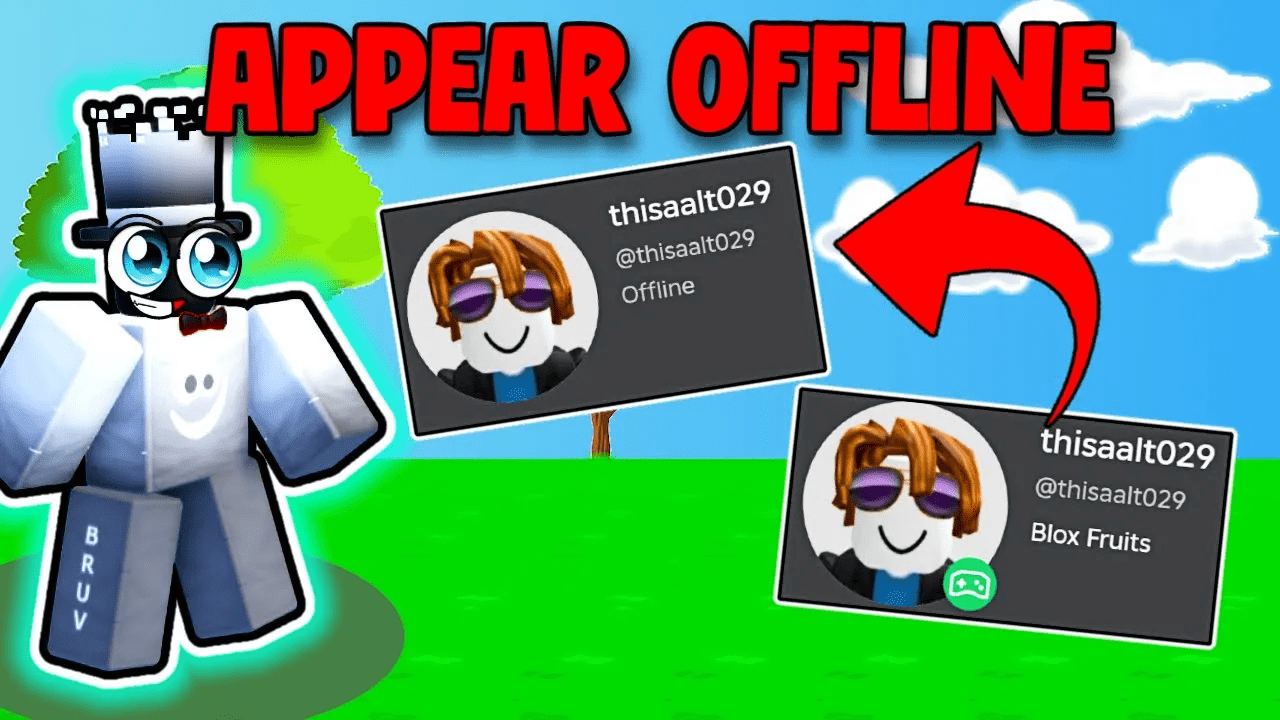
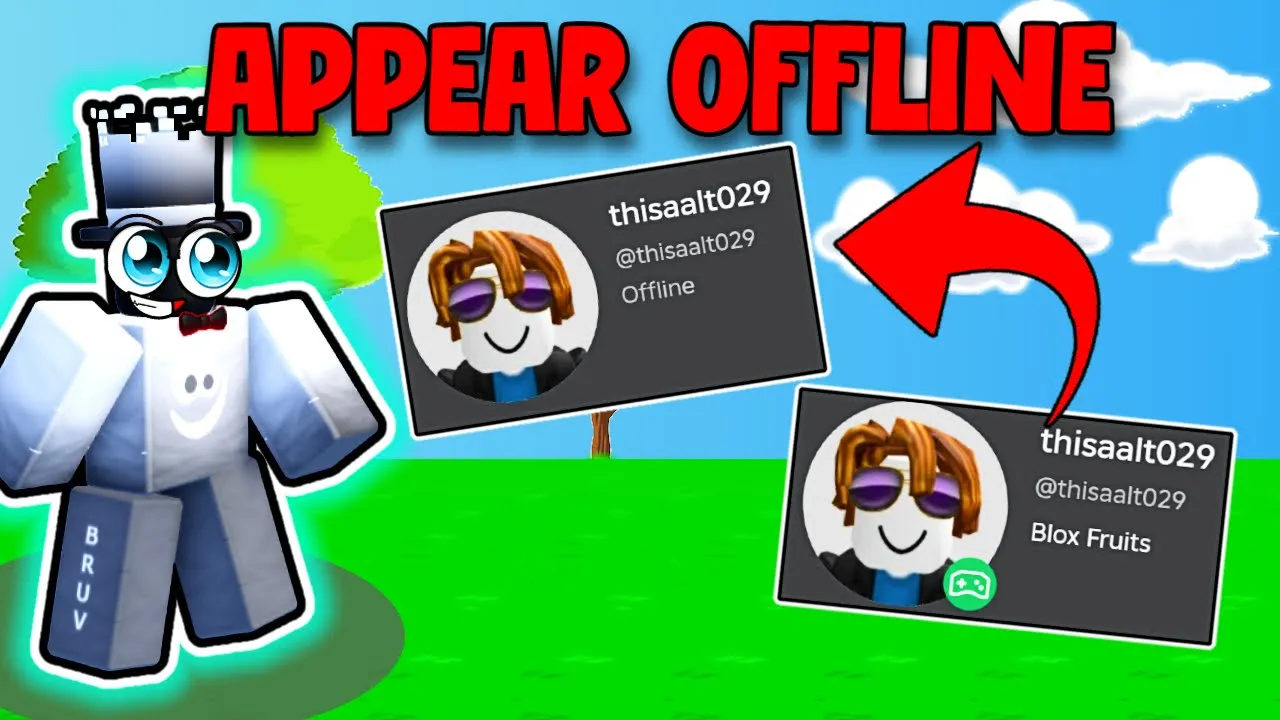
    Want to play Roblox without friends seeing you online? By tweaking a few Privacy settings, you can appear offline on Roblox and keep your activity hidden. Follow these simple steps to disable messaging, chat, and activity updates so your status always reads “Offline.”


    Roblox avatar with status panels showing online vs offline to demonstrate appearing offline
    Set your Roblox Privacy options so friends always see you as offline, even when you’re in a game.

    Step-by-Step: Privacy Settings to Appear Offline

    1. Open Settings: In Roblox, click the gear icon (⚙️) then select Settings.
    2. Go to Privacy: In the left menu, click Privacy.
    3. Who can message me? Set to No one.
    4. Who can chat with me? Set all chat options to No one.
    5. Who can see my status? Turn Update friends about my activity to Off.

    Why It Works

    By disabling communication and activity updates, Roblox won’t broadcast your presence to friends or followers. Your profile will always show Offline, giving you privacy while you play.

    FAQs

    • Will I still receive messages? No—messages are blocked when set to “No one.”
    • Can friends see my username? Yes, but they cannot see your online status or activity.
    • Does this affect group chat? All chat and messaging options are disabled.

    Need More Roblox Tips?

    Join our Discord for live help, scripts, and custom tutorials!

    Join Discord


  • How to Make a Loading Screen in Roblox Studio

    How to Make a Loading Screen in Roblox Studio


    How to Make a Loading Screen in Roblox Studio – Simple GUI Script


    How to Make a Loading Screen in Roblox Studio

    Adding a loading screen enhances the player experience by covering the UI while your game loads. In this tutorial, you’ll learn how to create a full-screen loading GUI, display a “Loading…” label, and hide it automatically via a simple LocalScript.

    Step 1: Insert the ScreenGui & Frame

    1. Open your place in Roblox Studio.
    2. Right-click StarterGuiInsert ObjectScreenGui. Rename it LoadingGUI.
    3. Inside LoadingGUI, insert a Frame.
    4. Set the Frame’s Size to {1,0},{1,0} so it covers the whole screen.
    5. Choose any BackgroundColor (e.g. a dark blue).

    Step 2: Add a “Loading…” TextLabel

    1. Inside the Frame, insert a TextLabel.
    2. Rename it LoadingLabel.
    3. Set its Text to Loading....
    4. Adjust Size to {0.2,0},{0.1,0} and Position to {0.4,0},{0.45,0} to center it.
    5. Pick a font and text color that stands out on your background.

    Step 3: Insert the LocalScript

    1. Click the Frame, then Insert ObjectLocalScript.
    2. Paste the following code into the script:
    local loadingFrame = script.Parent
    local player = game.Players.LocalPlayer
    
    -- Show loading screen on join
    loadingFrame.Visible = true
    
    -- Simulate loading, then hide
    local function simulateLoading()
        wait(3)  -- change delay as needed
        loadingFrame.Visible = false
    end
    
    simulateLoading()

    Step 4: Test Your Loading Screen

    Click Play in Studio. You should see the Frame with “Loading…” appear for 3 seconds, then disappear, revealing your main menu or game behind it.

    Tips & Customization

    • Adjust the wait(3) delay to match your game’s actual load time.
    • Add a UIGradient or animated spinner for a polished look.
    • Use ReplicatedStorage events to hide the loading GUI only once all assets are ready.

    © 2024 Cocajola · All rights reserved.
    Home
    Blog


  • How to Fix Roblox Error 500 on Roblox


    Error 500 on Roblox: How to Fix Internal Server Error


    Error 500 on Roblox: How to Fix Internal Server Error

    If you’re seeing Error 500 on Roblox—the dreaded “Unexpected Error Occurred” message—it means the server encountered an issue. Though this is a server-side problem, you can often resolve or mitigate it with a few simple steps.


    What Causes Error 500 on Roblox?

    Error 500 indicates a problem on Roblox’s end (server overload, maintenance, or corrupted requests). Common triggers include:

    • High server load during peak hours
    • Back-end maintenance or updates
    • Corrupted browser cache or cookies
    • Firewall or security software blocking requests
    • Browser compatibility issues

    How to Fix Error 500 on Roblox

    1. Check Roblox Server Status

    Visit status.roblox.com or DownDetector to see if Roblox servers are down. If they are, you’ll need to wait.

    2. Clear Browser Cache & Cookies

    1. Open your browser’s settings → Privacy & Security.
    2. Select “Clear browsing data,” including cache and cookies.
    3. Restart the browser and reload Roblox.

    3. Try a Different Browser

    Switch to Chrome, Firefox, or Edge to rule out browser-specific issues.

    4. Disable Browser Extensions

    Temporarily disable ad-blockers, VPN extensions, or other add-ons that might interfere. Then reload Roblox.

    5. Flush Your DNS Cache

    ipconfig /flushdns

    Open Command Prompt (Win+R → cmd), run the command above, then restart your browser.

    6. Use a VPN or Change DNS

    A VPN like ProtonVPN or switching to Google DNS (8.8.8.8) or Cloudflare (1.1.1.1) can bypass ISP throttling.

    7. Update Browser & System

    Ensure your browser and operating system are up to date to avoid compatibility issues.

    8. Reinstall Roblox

    1. Uninstall Roblox from your device.
    2. Download and reinstall from roblox.com.

    9. Contact Roblox Support

    If none of the above works, submit a ticket at Roblox Support.

    Preventing Future Error 500s

    • Regularly clear your cache and cookies.
    • Keep software up to date.
    • Use a stable, high-speed internet connection.
    • Check server status before playing during peak hours.

    FAQs

    • What is Error 500? A server-side “Internal Server Error” on Roblox’s end.
    • Can I fix it myself? You can mitigate it by clearing cache, switching browsers, and flushing DNS.
    • Is it common? Yes—it happens during high traffic or maintenance.
    • Should I contact support? If it persists after troubleshooting, yes.

    Conclusion

    While Error 500 on Roblox is usually a temporary server issue, these steps will help you clear out local problems and get back to gaming as quickly as possible.

    Join Our Discord for More Roblox Tips!

    Need real-time help or have other Roblox errors? Join our Discord community for instant support and guides.

    Join Discord


  • How to Get Dark Textures in Rivals on Roblox


    How to Get Dark Textures in Rivals on Roblox – Bloxstrap Customization Guide


    How to Get Dark Textures in Rivals on Roblox

    Roblox’s Rivals lets you race and battle in bright, colorful arenas—but sometimes you want a darker, sleeker aesthetic. By using Bloxstrap, you can easily load custom dark textures into Rivals on Roblox. In this guide, you’ll learn how to get dark textures in Rivals on Roblox: from installing Bloxstrap and backing up originals to downloading a texture pack and applying it in seconds.

    What Is Bloxstrap?

    Bloxstrap is a third-party utility for Roblox that unlocks advanced customization options. Aside from performance tweaks, it allows you to load your own textures—perfect for swapping in dark textures for Rivals or any other game.

    Get the latest Bloxstrap release here: GitHub → Bloxstrap.

    Why Use Dark Textures in Rivals?

    • Sleek Aesthetic: Give Rivals a modern, moody look.
    • Improved Visibility: Dark backgrounds reduce glare and help you spot opponents faster.
    • Lower Eye Strain: Easier on your eyes during long gaming sessions—especially at night.

    Step 1: Download & Install Bloxstrap

    1. Visit the official Bloxstrap GitHub page.
    2. Download the installer for your OS.
    3. Run the installer and follow the prompts.

    Step 2: Locate Your Roblox Textures Folder

    After installing Bloxstrap, find Roblox’s default textures folder. On Windows it’s usually:

    C:\Users\[Your Username]\AppData\Local\Roblox\Versions\[Latest Version]\PlatformContent\PC\Textures

    Step 3: Download Dark Texture Pack

    We’ve prepared a basic Dark Texture Pack for Rivals. Download and unzip it to a folder you’ll remember.

    Step 4: Back Up Original Textures

    1. Copy the entire “Textures” folder.
    2. Paste it somewhere safe (e.g., “Roblox_Textures_Backup”).

    Step 5: Apply Dark Textures

    1. Open your unzipped dark texture folder.
    2. Copy all PNG files inside.
    3. Navigate back to Roblox’s Textures folder.
    4. Paste and Replace the original files.

    Next time you launch Rivals, the dark textures will be loaded automatically.

    Where to Store Custom Textures

    Keep your texture packs organized:

    • Cloud: Google Drive or Dropbox for easy access.
    • Local: Create folders like “Dark Textures – Rivals” on your drive.

    Additional Bloxstrap Tweaks

    • Launch Options: Set window size or resolution.
    • FPS Unlocker: Remove Roblox’s 60 FPS cap for ultra-smooth gameplay.
    • Disable Updates: Prevent automatic Roblox updates from overwriting textures.

    FAQs

    • How do I revert to default textures? Copy your backup folder’s files back into Roblox’s Textures directory.
    • Is Bloxstrap safe? Yes—download only from the official GitHub to avoid risks.
    • Can I use dark textures in other games? Absolutely. Once replaced, all Roblox games will load your custom textures.
    • Do dark textures affect performance? No—small PNG files won’t slow your game. Keep them optimized.

    Conclusion

    Now you know exactly how to get dark textures in Rivals on Roblox using Bloxstrap. With a sleek new look and reduced eye strain, your next Rivals match will feel fresher and more immersive. Experiment with different packs to find the perfect style!

    Join Our Discord for More Roblox Mods

    Want help or want to share your custom textures? Hop into our Discord community for support, tips, and texture swaps!

    Join Discord


  • Best Bloxstrap Fast Flags – Optimize Roblox Performance

    Best Bloxstrap Fast Flags – Optimize Roblox Performance


    Best Bloxstrap Fast Flags – Optimize Roblox Performance


    Best Bloxstrap Fast Flags Settings

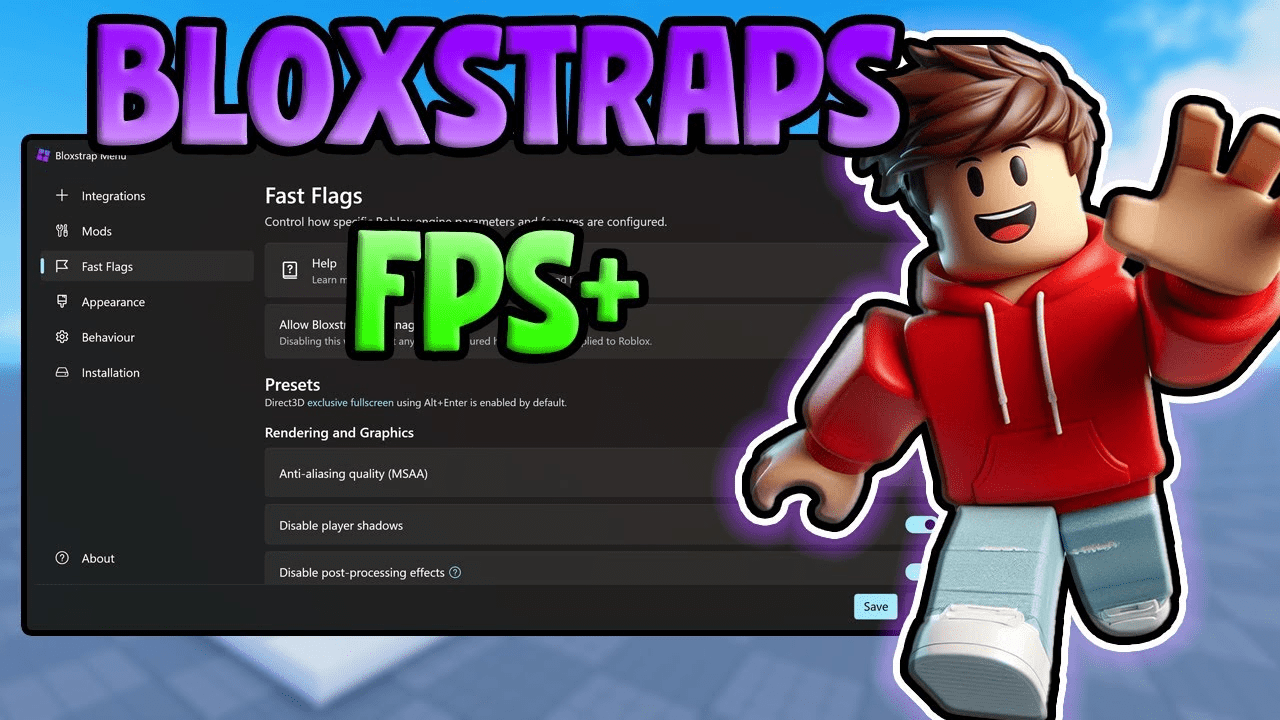
    Roblox performance can suffer from lag or stutters. Bloxstrap fast flags let you tweak internal Roblox settings for a smoother, faster experience. In this guide you’ll learn what fast flags are, how to set up Bloxstrap, and which JSON flags deliver the best results.


    What Is Bloxstrap?

    Bloxstrap is a utility that unlocks advanced Roblox configuration options. It enables:

    • Performance Tweaks: Improve FPS and reduce stutter.
    • Graphical Enhancements: Fine-tune visuals beyond the default client.
    • Easy Interface: Edit flags without manually changing files.

    Download the latest release from GitHub.

    Installing & Launching Bloxstrap

    1. Download and run the Bloxstrap installer.
    2. Follow on-screen prompts.
    3. Open Bloxstrap from your Start Menu (Windows) or Applications (macOS).

    Understanding Fast Flags

    Fast flags are JSON keys that control internal Roblox engine behaviors—networking, rendering, telemetry, and more. Tuning them can dramatically boost load times, ping, and frame rate.

    Best Fast Flags Settings

    {
      "FLogNetwork": "7",
      "FFlagTweenOptimizations": "True",
      "FFlagFixGraphicsQuality": "True",
      "FFlagEnableTerrainOptimizations": "True",
      "DFIntTaskSchedulerTargetFps": "999999",
      "DFFlagDisableDPIScale": "True",
      "FFlagOptimizeNetwork": "True",
      "DFIntServerTickRate": "60",
      "DFIntConnectionMTUSize": 900,
      "DFIntNetworkPrediction": "120"
    }

    Ping Optimization Flags

    {
      "FIntRakNetResendBufferArrayLength": "128",
      "FFlagOptimizeNetworkRouting": "True",
      "DFIntOptimizePingThreshold": "50",
      "DFIntPlayerNetworkUpdateRate": "60"
    }

    Implementing & Testing

    1. Open Bloxstrap ➔ Settings ➔ Fast Flags.
    2. Paste JSON blocks above.
    3. Save and close Bloxstrap.
    4. Restart Roblox and test performance.

    Troubleshooting & Tips

    • Game Crashes? Verify JSON syntax and disable one flag at a time.
    • Visual Glitches? Reset flags to default, then reapply selectively.
    • Lag persists? Update Bloxstrap, experiment with fewer flags.

    FAQs

    • What is Bloxstrap? A tool for advanced Roblox config, including fast flags.
    • Where do I edit flags? In Bloxstrap’s Settings ➔ Fast Flags panel.
    • Do these work on Mac? Yes, if Bloxstrap supports your OS.

    Conclusion

    Tuning your bloxstrap fast flags can transform Roblox—smoother FPS, less lag, faster loads. Apply these settings today for peak performance!

    Join Our Discord for More Optimization Tips

    Get live help and custom flag recommendations—join our Discord community now!

    Join Discord


  • How to Join Old Servers in Grow a Garden

    How to Join Old Servers in Grow a Garden


    How to Join Old Servers in Grow a Garden – Roblox Tips & RoPro Guide


    How to Join Old Servers in Grow a Garden

    Grow a Garden old servers showing restocked Chocolate Sprinkler and Candy Blossom in Roblox.

    Learning how to join old servers in Grow a Garden is a game-changer for serious Roblox farmers. Old servers often feature restocked seed shops, rare items, and less competition. In this guide you’ll discover exactly how to join those aging servers using the RoPro Chrome Extension and other pro tips.

    Why Old Servers Matter

    • Restocked Shops: Rare seeds like Candy Blossom reappear.
    • Lower Competition: Fewer players fighting for plots.
    • Smoother Gameplay: Less lag on smaller servers.
    • Seed Duplication: Glitches or event leftovers may remain.

    Install & Set Up RoPro

    1. Go to the RoPro Chrome Web Store page.
    2. Click “Add to Chrome” and confirm “Add Extension.”
    3. Sign into your Roblox account in Chrome.
    4. Open the Grow a Garden game page and scroll to the server list.

    RoPro will immediately add server-sorting filters for player count and uptime.


    How to Use RoPro to Find Old Servers

    1. On the Grow a Garden page, scroll to “Servers.”
    2. Use RoPro filters to show the fewest players.
    3. Sort by server uptime to spot the oldest instances.
    4. Fast-scroll through pages to find hidden gems.

    Click any server with low population or long uptime to join instantly.

    Best Practices & Troubleshooting

    Issue Fix
    Filters not visible Refresh the page or re-login to Roblox
    Server won’t load Choose a different instance
    Extension vanishes Re-enable RoPro in Chrome settings

    Related Guides

    Join My Discord for More Grow a Garden Tips!

    Need help finding servers or mastering trades? Hop into our Discord for exclusive guides, server spots, and community support.

    Join Discord


  • How to Join 50 Player Servers in Grow a Garden


    Grow a Garden 50 Player Server – How to Join, Trade, and Earn Big in Roblox


    Grow a Garden 50 Player Server – How to Join, Trade, and Earn Big in Roblox

    Want to supercharge your trading in Grow a Garden? Learn how to join the special Grow a Garden 50 player server and take your Roblox gameplay to the next level.

    Direct Link to Join the 50 Player Server

    Skip the digging around—just click this link to jump right into the staging game:

    👉 Join the Grow a Garden Staging Game (50 Player Server)

    Once on the page:

    • Scroll to the Servers section.
    • Look for one labeled 50/50 players.
    • Click Join and start trading instantly!

    Why Join the Grow a Garden 50 Player Server?

    More Players = More Trade Opportunities

    With 50 people in the same server, you’re bound to find players who have what you need—and want what you have.

    Friend Boosts Stack Fast

    Grow a Garden gives you +10% earnings per friend in your server. In a 50-player setup, that adds up quickly!

    Number of Friends Bonus
    1 Friend +10%
    5 Friends +50%
    10+ Friends +100% or more (if stacking applies)

    More Fun Events and Gameplay Variety

    With more people comes more activity—daily events, giveaways, and spontaneous trades happen constantly in these servers.

    How to Invite Friends to the 50 Player Server

    Want to boost your earnings and have fun with your crew? Here’s how:

    • Send them the staging game link above.
    • Ask them to join the same server as you (watch the server list together).
    • Use Roblox’s “Join Game” button or share the server ID.

    Tips for Trading in 50 Player Servers

    • Be clear and honest about trade offers.
    • Use emotes or quick chat phrases to speed up deals.
    • Stick with trusted traders, especially in crowded lobbies.
    • Use your garden to show off your inventory—players notice!

    What to Avoid

    • Joining the regular game, expecting a 50-player server—it won’t work.
    • Ignoring server capacity—always double-check for 50 players.
    • Lag—lower your graphics settings if needed.

    Mobile vs PC: Which Works Best?

    Platform Experience in 50 Player Server
    PC Smooth, less lag, easy navigation
    Mobile Works fine, but may lag or load slower

    Tip: Use Wi-Fi and close background apps to improve mobile performance.

    What the Community Says

    Players in Reddit threads, YouTube comments, and Roblox forums love the staging game:

    “It’s the only place I found rare seeds consistently!”

    “My friend bonus hit 300% in one session… totally OP.”

    Some speculate the 50 player server will become a permanent feature in the future—so use it while it’s active!

    FAQs About the 50 Player Server

    • Is the 50 player server available in the main game? No, it’s only accessible through the staging game.
    • Can I trade the same way in the staging game? Yes! Trading is fully enabled.
    • Do friend boosts really stack? Many players report that boosts stack, though it may be capped at some point.
    • Is the staging game safe? Yes—it’s officially linked to the Grow a Garden Roblox game.
    • Will my progress in the staging game carry over? Yes, everything you earn or trade in the staging game stays on your account.
    • What’s the best time to join a full server? Peak hours (afternoon and evening) offer the best chance of finding full 50-player servers.

    🌼 Final Thoughts on Grow a Garden 50 Player Server

    If you’re serious about trading, stacking boosts, and accelerating your growth, joining a Grow a Garden trading server is the best move you can make. The staging game gives you fast access, the community gives you great trades, and your friends give you massive bonuses.

    So don’t wait—click the staging game link, invite your crew, and grow your way to the top!

    Join My Discord for Grow a Garden Help!

    Want to connect with other Grow a Garden fans or find big servers to join? Hop into my Discord community for tips, server links, and trades.

    Join Discord

  • Macros in Roblox – What They Are, How They Work, and Staying Safe


    Macros in Roblox – What They Are, How They Work, and Staying Safe


    What Are Macros?

    In Roblox, macros are simple scripts or tools designed to automate repetitive actions like clicking buttons, pressing keys, or moving the mouse. Many players use these tools to reduce the time spent on tedious tasks and to make gameplay smoother and more efficient.

    Why Use Automation in Roblox?

    Here’s why many players turn to Roblox automation tools:

    • Boost efficiency in grinding and farming resources.
    • Automate repeated actions to save time.
    • Keep progressing in games even while away from the computer.

    Are Macros Allowed?

    Using macros or Roblox automation tools can sometimes be a gray area. While certain games allow harmless automation, others strictly prohibit it in their Terms of Service. To avoid issues:

    • Read the game rules carefully.
    • Use only safe tools that simulate normal user input rather than exploits.
    • Avoid manipulating game code or memory directly.

    Tools to Try for Roblox Automation

    Macro tools for Roblox automation including TinyTask and Auto Clicker

    Popular tools that many Roblox players use safely include:

    • AutoHotkey: A scripting tool to create custom macros that mimic mouse or keyboard inputs.
    • TinyTask: A lightweight recorder and playback tool perfect for simple repeating actions. Download TinyTask
    • OP Auto Clicker: A highly configurable tool to automate rapid clicking tasks. Download OP Auto Clicker

    Explore More Guides

    If you’d like to explore specific guides for safe Roblox macros, check out these pages:

    Join the Community

    Want help setting up your macros safely? Join my Discord community for exclusive guides, support, and tips from other Roblox players.

    Join Discord