How to Make a Deathscreen in Roblox Studios (Copy-Paste Code)
TL;DR: In StarterPlayer > StarterPlayerScripts, add a LocalScript, paste the code below, and hit Play.
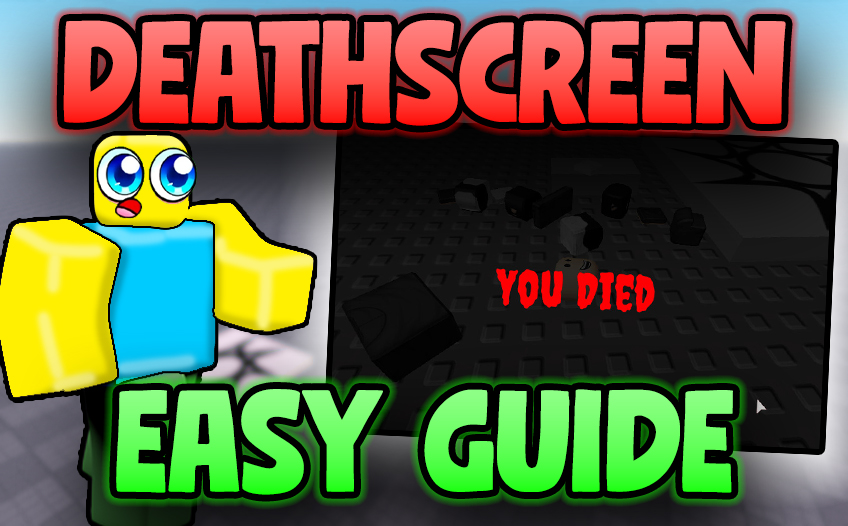
The overlay dims the screen so you can read the text, shows YOU DIED with tiny subtext directly underneath, and auto-cleans itself 5 seconds after you respawn.
Copy-paste Deathscreen LocalScript
This script listens for your Humanoid.Died event, creates a ScreenGui with a darker
transparent tint, renders a centered YOU DIED headline, then a very small, lighter subtext directly under it
(“man you suck”). After you respawn, it automatically removes itself after 5 seconds.
-- Death Screen LocalScript (StarterPlayerScripts)
local Players = game:GetService("Players")
local player = Players.LocalPlayer

local deathGui -- will hold the ScreenGui instance

local function showDeathScreen()
	-- Remove old one if it exists
	if deathGui then
		deathGui:Destroy()
		deathGui = nil
	end

	deathGui = Instance.new("ScreenGui")
	deathGui.Name = "DeathScreen"
	deathGui.ResetOnSpawn = false
	deathGui.IgnoreGuiInset = true
	deathGui.Parent = player:WaitForChild("PlayerGui")

	-- Background tint (darker, semi-transparent)
	local background = Instance.new("Frame")
	background.Size = UDim2.fromScale(1, 1)
	background.BackgroundColor3 = Color3.new(0, 0, 0)
	background.BackgroundTransparency = 0.3 -- darker tint, adjust between 0.3-0.5 to taste
	background.Parent = deathGui

	-- Main "YOU DIED" text
	local label = Instance.new("TextLabel")
	label.Size = UDim2.new(1, 0, 0.2, 0)
	label.Position = UDim2.fromScale(0, 0.35)
	label.BackgroundTransparency = 1
	label.Text = "YOU DIED"
	label.TextScaled = true
	label.Font = Enum.Font.GothamBold
	label.TextColor3 = Color3.new(1, 1, 1)
	label.Parent = background

	-- Small subtext directly under the main text
	local subLabel = Instance.new("TextLabel")
	subLabel.Size = UDim2.new(1, 0, 0.05, 0) -- much smaller height
	subLabel.Position = UDim2.new(0, 0, 0.53, 0) -- right below main text
	subLabel.BackgroundTransparency = 1
	subLabel.Text = "man you suck"
	subLabel.TextScaled = true
	subLabel.Font = Enum.Font.Gotham
	subLabel.TextColor3 = Color3.fromRGB(200, 200, 200)
	subLabel.Parent = background
end

local function hookHumanoid(humanoid)
	humanoid.Died:Connect(function()
		showDeathScreen()
	end)
end

local function onCharacterAdded(char)
	-- after respawn, remove death screen after 5 seconds
	if deathGui then
		task.delay(5, function()
			if deathGui then
				deathGui:Destroy()
				deathGui = nil
			end
		end)
	end

	local hum = char:FindFirstChildOfClass("Humanoid") or char:WaitForChild("Humanoid", 10)
	if hum then
		hookHumanoid(hum)
	end
end

if player.Character then onCharacterAdded(player.Character) end
player.CharacterAdded:Connect(onCharacterAdded)
Optional: quick “kill brick” to test
Drop a Part into the workspace and paste this tiny Script inside it. Touch it to trigger your deathscreen instantly.
-- Simple Kill Brick (Script inside a Part)
local part = script.Parent
part.Touched:Connect(function(hit)
  local hum = hit.Parent:FindFirstChildOfClass("Humanoid")
  if hum and hum.Health > 0 then
    hum.Health = 0
  end
end)
For more polish later, swap “man you suck” for a friendlier subtitle, add a respawn button, or fade the background in/out.
Steps: how to make a deathscreen in Roblox Studios
- Create a LocalScript: Explorer → StarterPlayer > StarterPlayerScripts → LocalScript.
- Paste the code: Use the blue Copy code button above and paste into the new LocalScript.
- Playtest: Press Play. When your character dies, the screen tints darker, shows YOU DIED with a very small subtext right under it, and cleans up 5s after respawn.
- Optional test part: Use the kill brick script to trigger death on touch.
Best practices
- Keep ResetOnSpawn = false so the GUI persists across the death/respawn boundary until your delayed cleanup runs.
- Use IgnoreGuiInset = true to cover the whole screen evenly.
- Balance readability with a BackgroundTransparency around 0.3–0.5.
- Hook Humanoid.Died every time a new character spawns (that’s what CharacterAdded is for).
FAQ & troubleshooting
No GUI appears? Make sure the script is a LocalScript inside StarterPlayerScripts (client context). Also confirm you’re in Play mode, not just editing.
Text is too small/large? This guide uses TextScaled = true so it auto-sizes. Adjust the Position and Size if you want the subtitle closer or farther.
Want 10 seconds instead of 5? Change the value in task.delay(5, …).
Need different fonts? Swap Enum.Font.GothamBold/Enum.Font.Gotham to your preferred fonts.
Further Reading
See community tips and examples on Reddit:
How to make a Roblox death screen (r/RobloxStudio_devs).
Comments
2 responses to “How to Make a Deathscreen in Roblox Studios (Copy-Paste Code)”
[…] How to Make a Deathscreen in Roblox Studios […]
[…] How to Make a Deathscreen in Roblox Studios […]